Create Jira issues from Findings
Create Jira issues manually from the Findings for one or more items. This enables you to create and assign workflow issues without relying on action policies or scan cycles. Endor Labs records them as On-demand notification in Notifications. If issue creation fails, you can also review the error details. See Notifications to learn more. Ensure that you have a Jira notification integration configured in Endor Labs to create issues in your Jira board. If a finding already has a Jira issue in the selected board that was created manually, you cannot create another one in that board. If the existing issue was created by an action policy, then you can create a new issue for that finding. When a finding is resolved in a subsequent scan, Endor Labs updates all linked Jira issues to your integration’s resolved state. That applies to manually created issues and to issues created through action policies.Create a Jira issue for a single finding
You can create a Jira issue for a single finding from the Findings view.- Select Findings from the left sidebar.
- In Table preferences, turn on the Integration - Jira column.
- Click Create JIRA ticket in the finding’s row.
- Select a Jira integration configured in your namespace. Ensure the integration is available in the same namespace as the findings.
- Click Create Issue.
Create Jira issues for multiple findings at once
You can create Jira issues for multiple findings from the Findings view.- Select Findings from the left sidebar.
- In Table preferences, turn on the Integration - Jira column.
- Search for and select the findings to create Jira issues for. You can select up to 10 findings at a time.
- Click the vertical three dots and select Add Jira Notifications.
- Select a Jira integration configured in your namespace. Ensure the integration is available in the same namespace as the findings.
- Click Create Issue.

Export findings
You can export finding details to a CSV file for offline analysis.- Select Projects from the left sidebar.
- Search for and select a project and select Findings.
- Search for findings using advanced or basic filters.
- Select the findings and click the vertical three dots.
- Choose Export Selected or Export All and select the fields that you want to include in the CSV file.
- Click Export to CSV to download the file.
Apply tags to findings
Tagging findings helps you organize, prioritize, and filter issues efficiently. You can tag findings in a finding policy or while running the endorctl scan.Using finding policies
You can define custom tags in a finding policy, which automatically apply to findings that match its conditions. See Finding policies for more information. To add custom tags:- Select Policies & Rules from the left sidebar.
- Follow the steps to create a finding policy. Ensure to add your choice of custom tags in Finding Custom Tags. You can also update an existing policy.
- Click Create Finding Policy.
Through the CLI
When scanning projects using endorctl, you can tag all the findings generated within the scan scope using the--finding-tags flag.
To scan and tag all findings of an endorctl scan:
View tagged findings
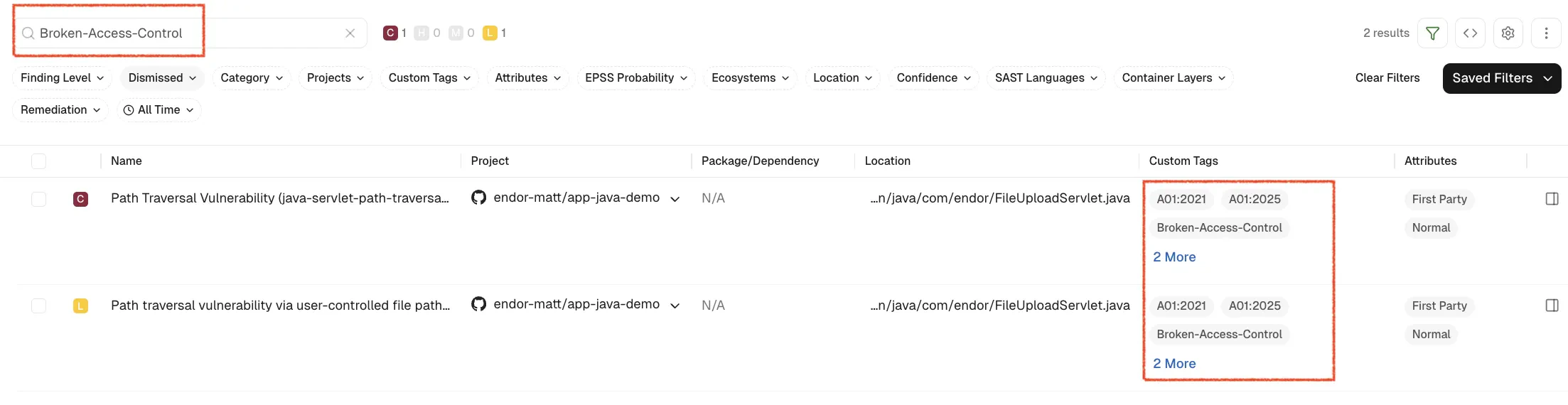
To filter and view the findings by their tags:- Select Projects > Findings from the left sidebar.
-
Enter the tag in the search bar to filter and view findings by tag name.