

- Create Issues
- Transition Issues
- Edit Issues
- Resolve Issues
- Add Comments
- Generate Jira API token
- Configure Jira Integration on Endor Labs
- Associate an action policy with a Jira notification
Generate Jira API token
Generate Jira API credentials to sign in to Endor Labs. Endor Labs supports both classic and scoped API tokens. Refer to Create an API token to create a classic API token or Create API token with scopes to create a scoped API token. For scoped API tokens, select only theread:jira-work and write:jira-work permissions.
You cannot view the token after you close the form. Copy it to a secure location and have it handy. Do not share the token.
Configure Jira Integration on Endor Labs
Set up Jira integration on the Endor Labs application.- Select User menu > Integrations from the left sidebar.
- Under Notifications, click Manage for Jira.
- Click Add Notification Integrations.
- Enter a name and description for the integration.
- Enter a Jira username. The user account appears as the reporter for all the tasks or bugs created in Jira for this notification. We recommend creating a new user account for receiving Jira notifications from Endor Labs.
- In API Key, enter the API token that you generated from Jira.
- In Jira URL, enter the HTTPS endpoint of your Jira instance.
-
Select one of the following In Authentication Method:
- Basic Authentication: If you are using Jira cloud, enter your Jira user name in Username and the API token that you generated from Jira in API Key.
- Personal Access Token [PAT]: If you are using Jira Data Center, enter the personal access token (PAT) in Access Token.
-
In Project Key, enter the project key of your Jira project in which you want to create the notifications.
The project key is the prefix of the bug or task ID. For example, if the project key is
ENG, Jira creates the task or bug with an ID in the formatENG-352. -
In Parent ticket issue type, enter the issue type for the parent ticket, such as
Task,Bug,Story, orEpic. The issue type is case-sensitive. Make sure to match with an exact issue type on your Jira board.Make sure the endorctl version is1.6.547or higher to use Parent ticket issue type. -
In Child ticket issue type, enter the issue type for the child tickets that Endor Labs creates under the parent ticket. This applies when you use Dependency or Dependency per package version aggregation.
The issue type must follow the Jira issue type hierarchy, where the child type is one level below the parent. If you leave this blank, Endor Labs creates child tickets with the project’s default sub-task type.
Endor Labs supports configuring the child ticket issue type for Jira Cloud only.
-
In Resolved Status, specify the resolved status used in your Jira projects.
For example, if you enter the value as
Completed, after you resolve the findings, Endor Labs updates the Jira ticket to this status. If you don’t specify a status, Endor Labs attempts to determine your project’s resolution status. It defaults to one of the following in priority order:Done,Resolved,Closed, orFixed. - In Labels, enter a label to associate it with your Jira notifications.
- For company-managed Jira project, enter one or more component values in Components. These values are automatically populated in the Components field of the created Jira ticket.
-
Click Add Custom Field to add custom
key-valuepairs in the created Jira ticket. Use this to create a Components field in your team managed Jira project. For example, you can addSourceas Key and associate it toEndor Labsin Value, so that every notification created will now have the informationSource = Endor Labsassociated with the ticket. For team-managed Jira project, use Add Custom Field to create a Components field in your Jira ticket. In Key enterComponentsand enter the component value in Value.Ensure that the endorctl version is1.6.567or higher to use Custom Fields. Check that the Key you enter matches an existing custom field in your Jira project. Otherwise, you cannot save the notification and the key-value pair will not appear in your Jira ticket. - Click Propagate this notification target to all child namespaces to apply this Jira notification target to all child namespaces within the hierarchy.
- Click Add Notification Integration.
Manage Endor Labs Jira notifications
You can view and manage the Endor Labs Jira notifications created for a project.- Select User menu > Integrations from the left sidebar.
- Under Notifications, click Manage for Jira.
- To edit a notification, click the vertical three dots and choose Edit Notification Integration.
- To delete a notification, click the vertical three dots and choose Delete Notification Integration.
Associate an action policy with a Jira notification
Users can create action policies to execute a recommended action when a scan violates a policy. For example, if there is a license compliance violation, you can create a Jira ticket and notify the required personnel. While creating an action policy, configure the following settings:- Select Choose an Action as Send Notification.
- From SELECT NOTIFICATION TARGETS, choose the Jira integration notification that you created.
- Choose an Aggregation type for Jira notifications.
- Choose None (Notify for each Finding) to trigger a separate notification for each finding. This can result in a high volume of Jira tickets.
- Choose Project to trigger a single notification for all findings.
- Choose Dependency to trigger a notification for every dependency.
- Choose Dependency per package version to trigger notifications for every unique combination of dependency and package version.
View ticket details in Jira
Endor Labs creates a parent ticket named after your project, using the parent issue type you selected. Under it, each dependency gets its own child ticket named after the project and dependency, and findings without a dependency are grouped into a separate child ticket. During future scans, Endor Labs updates these tickets, marks them resolved when their findings are fixed, and creates a new ticket for each new dependency identified.- Sign into your Jira account.
- Navigate to Projects drop down menu in the top bar and select your project.
- Click on the issue to view its details.
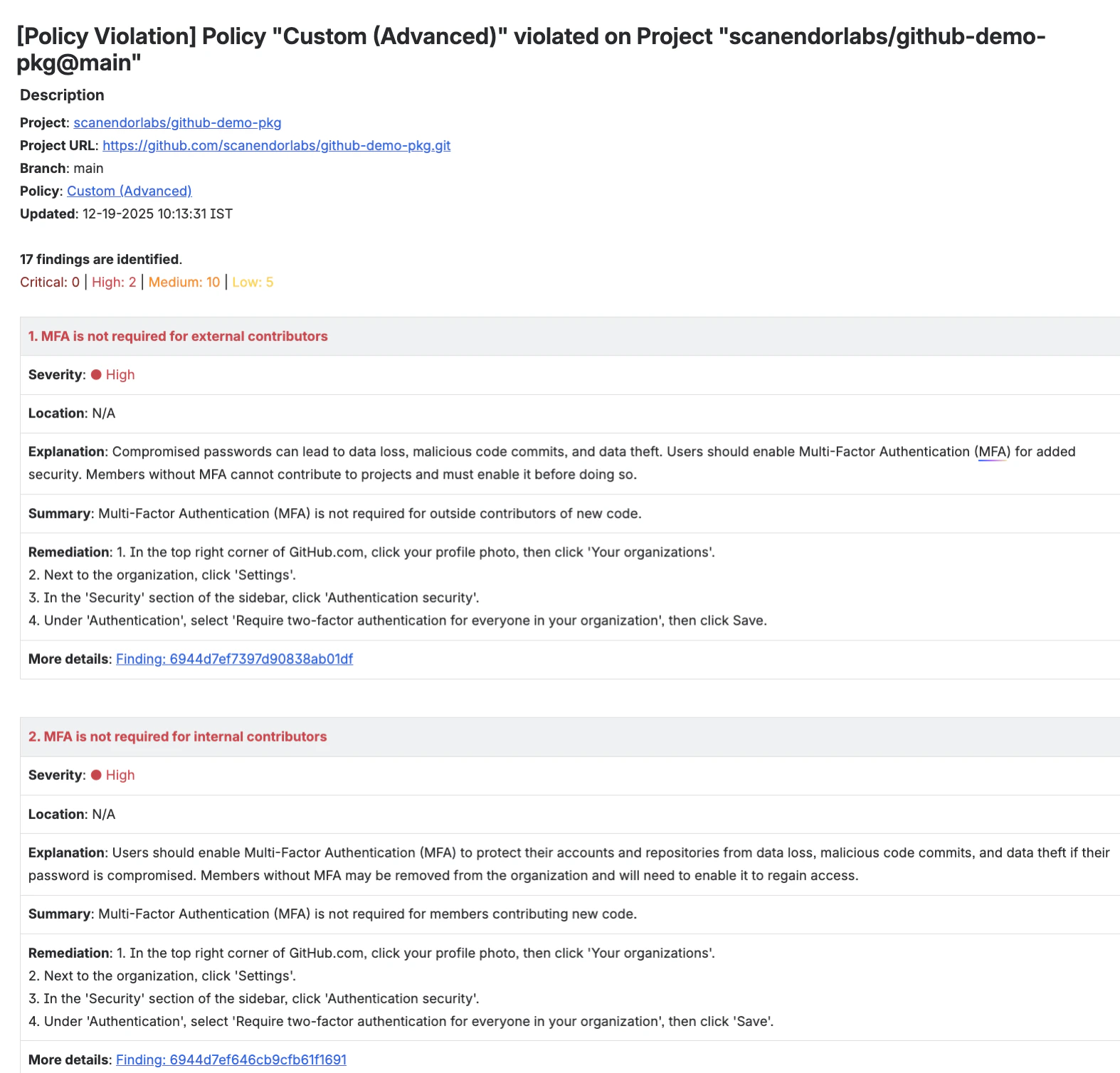
endorlabs-scan: Indicates that an Endor Labs scan created the ticket.endor-severity: Theendor-severitylabel has an associated value,critical,high,medium, orlow, that reflects the severity of the associated Endor Labs finding. If a ticket includes multiple findings with different severities, the label represents the highest severity among them.
For Dependency and Dependency per package version aggregation types, Endor Labs includes the
endor-severity label in the sub-task.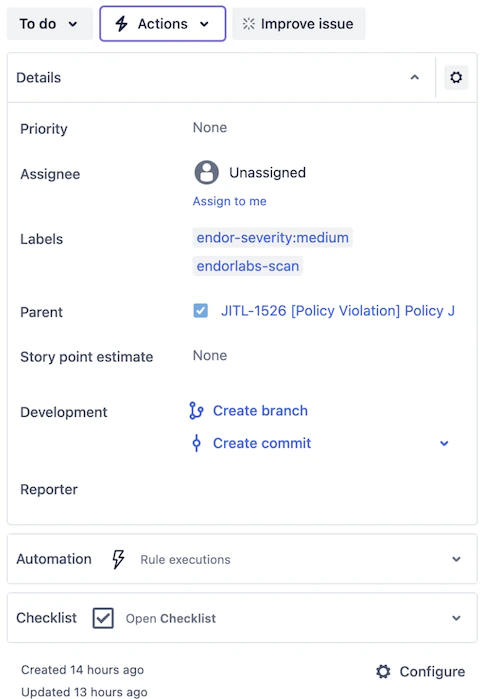
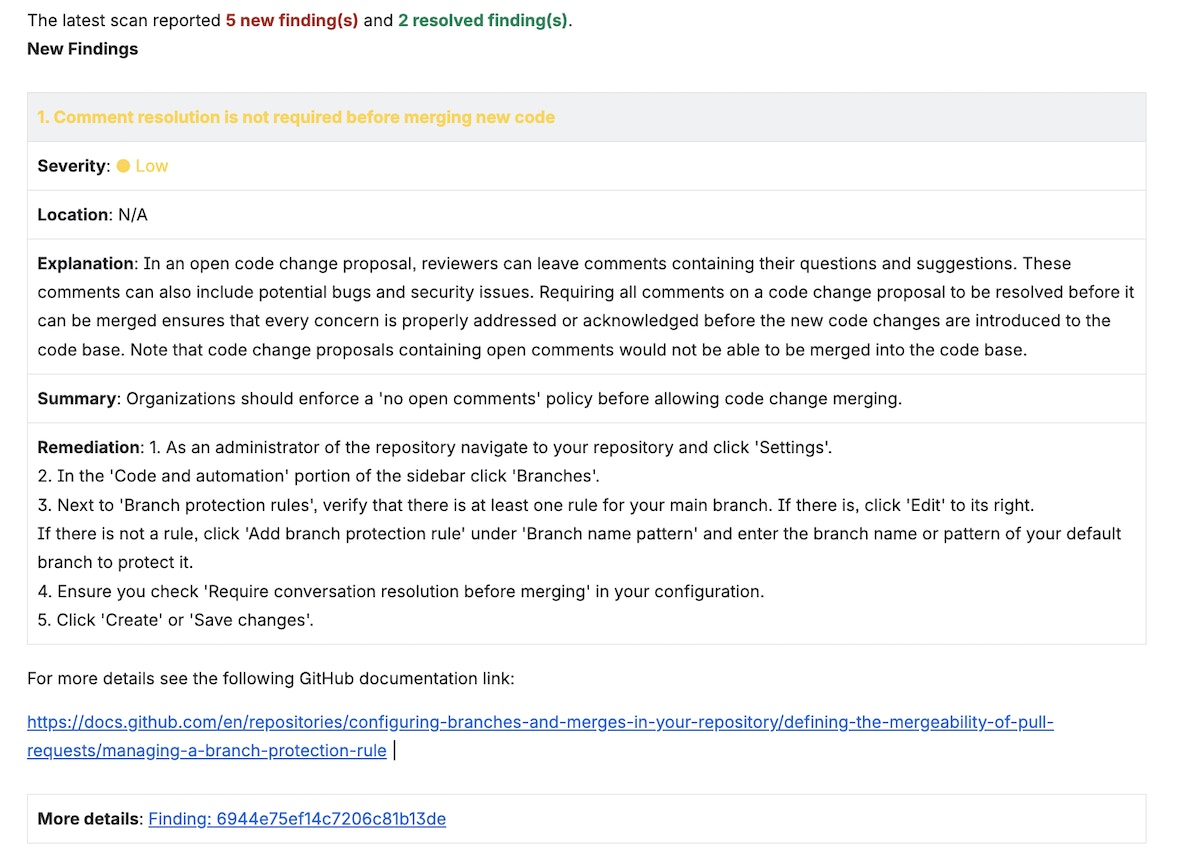
- If Endor Labs detects new findings, it adds a comment with their details.
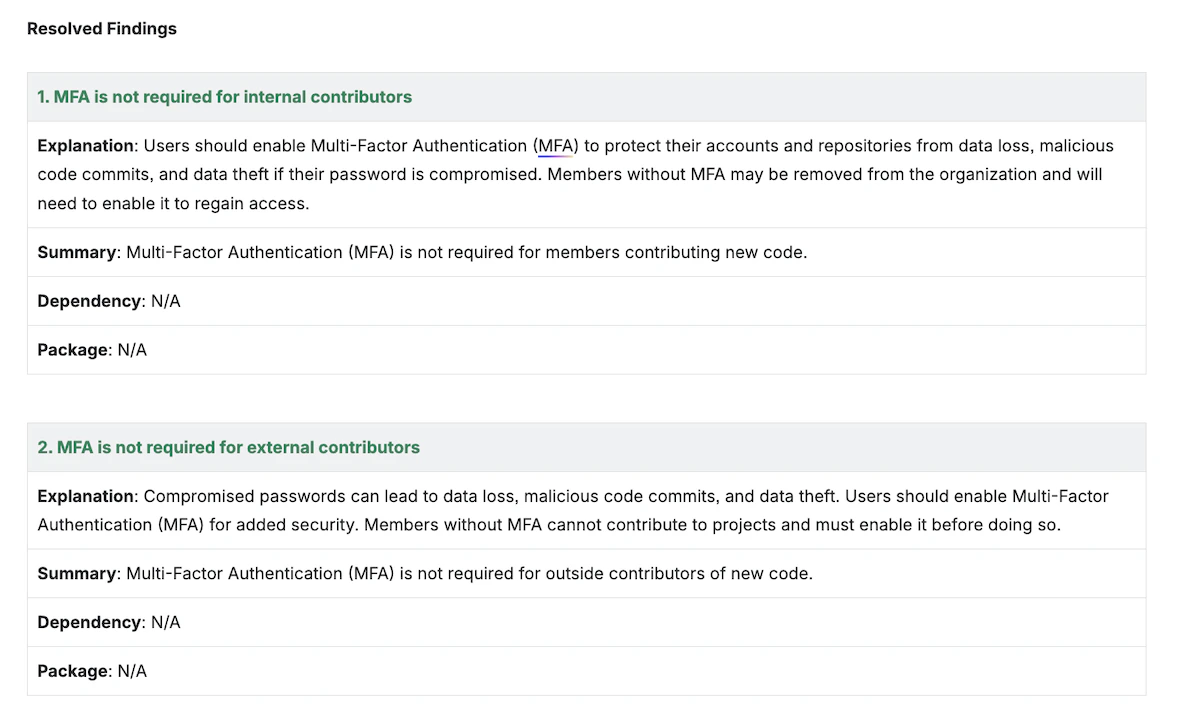
- If existing findings resolve, Endor Labs adds a comment with their details.
View Jira notification in Endor Labs
View created Jira tickets in Endor Labs, including their status (open or closed), associated action policy, and number of violations.- Click the bell icon in the top right section of the screen to view Notifications.
- Navigate across Open, Resolved, Dismissed, or All to view the issues listed under them.
- You can view specific details such as created date of the ticket, the name of the policy, the name of the project, the number of violations, and any labels associated with the projects.
- Choose a notification and click the vertical three dots on the far right side and choose:
- Dismiss Notification: Stop all further processing and updates for the notification. The notification moves to Dismissed.
- Show Details: View the Jira ticket number and you can also navigate to Jira.
- Go to Policy: View configuration details of the policy that created this Jira ticket.