Packages are collections of generally related software functions built in a repository. A package generally may have any of the following:
  • Versions - A snapshot in the software development lifecycle of a given package’s source code. Versions include named and published versions as well as versions based on the version of the repository.
  • Dependencies - Other software package versions that a given software package depends on.
  • Dependents - Other software package versions that depend on one or more versions of a given software package.
  • Findings - A finding is a discovery of interest derived from an evaluation. Findings are default out-of-the-box implementation of rule sets. Policy for these rule sets is coming soon.
  • Scorecards - Scorecards are data sheets of facts used to derive Endor Labs scores. They draw on analysis that Endor Labs performs on open-source dependencies used in your packages.

Package dependencies and dependents

Package dependencies are versions of other software packages your software relies on to deliver its functionality. Inversely, dependents are those package versions that depend on a specific package that you’ve created in one of your projects. Endor Labs builds a bill of materials for each of your package dependencies. Package dependencies and dependents may be direct or transitive:
  • Direct package dependencies are those package versions that are explicitly defined and imported into a package’s declaration file.
  • Transitive package dependencies are package versions pulled into a package because of their use in a direct dependency.

Dependency Metadata

A dependency of a given package version has the following metadata associated with it directly in the table of dependencies:
  • Dependency Name and Version - The name and version of the dependencies your project or package relies on.
  • Type - If you directly import a dependency as part of a package, it is of type Direct. If a dependency enters through one or more direct dependencies, it is of type Transitive.
  • Dependent Packages - In the context of a project, dependent packages are the number of packages created by the project that rely on your package.
  • Reachability - A dependencies reachability status may have three states:
    • Reachable - Endor Labs flags a dependency as reachable when a call graph of the dependency can reach the dependency as it traverses the function calls made by a package.
    • Unreachable - Endor Labs flags a dependency as unreachable when a call graph of the dependency cannot reach the dependency as it traverses the function calls made by a package.
    • Potentially Reachable - Endor Labs flags a dependency as potentially reachable when call graph analysis does not support a given language or package manager, or when analysis fails and cannot determine whether a dependency may be reachable.
  • Visibility - Endor Labs flags a dependency as public when it is publicly available for use. Endor Labs flags a dependency as private when it comes from a private package.
  • Source Available - Endor Labs flags source code as available when it is auditable and directly linked with the metadata of a package. For dependencies where source code is unavailable, Endor Labs does not generate a scorecard for the dependency.
  • Endor Labs Dependency Scorecard - Scorecards are data sheets of facts used to derive Endor Labs scores. Endor Labs creates a scorecard for the security, activity, popularity and quality of a software dependency.
If you click a given dependency, a drawer with additional data points appears.
  1. Dependency Paths - Dependency Paths show how a given version of a dependency enters a package. Use this to understand the effort to update a dependency and to get visibility into how deeply embedded a dependency is in your ecosystem.
  2. Dependency Specification - A dependency’s specification documents the request for a given dependency when you directly import it into a package. This helps organizations understand whether that dependency is only a test and any metadata associated with the dependency’s import.

Dependent Metadata

A dependent of a given package version has the following metadata associated with it directly in the table of dependents.
  • Dependent Package Name - The name of a package that is dependent on the package you are reviewing or that is created within the context of the project you are reviewing.
  • Dependent Package Version - The version of a package that is dependent on the package you are reviewing or that is created within the context of the project you are reviewing.
  • Repository of dependent package - The repository where the package that depends on the package you are reviewing resides.

View package dependencies and dependents

To view the dependencies of your package:
  1. Select Projects from the left sidebar.
  2. Search for and select a project to review.
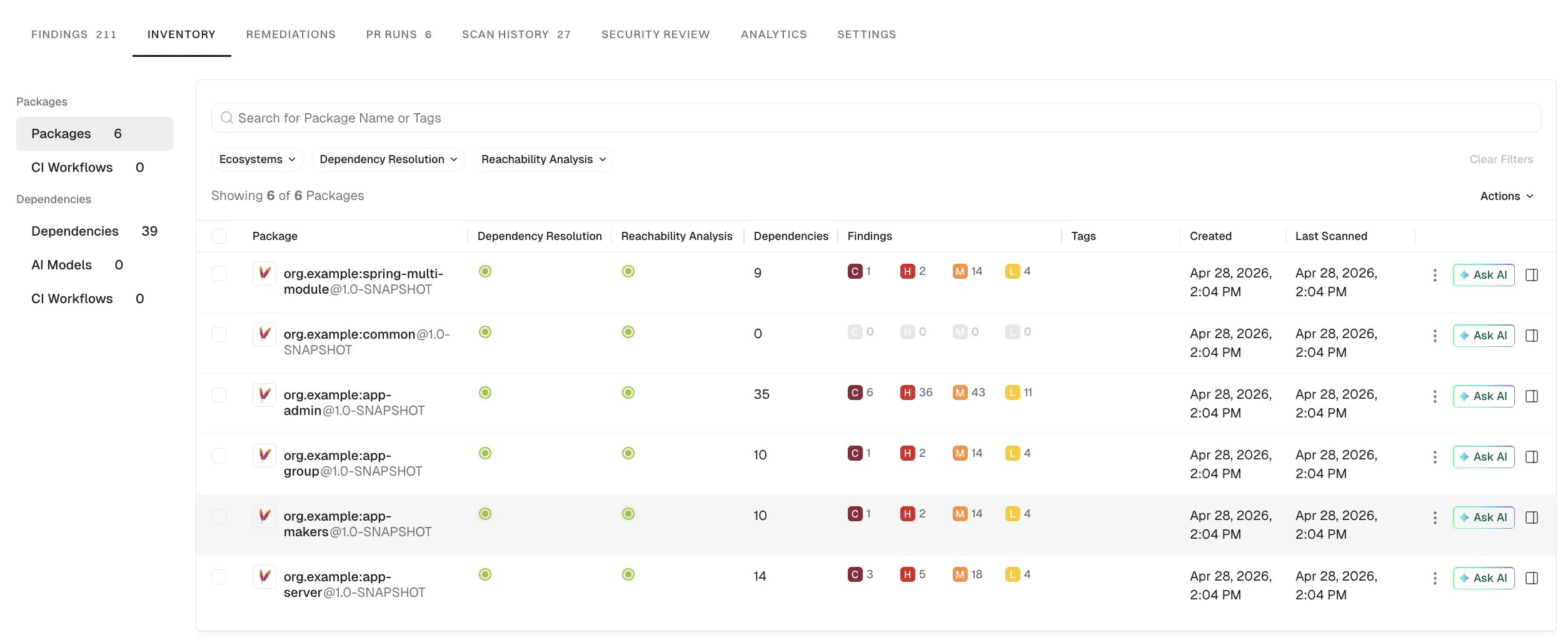
  3. Go to Packages under Inventory to view the list of all packages maintained as part of your project and any findings associated with them. Packages You can view the following details of the packages in the project.
    • Package Name - The name of the package along with the icon of the package manager.
    • Dependency Resolution - Status icon that shows whether dependency resolution was successful.
    • Reachability Analysis - Status icon that shows whether reachability analysis was successful.
    • Dependencies - The number of dependencies of the package.
    • Findings - The number of findings associated with the package.
    • Created - The date and time when Endor Labs created the package.
    • Last Scanned - The date and time when the package was last scanned.
    ImportantThe following table describes the status icons for dependency resolution.
    StatusDescription
    Error occurred during manifest scan
    Error occurred during dependency resolution
    Dependency resolution was successful
    The following table describes the status icons for reachability analysis.
    StatusDescription
    Error occurred during call graph generation
    Call graph generation was successful
    Call graph generation is not supported or not enabled
  4. Click the package to view all dependencies and the scorecards of those dependencies.
To view the dependencies of your package:
  1. Select Projects from the left sidebar.
  2. Search for and select a project to review.
  3. Go to Packages under Inventory to view the list of all packages maintained as part of your project and any findings associated with them.
  4. Select the package whose dependents you’d like to review.
  5. Select Dependencies to see dependencies associated with your packages.
Use dependents to communicate with downstream users of your package version regarding any major modifications to your package.

Filter package dependencies

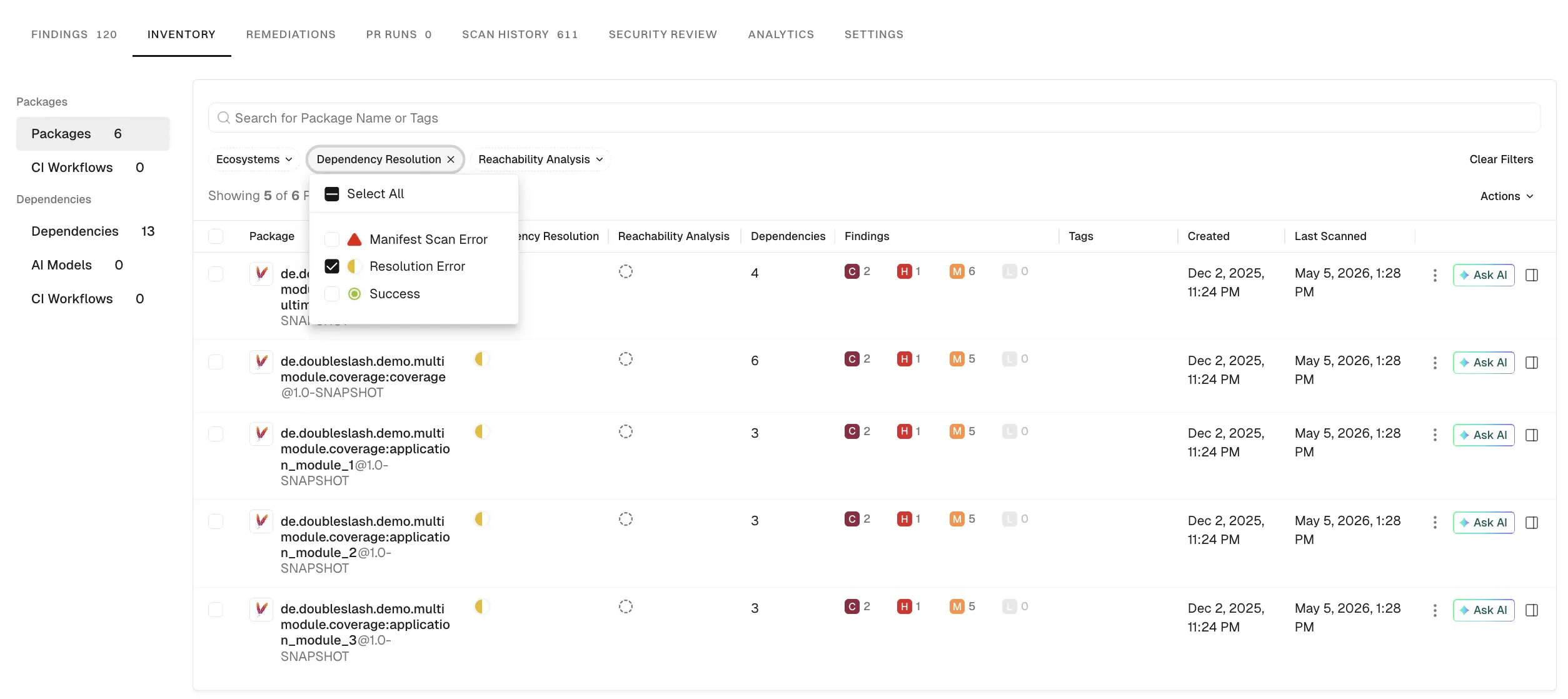
Use filters to focus on the packages that are relevant to your tech stack and quickly identify resolution or reachability issues.
  1. Select Projects from the left sidebar.
  2. Search for and select a project to review.
  3. Go to Packages under Inventory to view the list of all packages maintained as part of your project and any findings associated with them.
  4. Use the Ecosystem, Dependency Resolution, and Reachability Analysis statuses filters to narrow down the results.
You can sort the search results by the Package name, Created data, and Last Scanned date to organize dependencies alphabetically or by timeline, making it easier to review recent changes or locate specific packages. Filter packages

Delete package dependencies

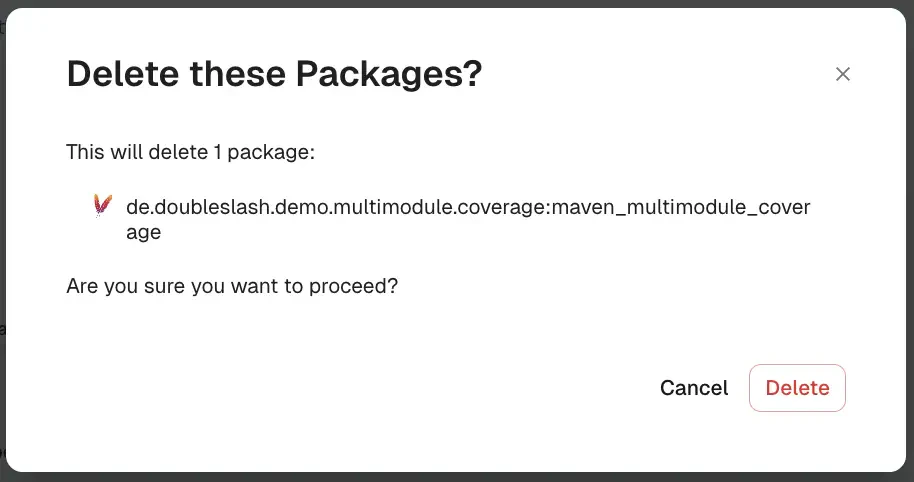
You can delete packages that are no longer needed from your project inventory. Deleting a package also deletes all associated findings.
  1. Select Projects from the left sidebar.
  2. Search for and select a project to review.
  3. Go to Packages under Inventory to view the list of all packages maintained as part of your project and any findings associated with them.
  4. Click the vertical three dots in the package row, select Delete.
  5. Click Delete to confirm the action.
Delete package

View scorecards

Scorecards are data sheets of facts used to derive Endor Labs scores. They draw on analysis that Endor Labs performs on open-source dependencies used in your packages.
  1. Select Projects from the left sidebar.
  2. Search for and select a project to review.
  3. Go to Packages under Inventory to view the list of all packages maintained as part of your project and any findings associated with them.
  4. Select the package whose dependencies you’d like to review.
  5. Under Dependency, you can see the scores for Quality, Activity, Security, and Popularity. Click on any of these scores to view the scorecard of the dependency. View Endor scores
Scorecards show the results of the analysis from which Endor Labs derives scores. Review the scorecard to learn more about your dependency. See also Understand Endor scores.