Create incoming webhooks in Slack
Create an incoming webhook to your Slack channel to enable Endor Labs to post notifications in the channel. The Incoming Webhook provides a unique URL to integrate your Slack channel in Endor Labs.We recommend you designate a channel in your Slack workspace for receiving Endor Labs notifications and create an incoming webhook for that channel.
- Create a Slack app for Endor Labs or use an existing app.
- Click Create New App.
- Choose From Scratch and Enter a name for the app, for example, Endor Labs.
- Select your workspace and click Create App
- You can enter basic, install, or display information for your Endor Labs app in Slack.
- In Display Information, you can upload a logo and customize App colours to distinguish the Endor Labs App on the Slack workspace.
- Click Save Changes.
- Under Features, select Incoming Webhooks, then turn on Activate Incoming Webhooks.
- Refresh the page and click Add New Webhook to Workspace.
- Select a channel to receive Endor Labs findings in Post to, then select Authorize. If you need to add the incoming webhook to a private channel, you must first be in that channel.
- From Settings, copy the webhook URL under Webhook URLs for Your Workspace. Keep this URL handy to enter in Endor Labs.
Configure Slack integration
To configure Slack integration, follow these steps:- Select User menu > Integrations from the left sidebar.
- Under Notifications, click Add on the Slack card. If you already have a Slack integration, click Manage instead.
- Click Add Notification Integration to open the Send Notifications to Slack dialog.
- Enter a Name and Description for this integration.
- In Webhook URL, enter the incoming webhook URL you copied from Slack.
- Optional: select Propagate this notification target to all child namespaces to make this integration available in child namespaces.
- Click Add Notification Integration to save the integration.
Associate an action policy with a Slack notification
Users can create action policies to send a Slack notification when a scan matches policy conditions. For example, if there is a critical or high vulnerability, send the findings to Slack. To send a Slack message when a scan produces matching findings, create an action policy with a Send Notification action that targets your Slack integration. For the full procedure, see Create an action policy. The Slack-specific choices are:- Under Choose an Action, select Send Notification.
- From Select notification targets, choose the Slack integration you created.
- None (Notify for each Finding) sends a separate notification for each finding.
- Project sends a single notification for all findings in a project.
- Dependency sends a notification for every dependency.
- Dependency per Package Version sends a notification for every unique combination of dependency and package version.
Manage Slack notification targets in Endor Labs
You can view and manage the Endor Labs Slack notification targets created for a project.- Select User menu > Integrations from the left sidebar.
- Under Notifications, click Manage on the Slack card. You can view all your created notification targets for Slack.
- To edit a notification target, click the vertical three dots and choose Edit Notification Integration.
- To delete a notification target, click the vertical three dots and choose Delete Notification Integration.
Customize Slack notification templates
Endor Labs provides a default standard template with standard information for the Slack message. You can use the default template or you can choose to edit and customize this template to fit your organization’s specific requirements. You can also create custom templates using Go Templates.- Select User menu > Integrations from the left sidebar.
- Under Notifications, click Manage on the Slack card to view the configured notification integrations.
- Choose one, click the vertical three dots on the right side, and click Edit Template.
- Make required changes to any of the following templates and click Save Template.
- Open - This template applies when Endor Labs raises new notifications.
- Update - This template applies when an existing notification updates, such as when findings change.
- Click Restore to Default to revert the changes.
- Use the download icon on the top right corner to download this template.
- Use the copy icon to copy the information in the template.
Data model
To create custom templates for Slack messages, you must understand the data supplied to the template. See the protobuf specificationNotificationData message used for the templates.
To understand Project, Finding, PackageVersion, and RepositoryVersion definitions used in this protobuf specification, see:
- Project resource kind
- Finding resource kind
- PackageVersion resource kind
- RepositoryVersion resource kind
Run a scan
Run the endorctl scan on your configured projects. See endorctl scan commands for more information.View notifications in Slack
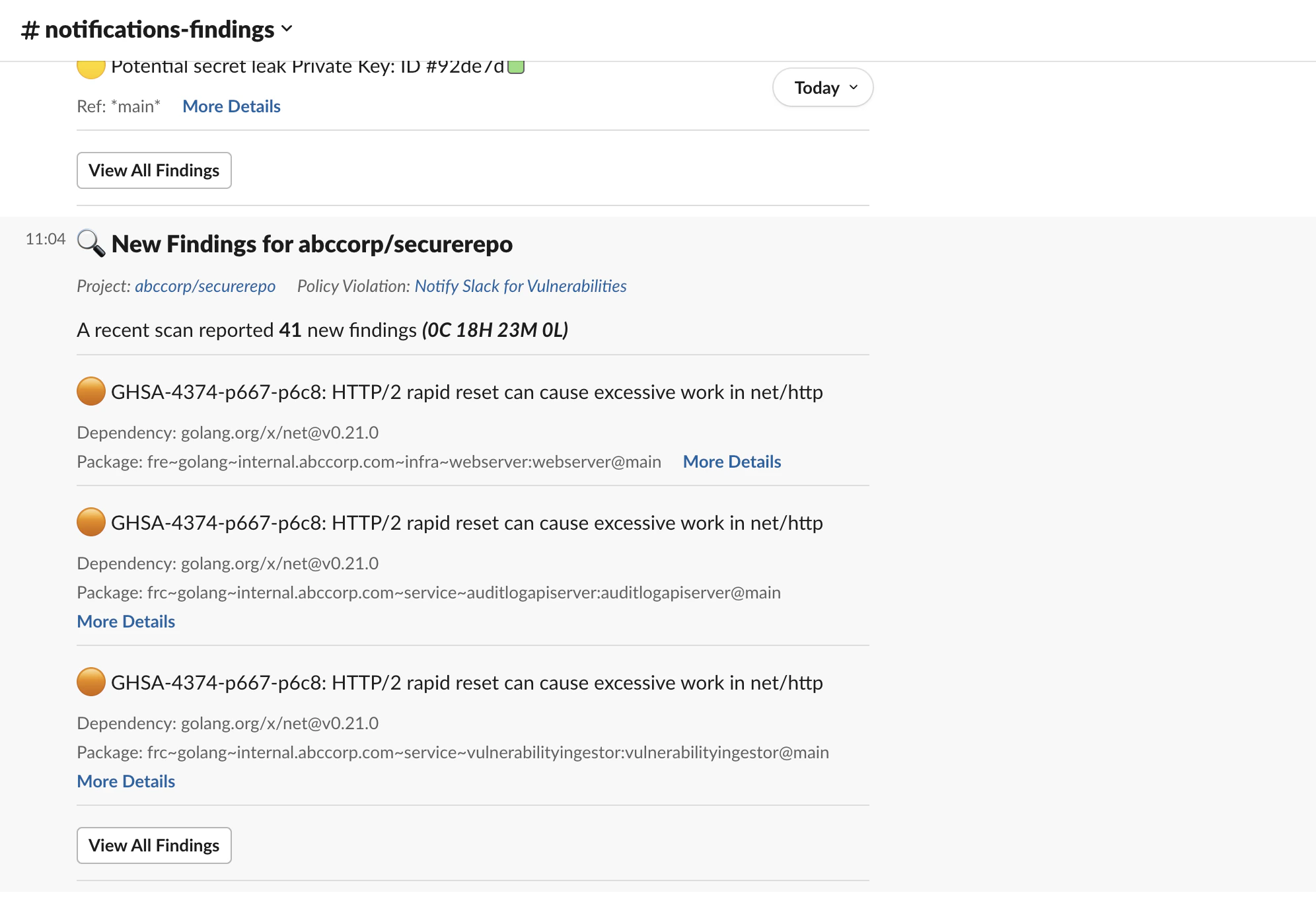
View Endor Labs’ findings in Slack and take remedial actions.- Sign in to Slack and view the notifications on the configured channel.
- You can view the top 3 findings by their severity level. Click View All to see all the findings in Endor Labs.