A finding is a discovery of significance made following the completion of a scan. Findings result from the default out-of-the-box implementation of rule sets called Finding policies.Documentation Index
Fetch the complete documentation index at: https://docs.endorlabs.com/llms.txt
Use this file to discover all available pages before exploring further.
View findings
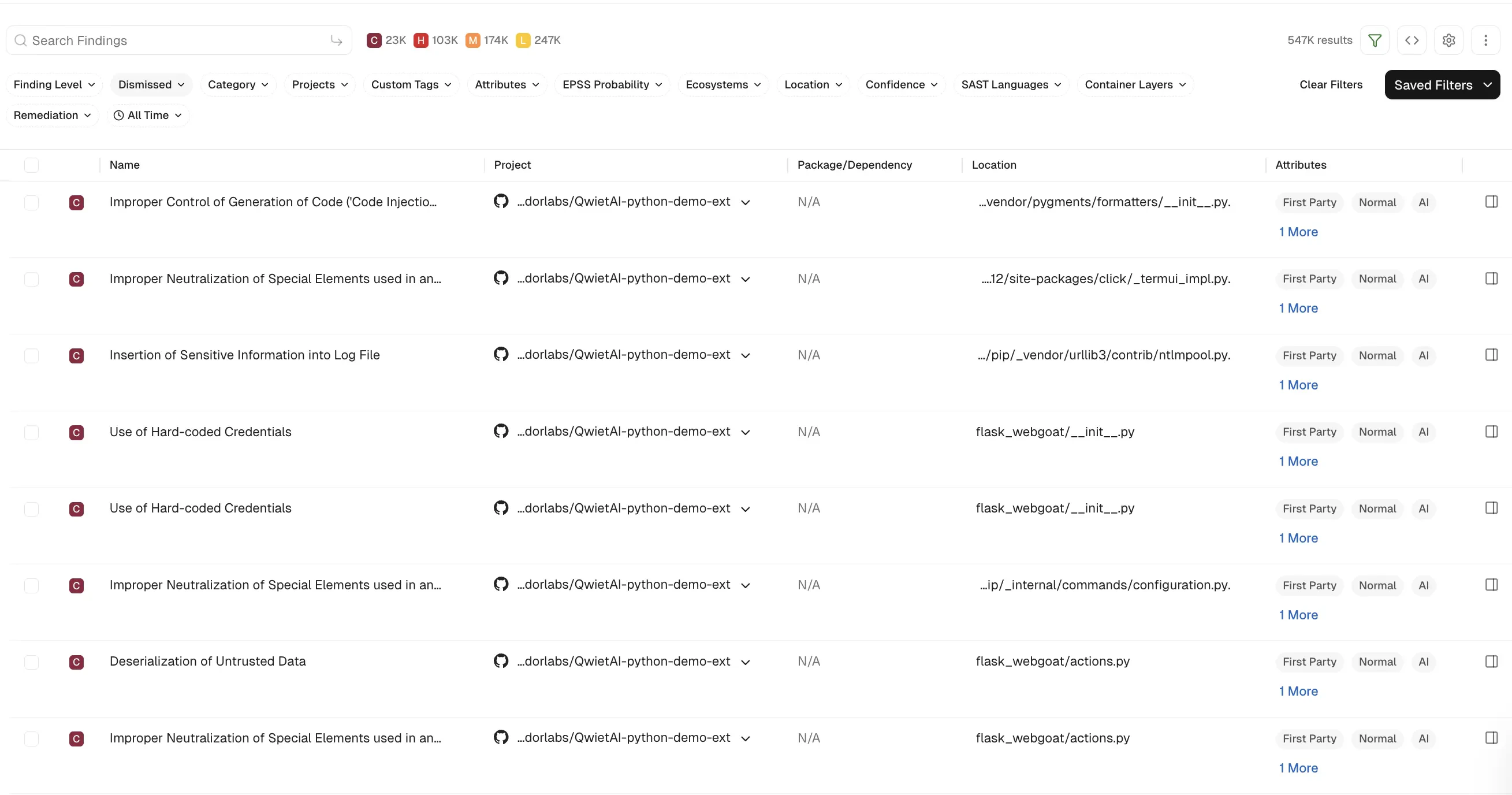
To view different types of findings associated with all projects or packages in your tenant:- Select Findings from the left sidebar.
- Search for findings using basic filters.
- Use Saved Filters to create and save your frequently used searches, helping you save time.
- Toggle Advanced and search for findings using advanced filters.
- Use Table preferences to select the columns you want to view and customize the appearance of the findings table.
-
Select a finding to view the following details:
- Project metadata
- Risk details and remediation guidance
- Notifications associated with the finding and Jira ticket links
- Personalized notes for each finding. You can view notes on findings if you have tenant access. Only users with Admin or Code Scanner role can add or edit notes. See authorization roles to learn about roles and permissions.
- To apply exceptions to findings, select findings and click Actions > Add Exception.
- To export findings, select the findings, and click Actions > Export Selected or Export All.
View findings associated with a project
To view the findings associated with a project:- Select Projects from the left sidebar.
- Select the project for which you want to view the findings. The Findings page includes the list of findings specific to the project.
- Review the list of findings. Click the finding to see its details.
- Use Grouped By to group findings by attributes such as dependency, location, package, CWE, tags, code owner or rule name to filter and manage them collectively.
Finding attributes
Finding attributes are characteristics or properties associated with each discovered issue or result obtained from a scan. These attributes could include the following details and metadata.Filter findings
Use filters to narrow findings and focus on the results most relevant to your workflow. Filters help you organize findings by attributes such as severity, category, project, status, repository context, and other finding metadata so that you can investigate, triage, and remediate findings more efficiently. You can use the following filter types to manage findings effectively.- Basic filters: Use the preset filters to quickly narrow findings using common attributes such as severity, category, project, and status.
- Advanced filters: Use advanced filters to create complex queries and combine multiple conditions based on repository context, branches, tags, and other finding attributes.
Search for findings using basic filters
Use the following basic filters to search for information in your findings.- Finding Level: Limit results by finding severity level.
- Dismissed: Include or exclude dismissed findings. See Filter dismissed findings to learn more about filtering dismissed findings.
- Category: Choose from CI/CD, Malware, license risks, operational risks, RSPM, GitHub Actions, SAST, AI models, containers, secrets, security, supply chain, or vulnerability and view related findings.
- Projects: Narrow findings by one or more project names.
- Custom Tags: Narrow down the list based on custom tags.
- Attributes: Narrow down the list based on a range of factors such as:
- if a patch is available to fix the findings
- if the vulnerable function is reachable
- if the dependency is reachable
- if the dependency originates from a current repository or a current tenant
- if the dependency is a test dependency
- if the dependency’s discovery type is manifest, phantom, or segment match
- if the finding originates from itself, direct, or a transitive dependency
- filter the findings by the Exploited tag from CISA KEV
- filter the findings by the Warn or Break the Build options set in the action policy
- EPSS Probability: Choose the Exploit Prediction Scoring System (EPSS) score range.
- Ecosystems: Filter by language or ecosystem.
- Location: Narrow findings by where they occur (for example, path or location in the repository).
- Confidence: Narrow findings by detection confidence.
- SAST Languages: Narrow SAST findings by programming language.
- Container Layers: Narrow container findings by image layer.
- Remediation: Narrow vulnerability findings by fix status. Endor Patch Available filters findings where an Endor-provided patch is available to fix the vulnerability. Recommended Upgrade Available filters findings where a recommended version upgrade is available.
- All Time: Choose a time range.
Search for findings using advanced filters
Use advanced filters to create powerful queries that drill deeper into the dataset to fetch results with a specific context. Search using the advanced filters applies to all the branches of a repository. You can retrieve results from any branch by specifying the relevant context ID or type. For example:-
If the default branch for the
BenchmarkJavarepository usesmaster, applying filters with the context ID formastershows results specific to branch. To scan from the default branch, run the following command : -
Similarly, if there is another branch named
test-branch, switching to that branch shows results specific to the branch. To scan the branch, run the following command:
- Select Projects from the left sidebar.
- Select the project for which you want to view the findings.
-
A drop-down menu at the top left of the page shows the repository’s default branch. Choose a different branch to view its findings.
In the following example,
masteris the default branch. To view findings from other branches (for example,test-branch), choose the desired branch from the drop-down menu.
GetFinding API call to fetch results.
The following table lists some example attributes, you can use in your custom API calls. See also example combinations below.
Examples
Show all findings of critical vulnerability and high severity that have a fix available, with a reachable function and EPSS score greater than 10%.Saved filters
Saved filters are customizable filter settings that users can create and reuse across projects in Endor Labs. They improve efficiency by eliminating the need to manually recreate filters. You can save the advanced search filters that you created to fetch curated search results. Saved queries are visible in the drop-down list. To create a saved filter:- Select Findings from the left sidebar.
- Toggle Advanced in the top right corner.
- Type the query in CUSTOMIZE FILTER.
- Enter a title in the field with the filter icon.
- Click Save New Filter.

Manage saved filters
To delete a saved filter:- Select Settings from the left sidebar.
- Select SAVED FILTERS.
- Click the vertical three dots on the right side of the filter you want to delete and click Delete.
- Select Settings from the left sidebar.
- Select SAVED FILTERS.
- Click the vertical three dots on the right side of the filter you want to edit and click Edit
- You can update the name, query, and tags.
- Click Update to save the updated changes.
