- Analyze findings, vulnerabilities, and dependencies across your code inventory in real time.
- Measure the value Endor Labs delivers, from issues caught before merge to malicious packages blocked.
- Monitor the AI coding agents, MCP servers, and Endor Labs agents working in your organization, along with related policy violations.
- Home Dashboard: The default dashboard view, which tracks noise reduction, SLA compliance, shift-left catches, malicious package protection, and agent governance.
- OSS overview: View the security posture of the open source dependencies across your organization.
- Endor Patches: Explore the Endor Patches available for the dependencies in your organization.
- First-party code: View the vulnerabilities in the code your team writes.
- Analytics: Measure the volume and efficiency of issue resolution over time.
- AI security code review: View the results of AI security code reviews in your organization. This dashboard is available only if you have an AI security code review license.
- OSS Coverage: Monitor dependency resolution and reachability analysis coverage across your organization.
Home Dashboard
The home dashboard measures the outcomes of your security program. It shows how many findings Endor Labs filters out so your team can focus on the ones that matter, and how quickly your team fixes them. Select Home > Dashboard from the left sidebar to track risk reduction across your organization and show the value of shifting security earlier in development.Noise Reduction
Select Noise Reduction to see how much the Endor Labs prioritization funnel reduces the findings your team must triage. Use the Projects, Project Tags, and Finding Level filters to scope the funnel. You can select up to 100 projects.When you filter by project tags, the links from the funnel open a filtered findings page that does not reflect the selected tags.
- Total open: Indicates all open findings in the selected category, across the projects in scope. Shown for every category.
- Not in test: Indicates the findings that are present in the production code and not in the test code. Shown for SCA Vulnerabilities and Secrets.
- Fix available: Indicates the findings for which a fix is available. Shown for SCA Vulnerabilities and Containers.
- Reachable: Indicates the findings that attackers can access or exploit, including the ones that are only potentially reachable. Shown for SCA Vulnerabilities and Containers. For SCA Vulnerabilities, it counts the findings with the Reachable Function or Potentially Reachable Function attribute. For Containers, it counts the findings with the Reachable Dependency or Potentially Reachable Dependency attribute.
- Exploitable: Indicates the findings from the Reachable stage with an EPSS probability score of 1% or greater. This stage carries the potentially reachable findings forward as well. Shown for SCA Vulnerabilities and Containers.
- Valid secret: Indicates the secrets that Endor Labs confirms as valid. Shown for Secrets.
SLA Compliance & Remediation
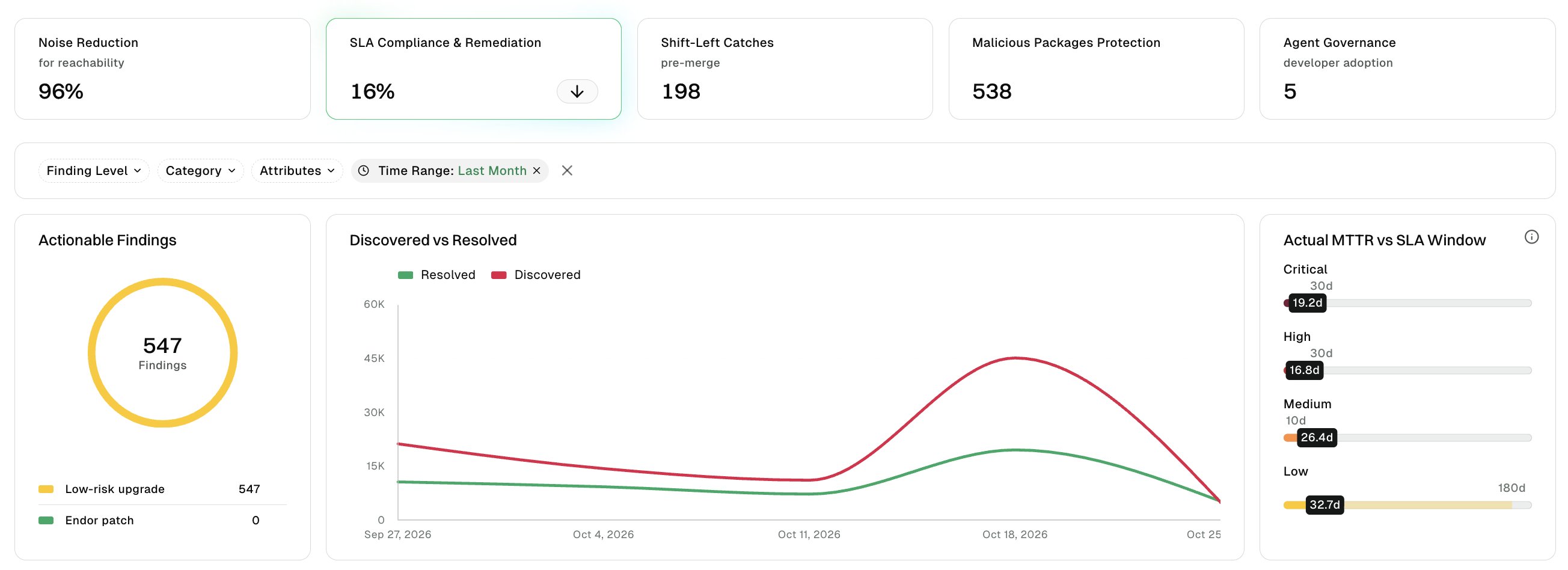
Select SLA Compliance & Remediation to see how quickly your team resolves findings against your defined service level agreement (SLA) windows, in the following charts:- Discovered vs Resolved: Trend of findings discovered against findings resolved over time.
- Actionable Findings: Count of findings that are currently actionable.
- Actual MTTR vs SLA Window: Your team’s mean time to resolution (MTTR) for each severity, measured against the SLA duration you’ve set for it.
- On the Actual MTTR vs SLA Window chart, select the vertical three dots.
- In the Customize SLA Duration dialog, enter a duration in days for each severity.
- Optionally, click Reset to restore a severity’s default duration.
- Click Save.
You require Write permission for the namespace to change this configuration.
Shift-Left Catches
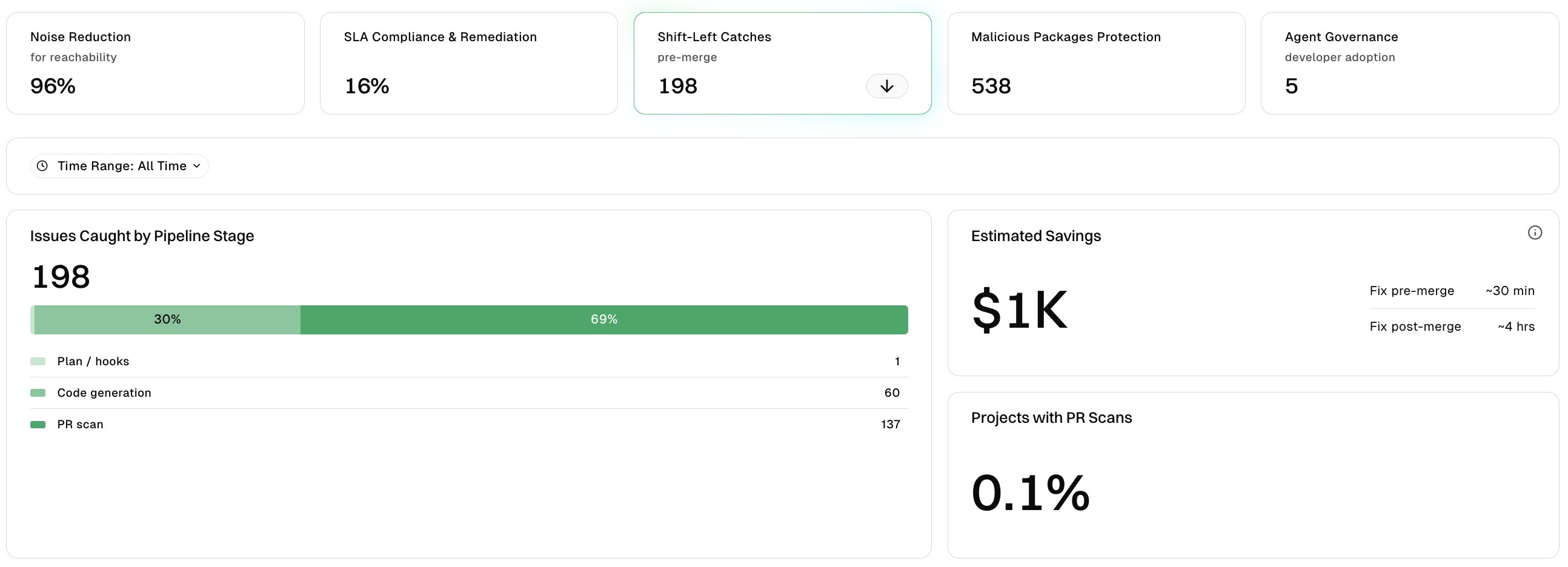
Select Shift-Left Catches to see the value Endor Labs delivers before code merges, in the following charts:- Issues Caught by Pipeline Stage: Issues caught across the Plan / hooks, Code generation, and PR scan stages.
- Estimated Savings: Development time and cost saved from catching issues before merge, calculated from your fix time and hourly cost baseline.
- Projects with PR Scans: Percentage of your projects with an active PR scan.
- On the Estimated Savings chart, select the vertical three dots.
- In the Customize Estimated Savings dialog, enter your Pre-merge fix time and Post-merge fix time in minutes.
- Enter your Hourly cost and choose a Currency.
- Optionally, click Reset to restore a field’s default value.
- Click Save.
You require Write permission for the namespace to change this configuration.
Malicious Packages Protection
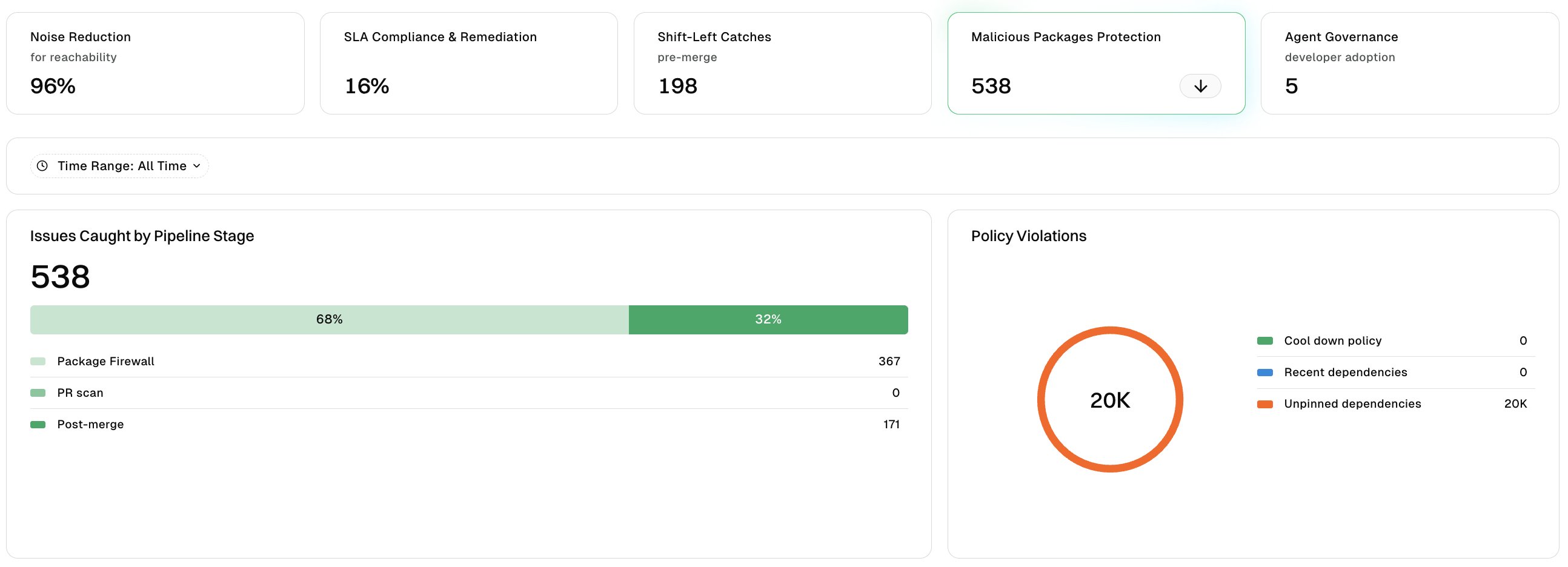
Select Malicious Packages Protection to see how Endor Labs blocks and remediates malicious and unapproved packages.- Issues Caught by Pipeline Stage: Malicious packages caught across the Package Firewall, PR scan, and post-merge stages.
- Policy Violations: Breakdown of automatically remediated policy violations across the Cool down policy, Recent dependencies, and Unpinned dependencies categories.
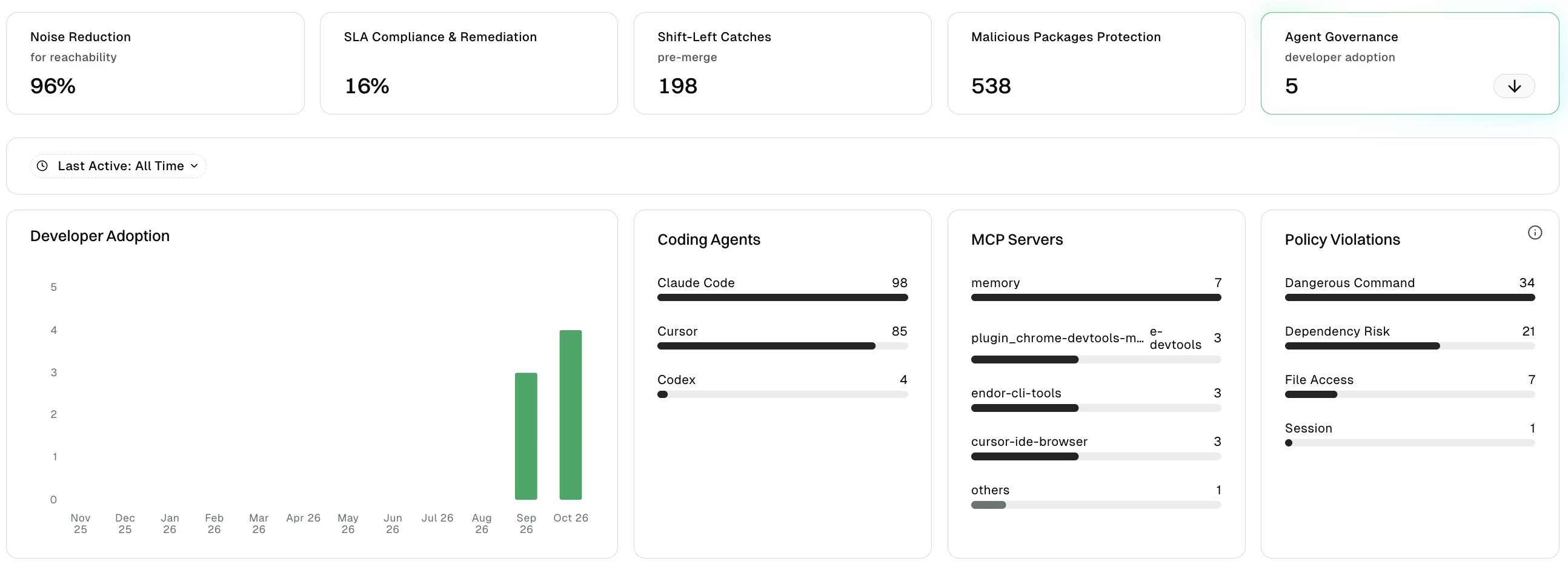
Agent Governance
Select Agent Governance to see adoption and risk across the AI coding agents and MCP servers your developers use, in the following:- Developer Adoption: Trend of active developers using coding agents, by month or week.
- Coding Agents: Ranked list of coding agents by usage.
- MCP Servers: Ranked list of MCP servers by usage.
- Policy Violations: Ranked list of Coding Agent Governance policy violations. Endor Labs retains policy violation events for 30 days. A time window wider than that shows the last 30 days of violations.
Endor Agents
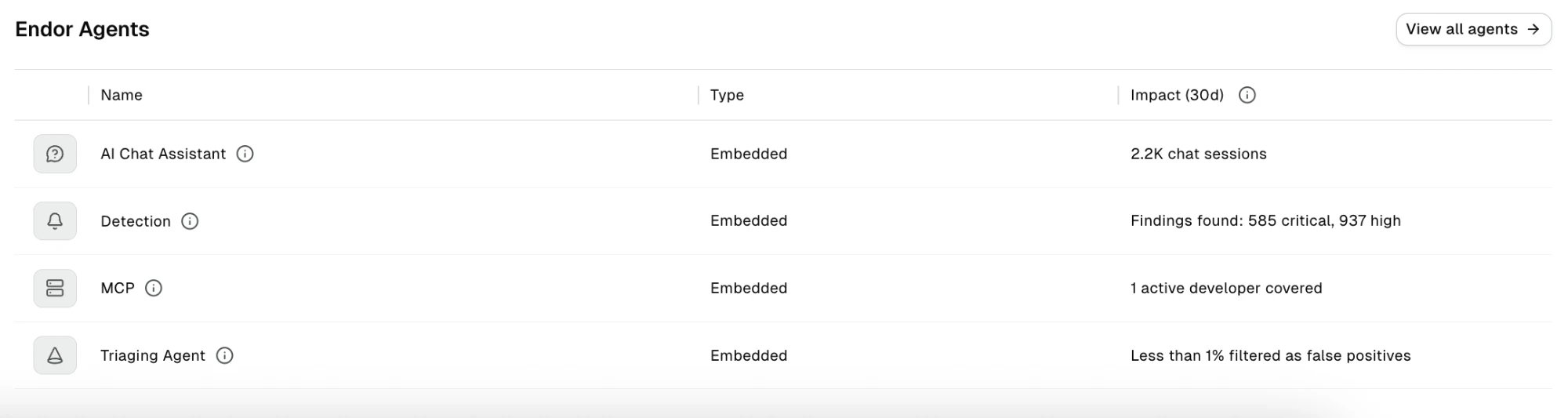
The Endor Agents table lists the AI agents working in your organization, the type of each agent, and its impact over the last 30 days. Hover over an agent’s name to see what it does. The Type column shows Embedded for an agent built into the Endor Labs platform, or Agent Hub for an agent you added from the Agents Hub catalog. Endor Labs embeds the following agents: Detection and Triaging Agent require an AI SAST license, and AI Chat Assistant requires an AI inference license. The Impact (30d) column shows Inactive for an agent that your license does not cover, or that has no measurable activity in the last 30 days.