

endorctl scan --secrets to scan for leaked secrets in your source code. You can also scan for secrets with monitoring scans and CI scans. Ensure that you select Secrets as a scan type when you install the Endor Labs App for your SCM to scan for secrets during monitoring scans.
The following table lists the options available with endorctl for secrets scan.
Scan methods
You can perform the following types of scans to detect secrets:- Scan a specific code reference: Scan for secrets only on a defined path in the context of a checked-out branch, commit SHA or tag to identify secrets and raise findings. This helps you to identify secrets that are leaked in the context of what you are working on right now.
- Scan complete history: Scan for secrets in all existing branches or tags to identify if a secret has ever been leaked in the history of the project and raise findings. This helps you to identify if any secret has ever been leaked even if it was not leaked in the context of what you are working on right now.
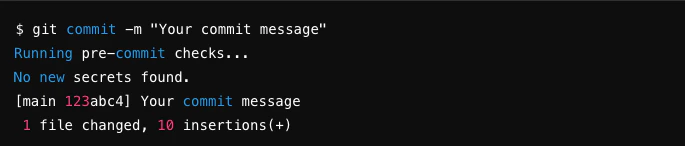
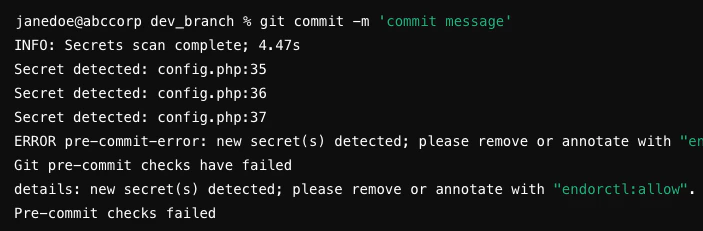
- Scan pre-commits: Scan for secrets in the code before committing the code to your repository during the automated pre-commit checks. This helps you identify and remove sensitive information from your code files early in the development life cycle.
-
Scan with custom rules offline: Include the custom secret rules from your namespace in a
--pre-commit-checksor--localscan by exporting them to a file, without connecting to Endor Labs. - Scan changed files only: Limit a secrets scan to the files that changed to speed up pre-commit and pre-merge workflows.
Scan a specific code reference
By default, a secrets scan searches the files in the path where you start the scan. Run the following command in the directory of the code reference to scan for secrets.--dependencies runs a separate dependency scan, not a secrets scan option. To run both in one command, combine the flags: endorctl scan --secrets --dependencies.
Scan complete history
You can scan the Git logs by using the complete history scan. The repository should be present in the scanned path. Endor Labs examines the entire repository history to search for secrets. To perform a complete scan, include the--git-logs option in the command line.
--dependencies to also run a dependency scan in the same command.
--git-logs option scans the repository’s Git logs using the following logic:
- Perform a full scan if it is the first time the repository’s Git log history is scanned.
- Perform a full rescan if a change has been detected to any of the rules in the namespace.
- Perform an incremental scan based on the last time a scan was performed in all the other cases.
--force-rescan with --dependencies in the same way.
Scan pre-commits
You can check for secrets before committing the code to the repository as part of pre-commit hooks. You must install and initialize endorctl before scanning the pre-commits.-
Create a
.git/hooks/pre-commitfile at the root of your Git repository to configure the pre-commit hook. It runs automatically when you make a commit and looks for secrets in your commit. -
Edit the
.git/hooks/pre-commitand include:--pre-commit-checksscans only the changes you are about to commit to the repository. -
Set the file permissions to make it executable.
You can’t push the
.git/hooks/folder to the Git repository because it’s only recognized locally on your system. To include the pre-commit code in the Git repository, save it in a different location, like ahooks/directory, and then copy it into.git/hooks/. This way, you can push the hook code to your Git repository. -
You can set up this hook on other systems in your organization by creating a script and running it on each system.
Scan with custom rules offline
By default,--pre-commit-checks and --local scans use the secret rules built into the endorctl binary. They run fully offline but do not include the custom rules in your namespace. To use your namespace rules offline, export them to a file and pass that file to the scan.
-
Export your rules to a YAML file.
-
Run the scan with the exported file.
endorctl, because the scan rejects a file whose schema does not match the running binary.
Scan changed files only
Use--diff-scope to limit a secrets scan to files that changed, which speeds up scans in pre-commit and pre-merge workflows. The flag requires endorctl v1.7.1040 or later and accepts two values:
local: Scan files with local edits, including staged, unstaged, and untracked changes, against the currentHEAD.baseline: Scan files that changed against the repository default branch.
--diff-scope cannot be combined with --pre-commit-checks, --local, --git-logs, or --force-rescan, because each of those modes defines its own scan range.
Exclude false positives from secret scans
A scan can flag a value that is safe, such as a test credential or an example token. Endor Labs offers three ways to suppress a false positive, from the narrowest to the broadest.Annotate a safe line
Add anendorctl:allow comment to mark a non-sensitive line, such as a test value.