

- System rules: Endor Labs provides out-of-the-box rules for secret patterns for many public services like GitHub, GitLab, AWS, Bitbucket, Dropbox, and more.
- Custom rules: If you are using a service that is not included in the out-of-the-box list of secret patterns provided by Endor Labs, you can build your own custom rule to scan and detect the secrets for any service.
Automatic rule identifiers
When you create a secret rule,spec.rule_id is optional. If you leave it empty, Endor Labs derives it from the rule name by lowercasing the name and replacing each run of non-alphanumeric characters with a hyphen. For example, a rule named My Custom Rule becomes my-custom-rule.
If the generated identifier already exists in your namespace, Endor Labs appends a short unique suffix, such as my-custom-rule-3f1a9c2b. A rule_id you supply yourself is always used unchanged.
Create a secret rule
- Select User menu > Policies & Rules from the left sidebar.
- Select Secret Rules.
-
Click Create Secret Rules.
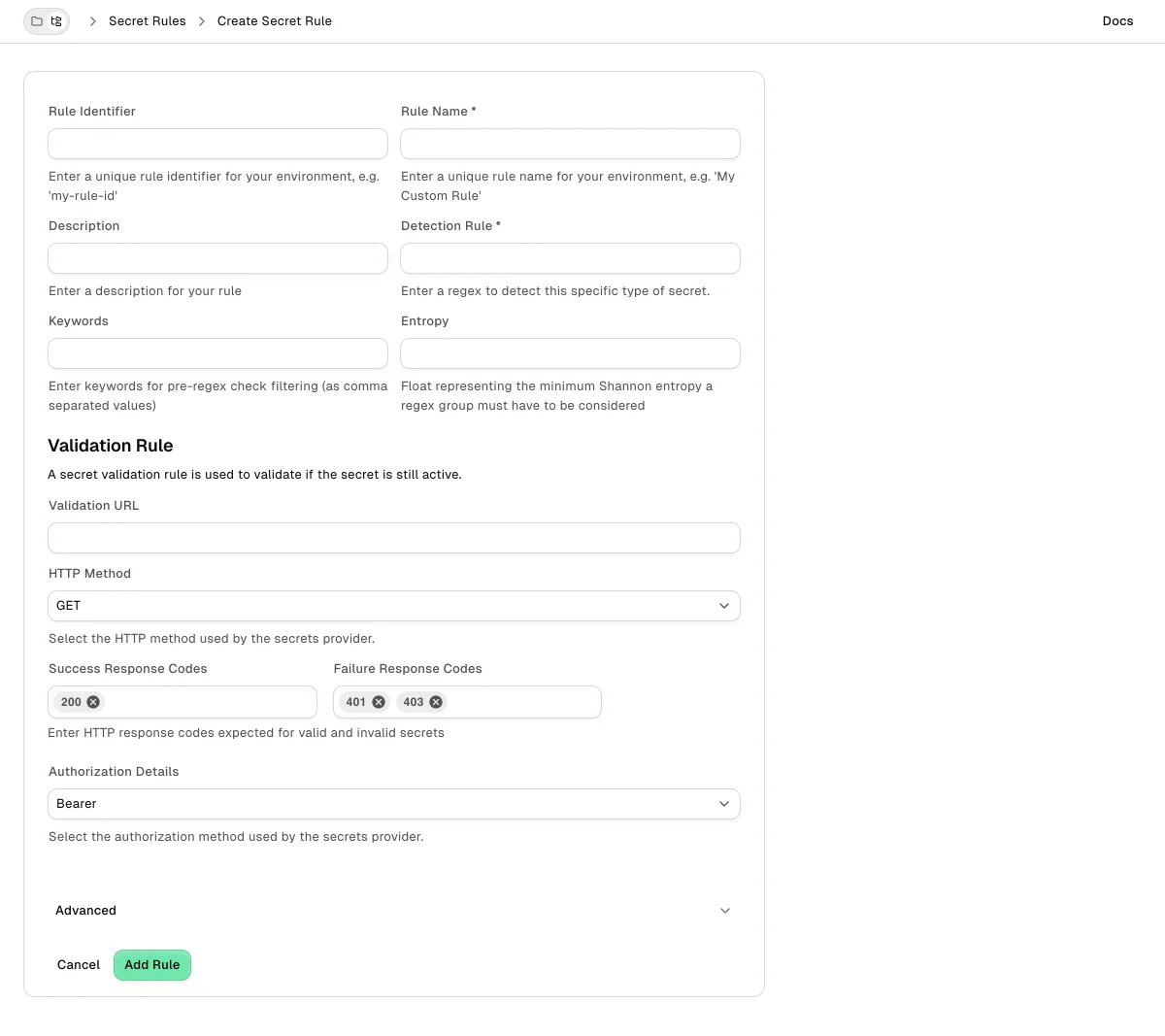
- Enter the Rule Name. Optional: Enter a unique Rule Identifier. If you omit the identifier, Endor Labs generates one from the name.
- Enter the Description of the secret rule.
- Enter the regex for the secret rule in Detection Rule.
- Optionally, enter keywords for pre-regex filtering as comma-separated values in Keywords. Keywords are recommended because a file is matched against the regex only when it contains one of them, which keeps scans fast.
- Optionally, enter the minimum Shannon entropy a regex group must have to be considered in Entropy. This helps filter out low randomness matches, like common words or predictable strings, and ensures only high-entropy values, more likely to be secrets, such as keys or tokens, are flagged.
-
Optionally, add validation details to validate the secret:
- Validation URL: Enter the URL for validation.
- HTTP Method: Choose
GETorPOST. - Success Response Codes: Enter valid response codes (For example,
200for HTTP Status OK) - Failure Response Codes: Enter invalid response codes (For example,
401for HTTP Status Unauthorized) - Authorization Details: Choose the authorization scheme used by the service:
Bearer,Token,Basic, orAWS4_HMAC_SHA256.
- Select Propagate this rule to all child namespaces to apply the secret rule to all child namespaces.
- Click Add Rule.
Create secret rules from the command line
For example, consider a token “demo_value123” can be described using a regular expression. Here is an example of the rule specification:rule_id, omit the field and let Endor Labs generate one from the name.
Validator
You can use a validator to check if a discovered secret is valid or not. The Endor Labs system rules for secrets include the necessary validator. When you validate a secret, the finding for that secret is categorized as critical, ensuring it receives higher priority compared to others. When defining a custom rule, you can add your own validator from the command line or the Endor Labs user interface. Endor Labs uses this information to send an HTTP request, such as a GET or POST, to the address that the service specifies for the detected secret. For example, when a GitHub Personal Access Token named “ghp_endor123” is detected, Endor Labs sends the following HTTP request to GitHub’s address:Template parameters
Some secrets cannot be validated with the secret value alone. For example, validating an Azure AD client secret also needs the client ID and tenant ID. The validator references these values in the request with template syntax, such as{{.ClientID}} and {{.TenantID}}, the same way {{.AuthzValue}} references the detected secret.
Endor Labs defines template_params for the system rules that need them. You can’t set template_params on a custom rule from the CLI or API; Endor Labs manages these values.
A validated secret is marked valid or invalid based on the response codes. Endor Labs categorizes a valid secret as a critical finding so that it is prioritized for remediation.
HTTP request header
HTTP request header is a set of key-value pairs that should be added to the header.{{.Value}} pattern.
For the HTTP header section that includes the secret, the block looks like the following snippet.
{{.AuthzValue}}.
The following table describes a special case where the key-value pair is marked with the authz flag and is used to craft the “Authorization” part of the header, where three options are supported.
Allowlists
An allowlist excludes known false positives for a rule without disabling the rule. Add one or more allowlists underspec.allowlists. Each allowlist supports the following fields.
The following example ignores test fixtures and any match that contains EXAMPLE.
Manage secret rules
- Select User menu > Policies & Rules from the left sidebar.
-
Select Secret Rules.
The list of all secret rules appears.
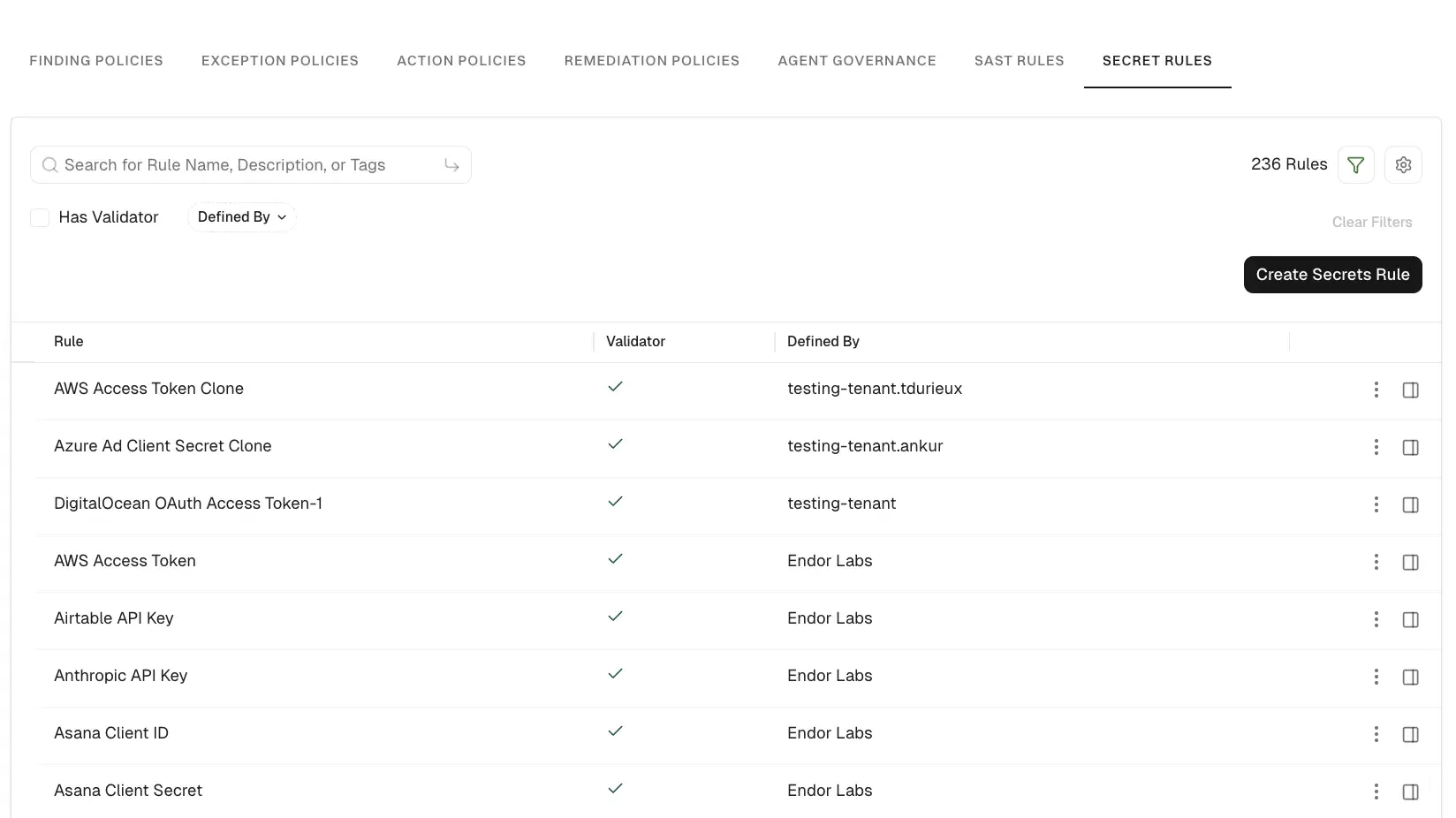
-
Select the rule for which you want to view the details.
The rule details appear in the right sidebar.
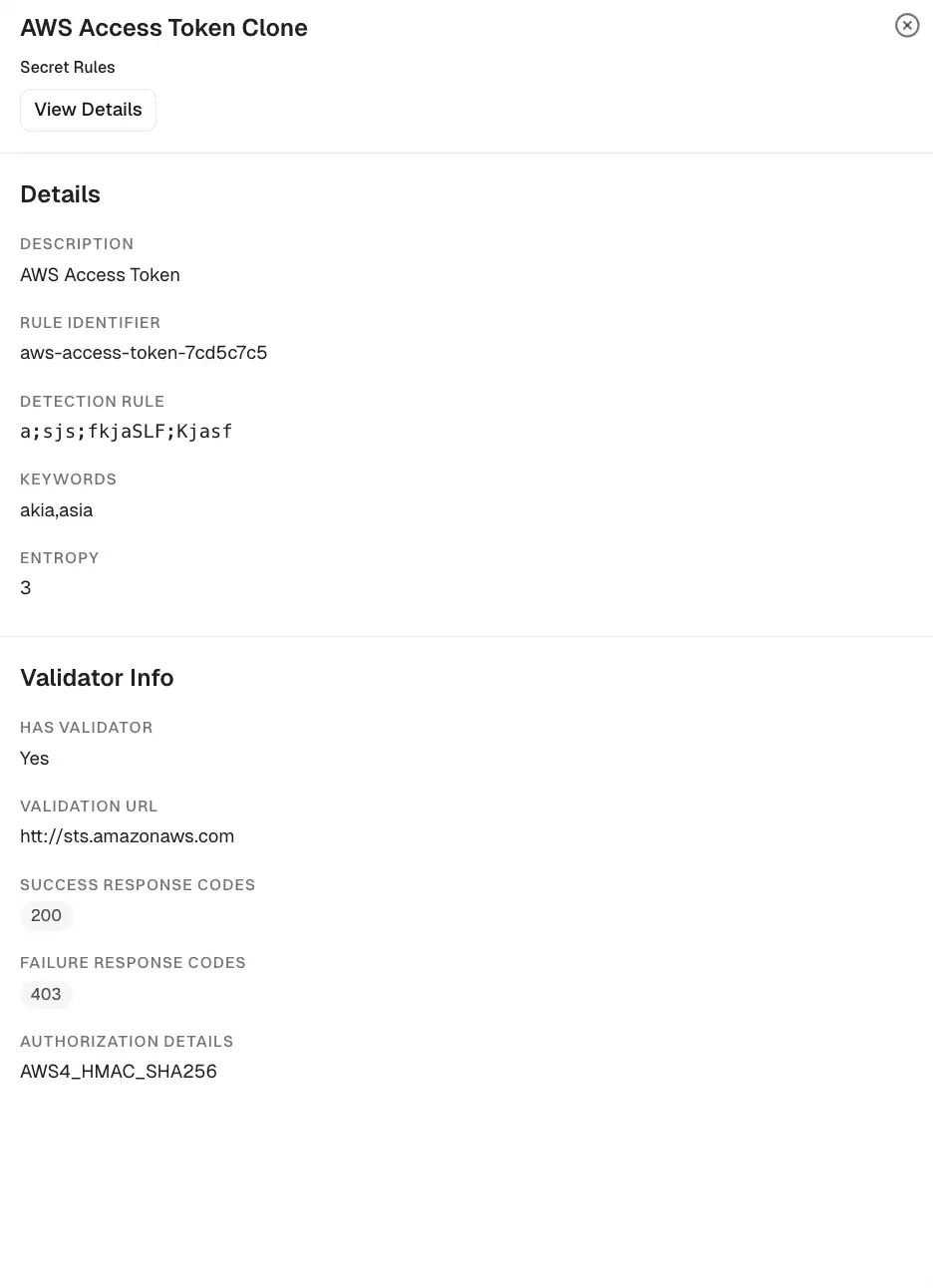
Clone a secret rule
Select the vertical three dots to the right of the rule, then select Clone Rule. The cloned rule appears in the list of secret rules and you can edit it.Edit a secret rule
Select the vertical three dots to the right of the rule, then select Edit Rule. You can only edit the custom rules that you created or the system rules that you cloned.Fetch secret rules with endorctl
To fetch the Endor Labs secret scanning rules from the command line type the following commands:GitHub Personal Access Token or by the rule-id github-pat:
--list-all flag with YAML output.