- Select User menu > Integrations from the left sidebar.
- Click Manage next to Bitbucket Cloud under Source Control Managers.
-
Click the three vertical dots next to the integration.
You can choose from the following options:

Update Credentials
To update the Bitbucket Cloud App credentials:-
Click the three vertical dots next to the integration, and select Update Credentials.
You cannot update the host URL of an existing integration. To monitor a different organization, create a new integration.
- You can update the credentials used when you installed the Bitbucket Cloud App by updating either the access token or the email and API token.
- Click Save.
Initiate rescan manuallyCredential updates take effect at the next scheduled scan cycle. To apply changes immediately, select Rescan Org.
Edit Bitbucket Cloud App integration
To edit the Bitbucket Cloud App integration:- Click the three vertical dots next to the integration, and select Edit Configuration.
- Select the scan types to enable in Scanners.
-
Select Pull Request Settings to edit the PR scans configuration.
See Bitbucket Cloud App PR scans for more information.
Permissions for your credentialsEnsure that the credentials have the required permissions for the selected authentication method. See Create an access token or Create an API token for more information.
- Click Update Configuration. The changes are applied from the next scanning cycle.
Delete Endor Labs Bitbucket Cloud App
To delete a Bitbucket Cloud App integration, click the three vertical dots next to the integration, and select Delete Integration. When you delete the integration, it will also delete all child namespaces, projects and references associated with the auto-generated root group namespace. It also deletes any manually created namespaces and projects under auto-generated namespace. Deleting an integration requires Update permission on theInstallation resource kind. See Authorization policies to learn about permission rules.
The workspace or project URL cannot be edited in an integration.
Delete the existing one and create a new integration in Endor Labs in the following scenarios to prevent duplication of findings in your tenant:
- You modify the Bitbucket Cloud workspace or project host URL.
- You want to update the integration to workspace level from project level.
View sync logs
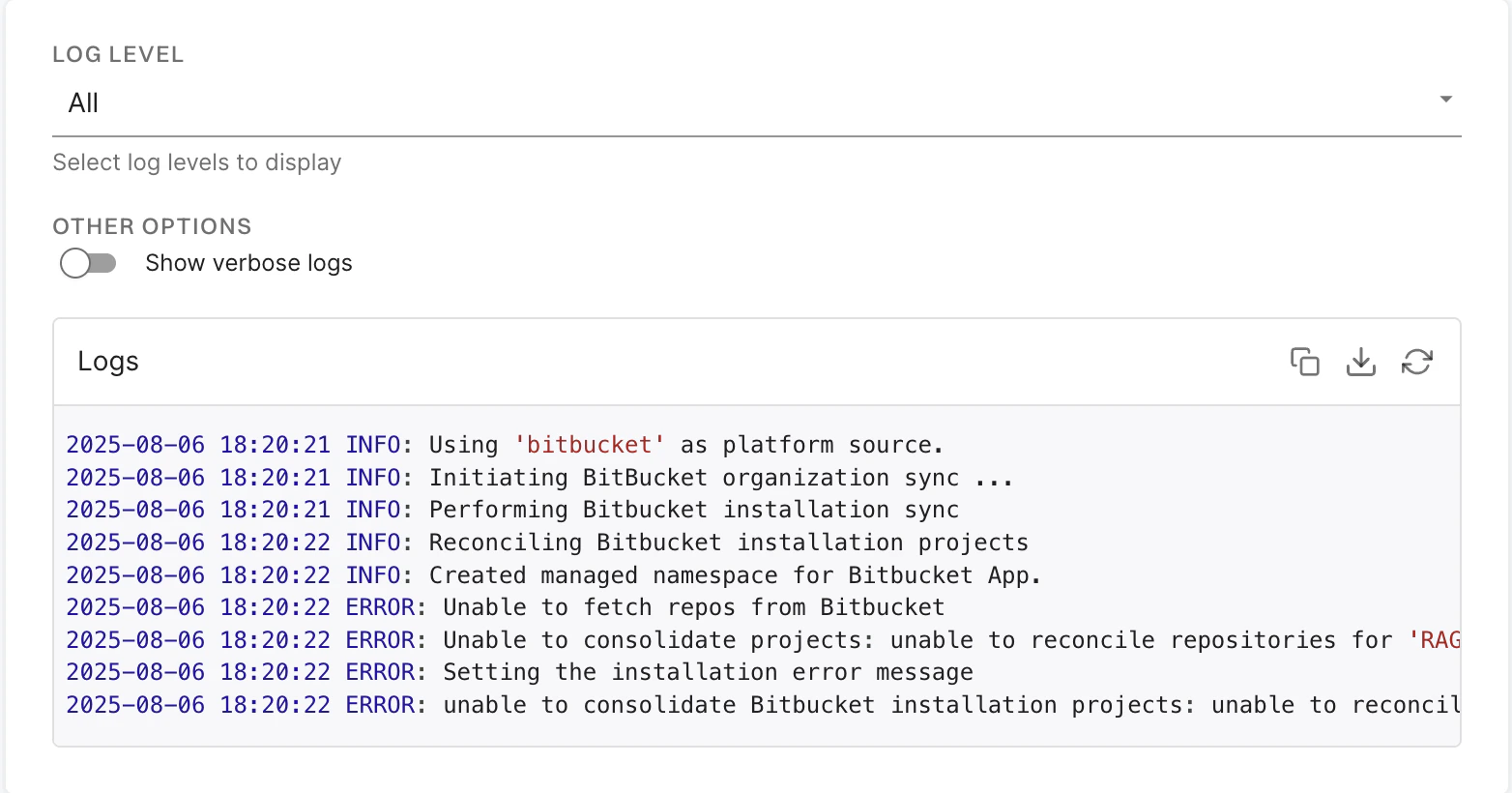
Endor Labs detects and reports installation and synchronization errors during organization sync. These include expired tokens, insufficient permissions, invalid host configurations, and certificate issues. Sync logs report those errors that you can resolve. To view sync logs, click the three vertical dots next to the integration, and select View Sync Logs. The sync logs display details of synchronization attempts, including timestamps, error types, and diagnostic messages. These logs help identify issues such as authentication failures or configuration problems.Types of errors
The sync logs detect and display the following categories of sync failures:- Expired or invalid Personal Access Tokens (PATs): The PAT used for authentication has expired or is no longer valid. Edit the integration and provide a valid token.
- Insufficient PAT permissions: The PAT does not have the required scopes, such as repository read access. You must generate and provide a PAT with the correct access.
- Certificate related access issues: The certificates required to connect to the SCM are invalid, outdated, or untrusted. This error occurs in self-hosted GitLab instances that use custom SSL certificates. Update the certificate configuration or ensure the certificate chain is properly trusted to resolve the issue.
- Incorrect or invalid host URLs: The configured URL is incorrect or unreachable. Since you cannot edit the host URL, you need to delete and reinstall the integration using the correct URL.