

View containers in your namespace
To view all containers across your namespace:- Select Containers from the left sidebar.
-
You can view a list of container images.
You can view the following information for each container image:
- Unique versions: The number of distinct versions of the image that were scanned.
- Unique projects: The number of projects that use the image.
- Classification: The classification of the image, such as
app,base, orunclassified.
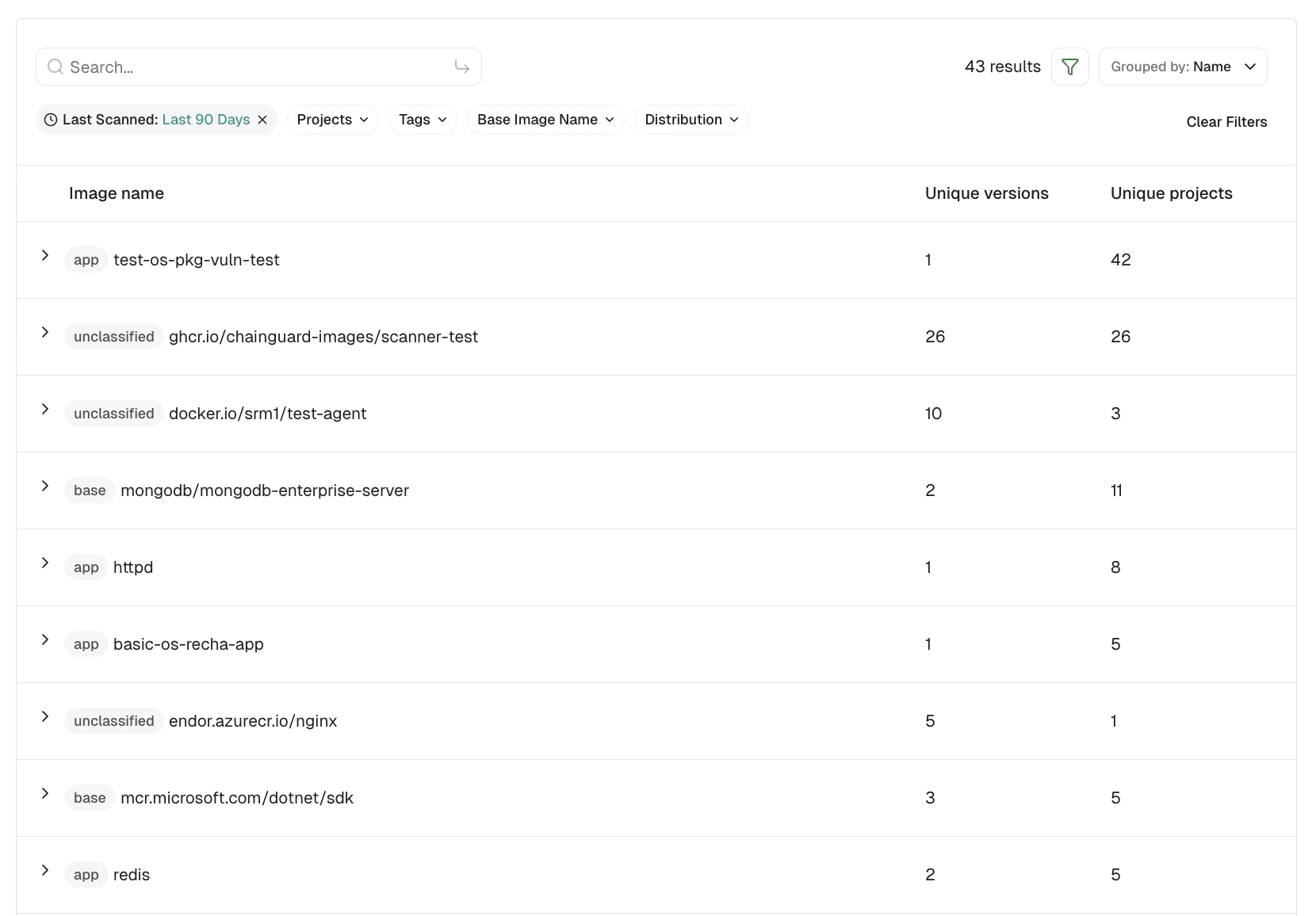
- Use the search bar to find specific container images by name. You can use the preset filters to limit which container images are listed. See Filter containers for the full set of options.
-
Click a container image to expand it and view each scanned Version of that image.
Each row shows the following information about the container image version:
- Version: The image tag or digest for the version, such as
latest. - Container Reachability: The profiling status and the reachability result for the version.
- Project: The project associated with the version.
- Findings: The number of vulnerabilities found in the container version.
- Last scanned: The time when the version was last scanned.

- Version: The image tag or digest for the version, such as
- Click on the three vertical dots to View Layers or View Derived Images.
Filter containers
Filtering containers helps you to narrow down the results to find specific container images based on your criteria. You can filter the containers by using the default filter options.- Tags: Filter by container image tags.
- Base Image Name: Filter by the underlying base image name.
- Project: Filter by the project associated with the version.
- Last Scanned: Filter by last scanned time. By default, last 90 days is applied.
- Distribution: Filter by the operating system distribution.
- Toggle Advanced and search for containers using advanced filters.
View container details overview
Select a container row to view the container details overview on the right sidebar. You can view the following information about the container.-
The Overview displays key dependency and finding counts with reachability and severity breakdowns, along with visibility, OSS usage, scopes, dependents, and version metadata.

-
The Reachability Analysis summarizes profiling status and details such as application type, profile type, image classification, run duration, and entry point package when available.

View container details of the selected version
Select a container version from the list of containers to view the details of the container version.View detailed findings
You can view the findings associated with the container image under Findings. Each finding displays the reachability status of its dependency as an attribute label. To view and filter dependencies based on the container images, click Container Layers and select to view All Layers, Base Image Layers Only, or Application Layers Only.
- Add Exception: Add an exception to exclude this finding from future scans for accepted or mitigated vulnerabilities.
- More Details: Access additional information about the vulnerability, including detailed technical descriptions and remediation steps.
View container version overview
Select Overview to view the summary of the selected container version. You can view the finding risk matrix and metadata such as dependencies, visibility, scopes, and package version details.
View dependent projects
Select Dependents to view the projects that depend on the selected container version. Each entry shows finding counts, origin of findings, project origin, last scanned time, and container reachability status.
View dependencies of the selected container version
Select Dependencies to view the dependencies of the selected container version. Each entry shows the dependency and requested version, its type, reachability status, visibility, and whether source code is available.
View dependency graph
Select Dependency Graph to view the dependency graph of the selected container version.
View container layers
Select Container Layers to view multiple layers numbered sequentially, where each number represents the order in which Docker commands were executed. Click on a layer to view the Docker command and findings associated with that specific layer.
View scan history
Select Scan History to see past scan runs for the container. This shows when the container was last scanned, previous scan results, and any changes in findings over time. You can compare different scan runs to track improvements or identify when new vulnerabilities were introduced.
View container findings in a project
To view findings from the container scan:- Select Projects from the left sidebar.
- Select the project for which you want to view the container findings.
-
Select Containers from the preset filters.
- To view and filter dependencies based on the container images, select Container Layers and choose to view All Layers, Base Image Layers Only, or Application Layers Only.
View findings in your namespace
To view all container findings across your namespace, go to Findings from the left sidebar and select Containers from the preset filters. This shows all container related vulnerabilities and security issues across your entire organization. You can search findings using basic filters or advanced filters to narrow down the results based on your specific criteria.