

What makes an effective rule
Include facts the agent cannot infer from the code on its own. Describe your codebase so the agent understands what it reads and which attacks are realistic:- The primary languages and frameworks you use on the frontend and backend.
- The entry points where untrusted input arrives, such as the package that holds your HTTP handlers.
- The authentication and authorization enforcement points, such as the middleware that protects your API routes and the file it lives in.
- The trust boundaries in your code, identified by file or directory.
- The sinks and sanitizers specific to your project, named exactly.
- The sources of secrets and configuration, such as a secrets manager loaded at boot rather than values hardcoded in source.
- The deployment shape, such as a static frontend with all authorization enforced server-side.
Set finding severity with a rule
A rule can set the severity of the findings it covers. The agent first computes a severity from the Score Metrics. It then applies the severity that your rule states. A rule can set an exact severity, a minimum, or a maximum:- Exact: Rate SQL injection findings in services/billing as Critical.
- Minimum: Rate authorization findings in the admin API as at least High.
- Maximum: Rate findings in internal tools under tools/ as at most Medium.
What not to include in a rule
The agent trusts every rule, so a rule takes effect even when the code does not support it. Do not include the following content in a rule:- Suppressions broader than you intend, such as telling the agent not to report SQL injection anywhere. A rule that ignores a finding class or location suppresses every finding it covers, including hardcoded secrets.
- Generic security advice, such as OWASP, CWE, or phrases like validate all input. It says nothing about your code.
- Secrets, tokens, private keys, personal data, or verbatim source code. Endor Labs sends the text of your rules to the AI model in each step that decides findings. Reference sensitive code by its file path and symbol name instead.
Automatic context from repository files
During a scan, Endor Labs also builds context automatically. It reads guidance files in your repository along with prior reviewer feedback, grounds them against your code, and uses them alongside the rules you create. Unlike your AI context rules, the agent treats this automatic context as reference only. Your rules take precedence over reviewer feedback, and the most recent feedback takes precedence when reviewers disagree over time. By default, a scan reads these files when they are within the scan scope:CLAUDE.md, and files under.claude/agents/and.claude/rules/.AGENTS.md..cursorrules, and files under.cursor/rules/..github/copilot-instructions.md.SKILL.mdfiles, such as.claude/skills/<name>/SKILL.md.memory.md.
Create an AI context rule
Create a rule to give the agent guidance about your code. You can enable or disable a rule at any time after you create it. To create an AI context rule:- Select Policies from the user menu.
- Select AI Context Rules.
- Select Create AI Context.
- Enter the following details:
- AI Context Name: A name that identifies the rule.
- Context: The guidance the agent reads. Describe the codebase, the conditions to look for, or background about the project.
- Under Scope, select the namespace the rule applies to. By default, the rule applies to all projects in the namespace, including projects added later.
- To limit the rule to specific projects, use Inclusions:
- Click Add more under Inclusions.
- Select the projects you want to include.
- Click Update.
- Optional: Enter the tags of the projects you want to include.
- To exclude specific projects, use Exclusions:
- Click Add more under Exclusions.
- Select the projects you want to exclude.
- Click Update.
- Optional: Enter the tags of the projects you want to exclude.
- Click Create AI Context.
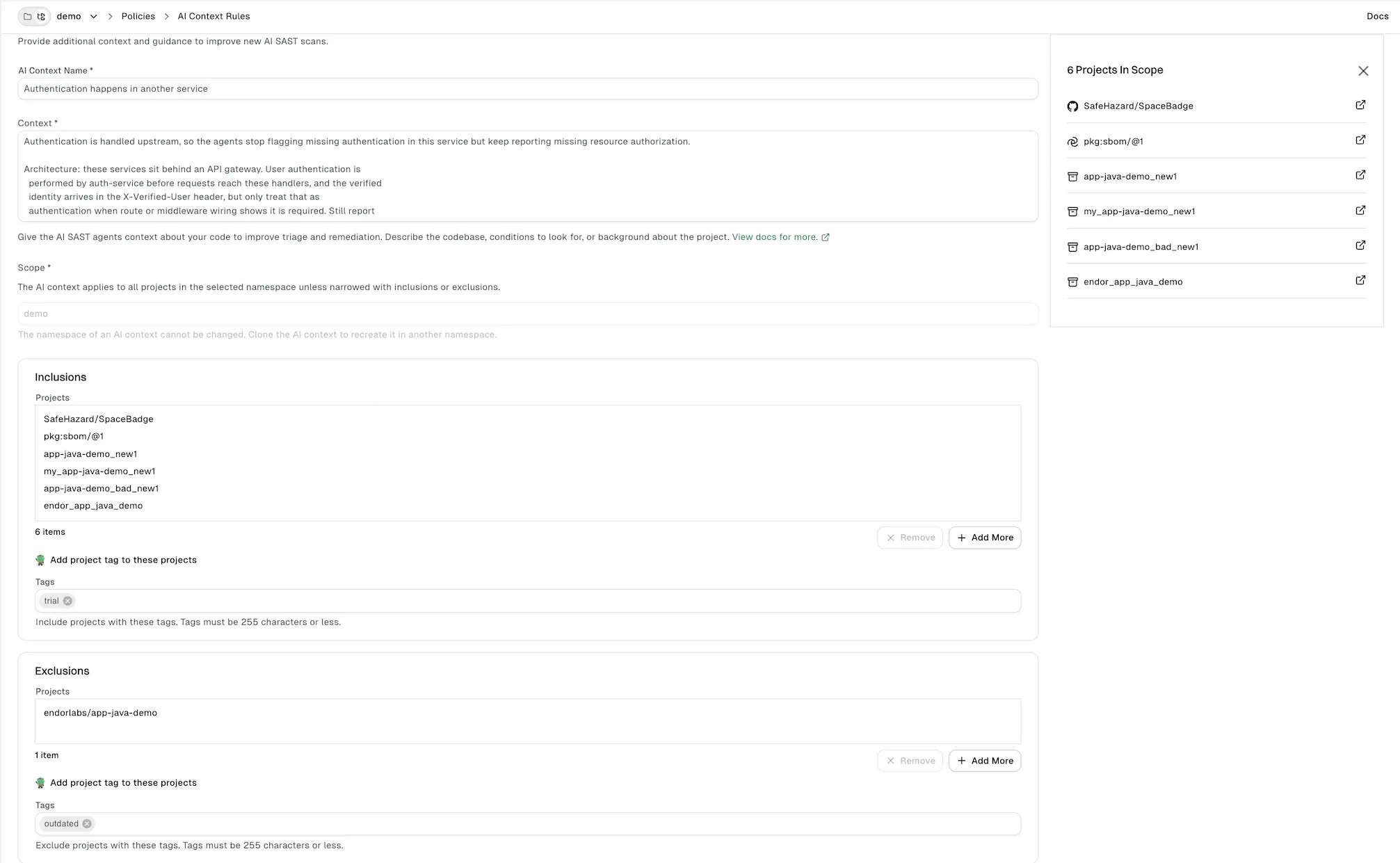
Manage AI context rules
You can edit, clone, delete, enable, or disable a rule at any time. Update or delete a rule when the code it describes moves or changes, so the agent does not work from stale guidance. Edit a rule to update its name, context, or scope.- Select Policies from the user menu.
- Select AI Context Rules.
- Click the vertical three dots next to the rule you want to edit.
- Select Edit.
- Update the AI context name, context, inclusions, or exclusions.
- Click Update AI Context.
- Select Policies from the user menu.
- Select AI Context Rules.
- Click the vertical three dots next to the rule you want to clone and select Clone.
- Update the AI context name, context, inclusions, and exclusions for the new rule.
- Click Create AI Context.
- Select Policies from the user menu.
- Select AI Context Rules.
- Click the vertical three dots next to the rule you want to remove and select Delete.
When rules take effect
The agent reads AI context rules at the start of each scan. A new, edited, or deleted rule applies to the results of the next scan. A rule change also reaches existing findings through the refresh of findings. A rule change makes every stored finding due. Later default branch scans re-evaluate them against the updated rules, oldest first, within each scan’s time budget. This happens even when the code has not changed since the last scan. Most scans are incremental. An incremental scan runs detection only on the functions in files that changed since the last full index. A rule that asks the agent to look for a new pattern therefore surfaces findings in unchanged files only after a full detection scan. To run detection on every function against your current rules, run a full detection scan with the--ai-sast-rescan flag.
ENDOR_SCAN_AI_SAST_RESCAN=true to the additional environment variables of the project’s scan profile. While the scan profile sets the variable, every default branch scan is a full detection scan. Remove the variable after the full scan completes so later scans return to incremental mode.
Example AI context rules
Adapt the names and paths in these examples to your own code.Authentication happens in another service
Authentication happens in another service
Another service handles authentication upstream, so the agent stops flagging missing authentication in this service but keeps reporting missing resource authorization.
A dependency provides the sanitizer
A dependency provides the sanitizer
A shared library sanitizes HTML, so the agent suppresses XSS findings on output that passes through it while still reporting sinks that bypass it.
A required authentication mechanism for every endpoint
A required authentication mechanism for every endpoint
Every protected endpoint must use a specific middleware, so the agent reports routes registered without it and leaves public routes alone.
Tenant boundary fields
Tenant boundary fields
Specific fields enforce tenant isolation, so the agent reports routes that scope queries by user instead of by tenant.
Custom admin model and low-noise scope
Custom admin model and low-noise scope
Admin actions need two separate checks and some directories are out of scope. The agent catches incomplete admin checks and suppresses findings in non-production paths.