

- Block: Prevents the package installation and returns an error. Select this action when you want to ensure the package never reaches your environment.
- Warn: Allows the package installation and logs it as a warning event. Select this action when you want visibility without risking build interruptions.
- Allow safe versions only (curate): Removes the unsafe versions from the list of versions available to the package manager client, so it resolves and installs a safe version instead of failing. Developers get a working version without seeing a block. This action is available for the malware and minimum package age conditions. See Allow safe versions to learn more.
- Exceptions: Specify packages to exclude from enforcement. When a package matches an exception, Package Firewall skips all checks and allows the installation. Exceptions override other conditions such as restricted licenses and minimum package age, making them useful for approved packages that must remain available for critical builds and package installation workflows. You can define exceptions for a single version, multiple versions, or a version range. For version ranges, the lower bound is inclusive and the upper bound is exclusive. If you do not configure version limits, the exception applies to every version of that package for the selected ecosystem. You can also use exceptions to allow a specific VS Code extension to install regardless of the policy. Exceptions apply only to the packages explicitly listed and do not cover transitive dependencies. If a transitive dependency is flagged, it is blocked even if the parent package has an exception. Add that package as a separate exception to allow its installation.
- Vulnerabilities: Set a CVSS severity threshold. Endor Labs uses CVSS 3.x by default and evaluates vulnerability severity using that version. You can change the CVSS version for your namespace in System Settings. If a package has a known vulnerability at or above this threshold, the configured policy action is applied.
- Restricted licenses: You can define a list of SPDX licenses that your organization considers restricted. If a package version matches one of these licenses, Endor Labs applies the configured policy action, helping enforce legal and open-source compliance at install time.
- Minimum package age: Set a minimum number of hours that must pass after a version is published before it is considered safe. If a version is newer than this threshold, Endor Labs applies the configured policy action, mitigating risk from newly released packages.
License requirementEnsure that you have the Package Firewall license to configure the policy. See Licenses for more information.
Allow safe versions
When you set the malware or minimum package age action to Allow safe versions only (curate), Package Firewall filters the versions it returns so the package manager client can resolve from only safe versions. If no safe version is available, Package Firewall blocks the request.- When the package manager client requests a list of available versions, Package Firewall removes any versions flagged as malware or younger than the minimum package age, then returns only the remaining safe versions.
- The package manager client resolves a version from the safe list using its own resolver, then requests it.
- Package Firewall evaluates the selected version against any configured restricted license and vulnerability conditions. If the version matches one of those conditions, Package Firewall warns or blocks the installation according to the configured action.
- The installation requests an exact version, and that version is unsafe.
- All available versions are unsafe and Package Firewall has no safe version to return.
Configure the policy
You can configure the Package Firewall policy to block or warn installations based on malware detection, exceptions, vulnerabilities, restricted licenses, and minimum package age conditions. The Package Firewall evaluates each package against the policy in the following order: Exceptions → Malware → Vulnerability → Restricted License → Minimum Package Age. If a package is listed as an exception, all checks are skipped.For VS Code extensions, the Package Firewall policy supports the malware and minimum package age conditions.
- Select User menu > Policies & Rules from the left sidebar.
- Select Package Firewall Policies.
Configure malware detection
Set the action the Package Firewall takes when it detects malware in a package.- Select Malware.
- Choose Block, Warn, or Allow safe versions only (curate) if the package is flagged as malicious.
- Click Save.
Set a minimum package age
Block or warn package installations when a version was published more recently than a threshold you define.- Select Minimum Package Age.
- Enter the number of hours that must pass after a version is published before it can be installed in Minimum package age in hours.
- Choose Block, Warn, or Allow safe versions only (curate) if the condition is met.
- Click Save.
Restrict licenses
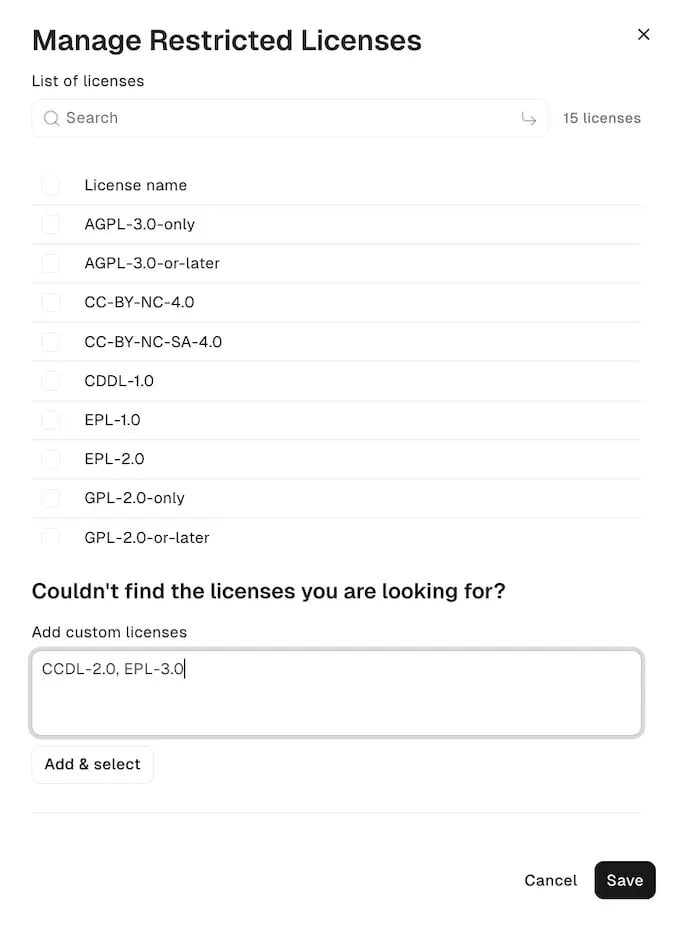
Define the SPDX licenses your organization considers restricted and how Package Firewall responds when a restricted license is detected. Restricted license enforcement does not apply to the Go and VS Code ecosystems. See Policy support by ecosystem for license detection limits in other ecosystems.- Select Restricted License.
- Click Add Licenses.
- Search for and select the licenses you want to restrict. You can search by the SPDX name or identifier of the license.
- If you don’t find the licenses you are looking for, enter a comma separated list of licenses in Add custom licenses.
- Click Add & select.
- Click Save.
- Choose to Block or Warn if the condition is met.
- Click Save.
Set a vulnerability threshold
Block or warn package installations that have vulnerabilities at or above a CVSS severity threshold. Vulnerability enforcement does not apply to the VS Code ecosystem.- Select Vulnerability.
- Choose Critical or High & Critical in Select CVSS severity.
- Choose to Block or Warn if the condition is met. Choose Do nothing to skip the vulnerability check.
- Click Save.
Add exceptions
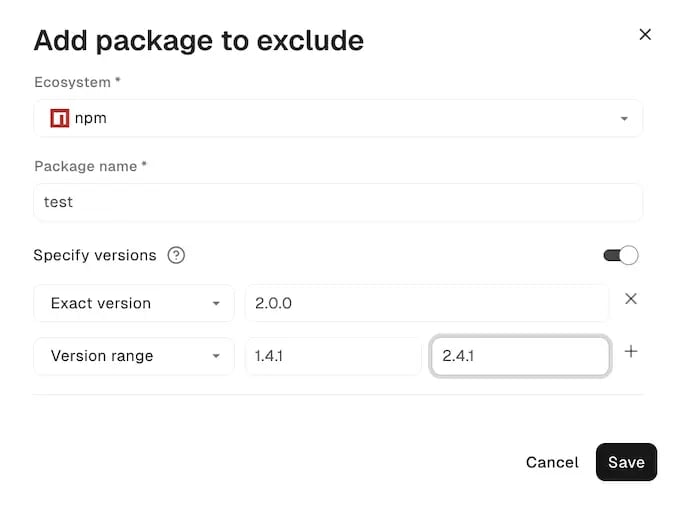
Add packages that bypass the Package Firewall entirely, skipping all malware, license, vulnerability, and minimum-age checks for those installations.- Select Exceptions.
- Click Add package exceptions.
- Choose the Ecosystem.
-
Enter the package name in Package name. For a VS Code extension, use its identifier in
publisher.nameform, such asms-python.python, which appears as the unique identifier on the extension’s Marketplace page. -
Optionally, turn on Specify versions and apply the exception to specific versions. If you leave this off, all versions of the package bypass the Package Firewall.
- To exclude a specific version, choose Exact version and enter the version to exclude.
- To exclude a range of package versions, choose Version range and enter the lower and upper bounds. The lower bound is inclusive, and the upper bound is exclusive. For example, a range of
1.1.3to3.0.0matches version1.1.3, but not3.0.0.
- Click Save.
- Optionally, click Add more to add exceptions for other packages.
- Click the vertical three dots and select Edit. You can update the package manager, package name, and versions.
- Click Save.
Set up notifications
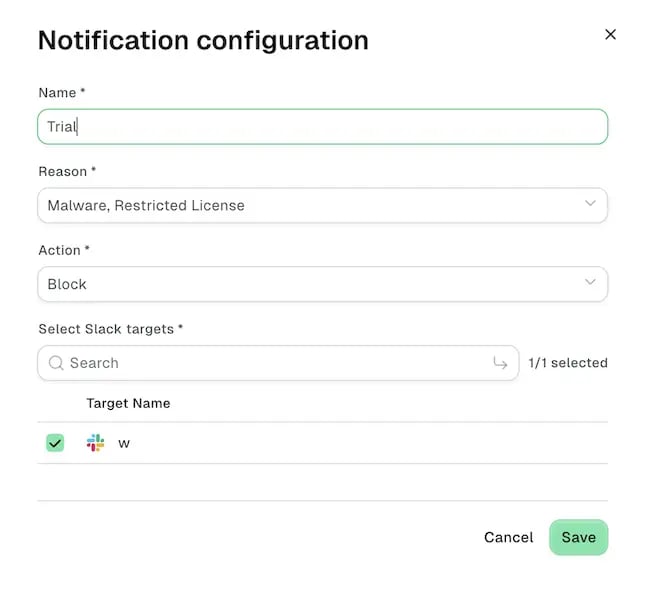
Configure Package Firewall notifications to send a Slack message when the firewall blocks or warns on a package installation. Each notification covers the conditions you choose, such as malware, minimum package age, restricted licenses, or vulnerabilities, which are supported for the ecosystem. You can configure multiple notifications for different conditions. A notification is sent only when an event matches both a selected reason and a selected action. The reason must already be configured to block or warn in your policy for it to generate a notification. Each policy shows whether notifications are set up for its selected action, with a link to view or create them. Notifications are not available for the Allow safe versions only (curate) and Do nothing actions. Ensure that you have at least one Slack notification target before you create a notification. Only Slack targets are supported. See Slack integration to set one up.- Select Notifications.
- Click Add notification.
- Enter a Name for the notification.
- Select one or more reasons: Malware, Minimum Package Age, Restricted License, or Vulnerability.
- Select one or more actions: Block or Warn.
- Search for and select the Slack targets that receive the notifications.
- Click Save.
- Click the vertical three dots and select Edit. You can update the notification name, reasons, actions, and Slack targets.
- Click Save.