

-
Block the installation and Artifactory returns
HTTP 404if the package is found in the Endor Labs malware database, or if a policy condition matches with Block. Package Firewall records a log with the package, version, and reason. - Allow the installation if a policy condition matches with Warn. Package Firewall records a warning log with the package, version, and reason.
- Allow the installation if the package passes all checks. No log is recorded.
HTTP 404 when it blocks a request without surfacing the specific reason. To see why a package was blocked, review the Package Firewall logs.
A package that Package Firewall cannot evaluate returns the same HTTP 404 block response if your policy sets the action for packages that cannot be evaluated to Block (Fail-close). Review the Package Firewall logs to confirm the reason.
JFrog Artifactory requirementYou must have a JFrog Artifactory instance with permission to create remote repositories and configure credentials.
Configure the Package Firewall
Complete the following steps to integrate JFrog Artifactory with the Endor Labs Package Firewall:- Create an API key for the Package Firewall.
- Configure JFrog Artifactory.
- Local setup for developers.
- Verify your setup.
Create an API key for the Package Firewall
Create an API key dedicated to the Package Firewall so that JFrog Artifactory can authenticate to it. You can create it through one of the following methods:- Using the Endor Labs user interface, with the Package Firewall User role. See API keys to learn more.
- Using endorctl, with the
SYSTEM_ROLE_PACKAGE_FIREWALLrole. Make sure to install and configure endorctl before you create the key.
<namespace>with your namespace.<API key name>with the name of the API key for the Package Firewall use case.<YYYY-MM-DDTHH:MM:SSZ>with the API key expiration in ISO 8601 UTC format, for example2026-12-31T23:59:59Z.
- API key:
spec.key - API secret:
spec.secret
Configure JFrog Artifactory
Configure a remote repository in JFrog Artifactory for each package type you want to route through Package Firewall. Use the following steps for npm, PyPI, Go, Maven, NuGet, or RubyGems packages.Configure JFrog Artifactory for an npm remote repository
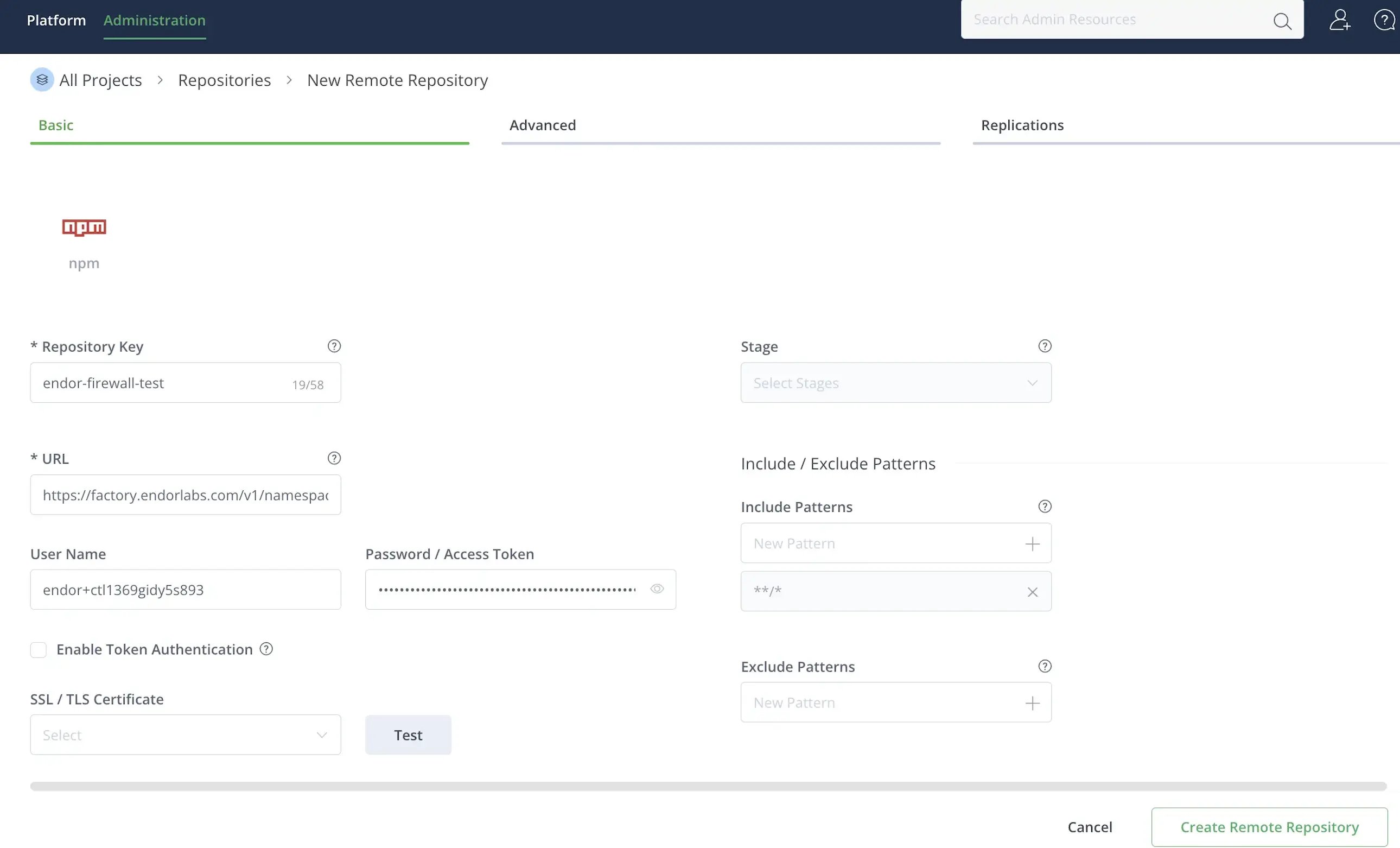
Configure JFrog Artifactory for an npm remote repository
- Log in to JFrog Artifactory.
- Select Administration > Repositories from the left sidebar.
- Click Create a Repository and select Remote.
- Select npm as the package type.
-
Enter a Repository Key, for example
endor-firewall-npm. -
Enter the repository URL:
https://factory.endorlabs.com/v1/namespaces/<namespace>/firewall/npm/. Replace<namespace>with your Endor Labs namespace. - Enter the User Name and Password you saved when creating the API key.
-
Click Create Remote Repository.
Configure JFrog Artifactory for a PyPI remote repository
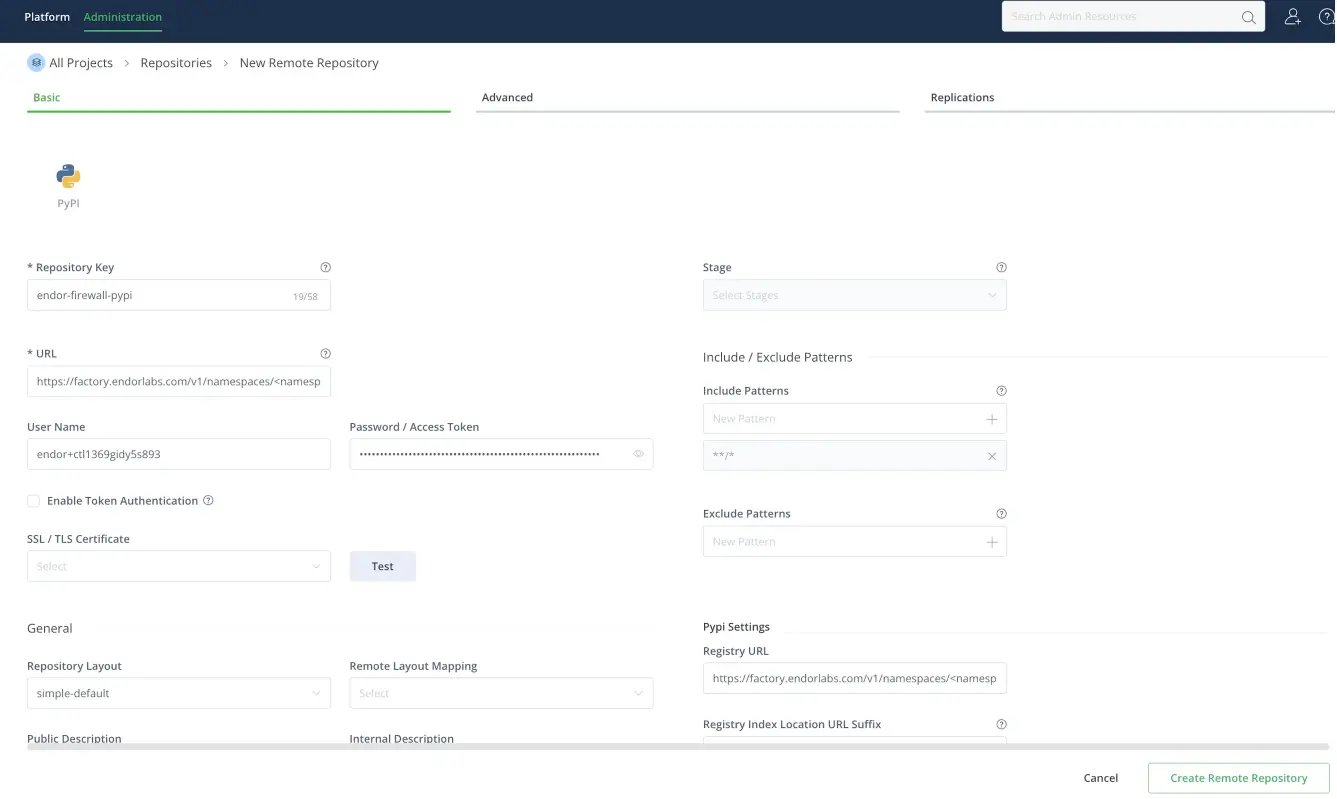
Configure JFrog Artifactory for a PyPI remote repository
- Log in to JFrog Artifactory.
- Select Administration > Repositories from the left sidebar.
- Click Create a Repository and select Remote.
- Select PyPI as the package type.
-
Enter a Repository Key, for example
endor-firewall-pypi. -
Enter the repository URL:
https://factory.endorlabs.com/v1/namespaces/<namespace>/firewall/pypi/. Replace<namespace>with your Endor Labs namespace. - Enter the User Name and Password you saved when creating the API key.
- In PyPI Settings, set Registry URL to the same URL you entered in step 6.
-
Click Create Remote Repository.
Configure JFrog Artifactory for a Go virtual repository
Configure JFrog Artifactory for a Go virtual repository
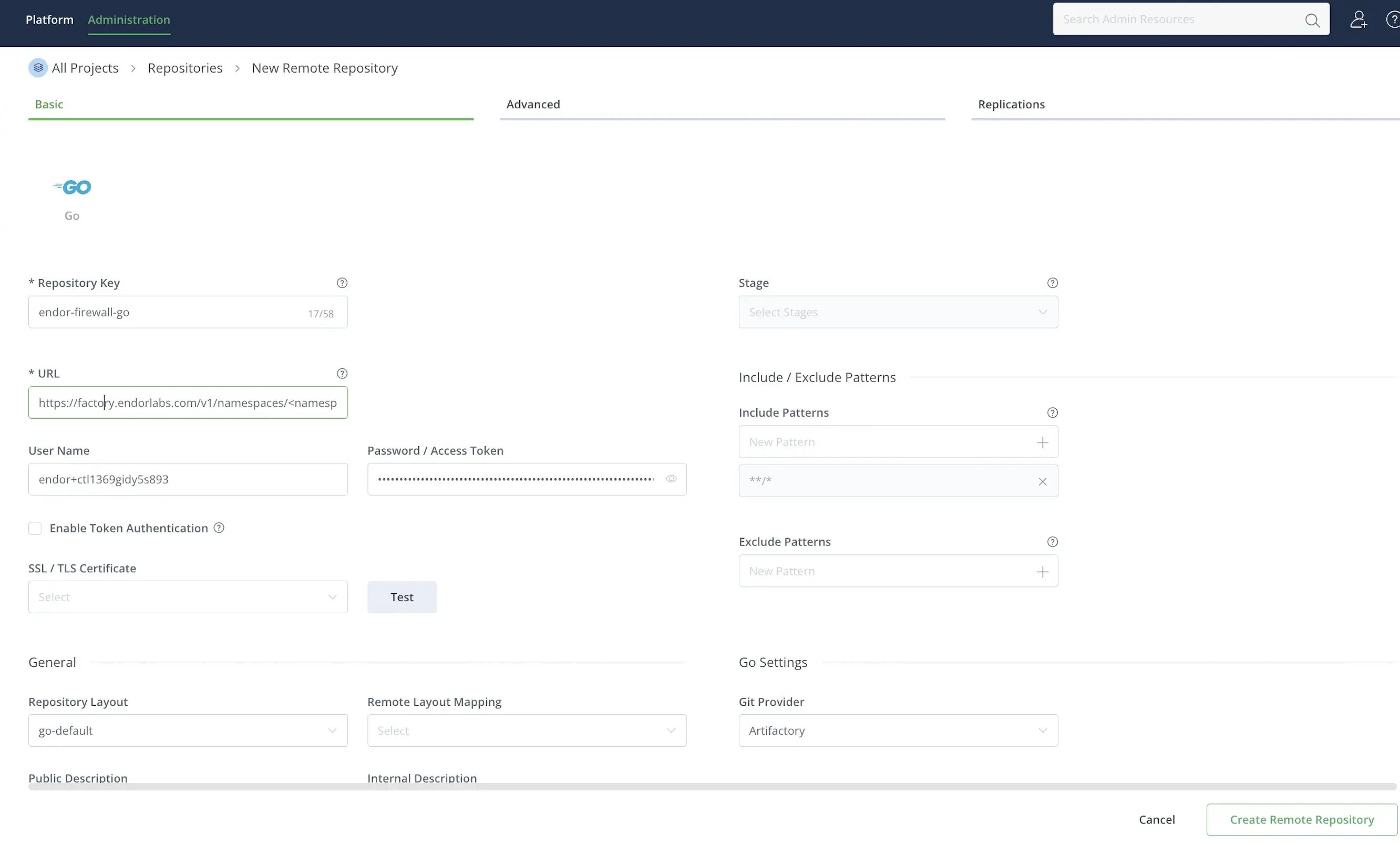
Package Firewall uses a virtual repository URL that aggregates one or more Go remote repositories. Each remote repository routes Go module requests through Package Firewall. The virtual repository gives clients a single endpoint that forwards each request to the matching remote repository. You can use a single virtual repository to link all Go remote repositories.To create a Go remote repository:
- Log in to JFrog Artifactory.
- Select Administration > Repositories from the left sidebar.
- Click Create a Repository and select Remote.
- Select Go as the package type.
-
Enter a Repository Key, for example
endor-firewall-go. -
Enter the repository URL:
https://factory.endorlabs.com/v1/namespaces/<namespace>/firewall/go/. Replace<namespace>with your Endor Labs namespace. - Enter the User Name and Password you saved when creating the API key.
-
Click Create Remote Repository.
- Select Administration > Repositories from the left sidebar.
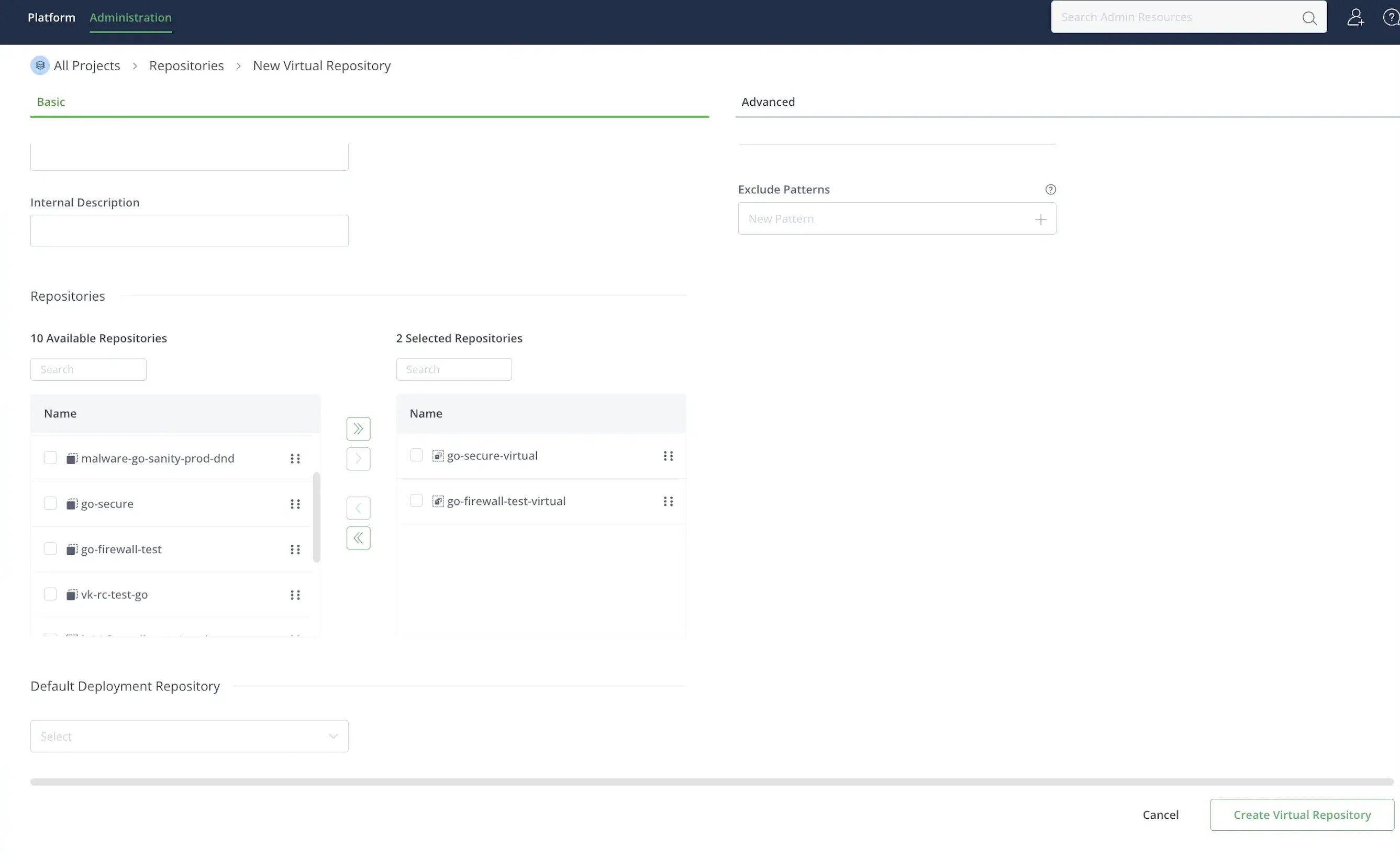
- Click Create a Repository and select Virtual.
- Select Go as the package type.
-
Enter a Repository Key, for example
endor-firewall-go-virtual. - Under Repositories, select the remote repositories you want to add and click >. To make sure Package Firewall takes precedence in the virtual repository, see Add Package Firewall to a virtual repository.
-
Click Create Virtual Repository.
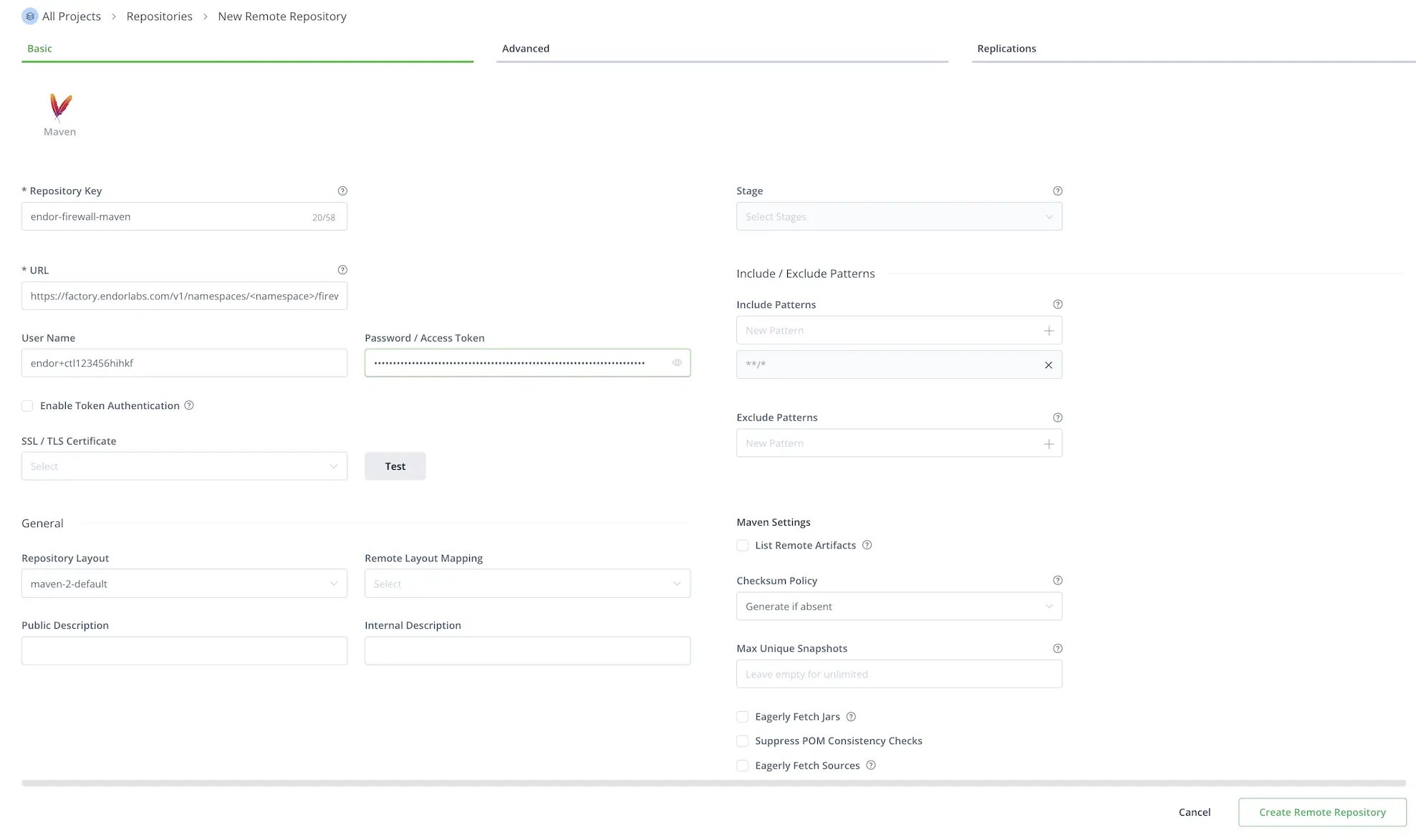
Configure JFrog Artifactory for a Maven remote repository
Configure JFrog Artifactory for a Maven remote repository
- Log in to JFrog Artifactory.
- Select Administration > Repositories from the left sidebar.
- Click Create a Repository and select Remote.
- Select Maven as the package type.
-
Enter a Repository Key, for example
endor-firewall-maven. -
Enter the repository URL:
https://factory.endorlabs.com/v1/namespaces/<namespace>/firewall/maven/. Replace<namespace>with your Endor Labs namespace. - Enter the User Name and Password you saved when creating the API key.
- Disable Offline to allow Artifactory to fetch remote artifacts.
- Select Advanced and enable Store Artifacts Locally. To make sure Package Firewall takes precedence in a virtual repository, see Add Package Firewall to a virtual repository.
-
Click Create Remote Repository.
Configure JFrog Artifactory for a NuGet remote repository
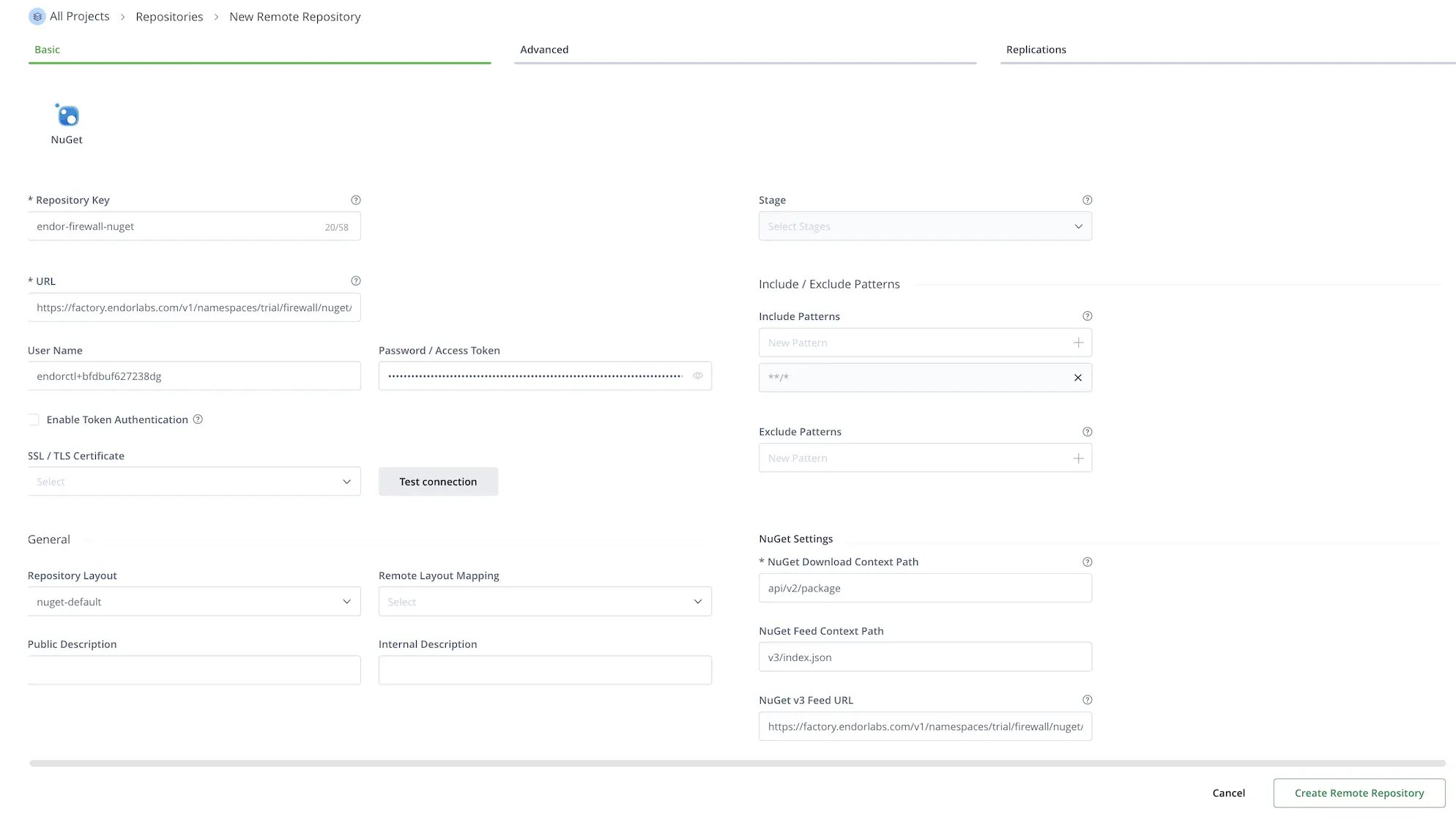
Configure JFrog Artifactory for a NuGet remote repository
- Log in to JFrog Artifactory.
- Select Administration > Repositories from the left sidebar.
- Click Create a Repository and select Remote.
- Select NuGet as the package type.
-
Enter a Repository Key, for example
endor-firewall-nuget. -
Enter the repository URL:
https://factory.endorlabs.com/v1/namespaces/<namespace>/firewall/nuget/. Replace<namespace>with your Endor Labs namespace. - Enter the User Name and Password you saved when creating the API key.
-
In the NuGet settings, set the NuGet Feed Context Path to
v3/index.json. -
Set NuGet V3 Feed URL to
https://factory.endorlabs.com/v1/namespaces/<namespace>/firewall/nuget/v3/index.json. Replace<namespace>with your Endor Labs namespace. -
Select Advanced and set the following so JFrog Artifactory forwards every request to Package Firewall instead of serving a cached response:
- Disable Store Artifacts Locally.
- Set Metadata Retrieval Cache Period (Sec) to
0. - Set Missed Retrieval Cache Period (Sec) to
0. - Set Assumed Offline Period (Sec) to
0.
-
Click Create Remote Repository.
Configure JFrog Artifactory for a RubyGems remote repository
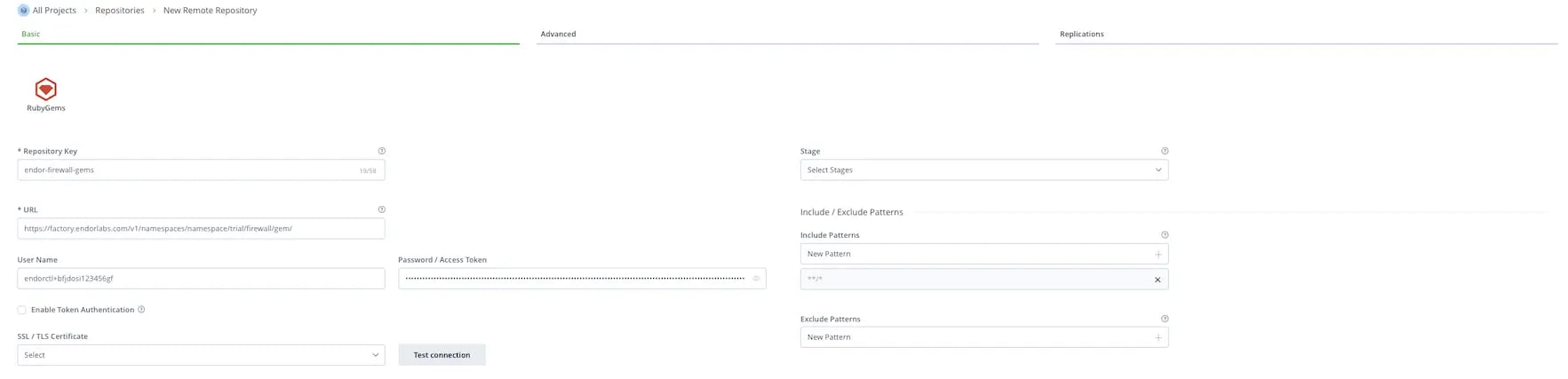
Configure JFrog Artifactory for a RubyGems remote repository
- Log in to JFrog Artifactory.
- Select Administration > Repositories from the left sidebar.
- Click Create a Repository and select Remote.
- Select Gems as the package type.
-
Enter a Repository Key, for example
endor-firewall-gems. -
Enter the repository URL:
https://factory.endorlabs.com/v1/namespaces/<namespace>/firewall/gem/. Replace<namespace>with your Endor Labs namespace. - Enter the User Name and Password you saved when creating the API key.
-
Select Advanced and set the following:
- Disable Store Artifacts Locally.
- Set Metadata Retrieval Cache Period (Sec) to
30. - Set Metadata Retrieval Cache Timeout (Sec) to
30. - Set Missed Retrieval Cache Period (Sec) to
30. - Set Assumed Offline Period (Sec) to
0.
-
Click Create Remote Repository.
Add Package Firewall to a virtual repository
Artifactory checks the remote repositories in a virtual repository in order and returns the first match. A package that another remote repository serves first never reaches Package Firewall, so Package Firewall does not evaluate it. Set the Package Firewall URL only on the Maven Central remote repository. Package Firewall serves only Maven Central packages, so do not change the URL of other remote repositories, such as Google’s Maven repository or the Gradle Plugin Portal. To route every request for a public package through Package Firewall:- Select Administration > Repositories from the left sidebar.
- Click Repository Type to sort the virtual repositories from the local and remote ones, and select your virtual repository.
-
In Selected Repositories, drag the Package Firewall remote repository to the top of the list.
Remove any other remote repository that proxies the same public registry, such as a second remote repository for
registry.npmjs.orgor Maven Central. Package Firewall returnsHTTP 403when it blocks a package, so Artifactory serves the package from any other repository that has a copy. - Click Save.
- Go back to Repositories, and select the Package Firewall remote repository.
- Select Advanced, and enable Priority Resolution.
- Click Save.
Configure caching for time-sensitive policies
JFrog Artifactory serves cached package metadata without contacting Package Firewall until the cache expires, so long cache periods delay when policy changes reach your developers. Lower Metadata Retrieval Cache Period (Sec) and Missed Retrieval Cache Period (Sec) on each remote repository you configured to apply changes faster. Lower values send more requests to Package Firewall per installation, so balance responsiveness against request volume.- Select Administration > Repositories from the left sidebar.
- Select the remote repository you configured for Package Firewall.
- Select Advanced.
- In Metadata Retrieval Cache Period (Sec), enter a low value. This value controls how long Artifactory serves cached metadata before it fetches a fresh copy from Package Firewall. A value of
0disables metadata caching. Some cloud deployments enforce a minimum, so if yours rejects0, enter the lowest value it accepts. - In Missed Retrieval Cache Period (Sec), set a low value, around
30to60. This value controls how long Artifactory caches a not-found (HTTP 404) response, which includes a version blocked by a minimum package age condition that later becomes eligible. - Click Save.
Attribute requests to developers
The remote repository sends the same credentials for every developer, so each event in the Package Firewall logs names the API key rather than a person. A worker can rewrite the outgoing authorization header on each request so the logs name the Artifactory user instead. See User attribution to set it up.Local setup for developers
Update your package manager client to use Artifactory as its source, routing all installs through Package Firewall instead of a public registry. Once you create the Artifactory remote:- Select Administration > Repositories from the left sidebar.
- Click the vertical three dots next to the repository you configured and select Set Me Up. For Go, and for a Maven virtual repository that combines several remote repositories, select the virtual repository.
- Enter Your JFrog account password if prompted.
- Click Generate Token & Create Instructions.
-
Follow the instructions to configure your local machine based on your package type. Edit
.npmrcfor npm,pip.conffor pip,settings.xmlfor Maven,nuget.configfor NuGet, or.gemrcand the Bundler configuration for RubyGems. For Go modules, select Resolve, copy the URL it provides, and run the following command. Replace<virtual-repository-url>with the copied URL. Ensure to URL-encode any@in the username as%40.For RubyGems, run the following commands. Replace<jfrog-host>with your JFrog host,<gems-repo-key>with the key of your Gems remote repository, and<encoded-credentials>with your URL-encoded<jfrog-username>:<jfrog-token>. URL-encode any@in the username as%40.Set the Bundler mirror with--globalas shown, not inside a project. A mirror in a project’s.bundle/configoverrides the global mirror for that project. Refer to JFrog Artifactory documentation for more information.
- Run the following command to verify that your local client is pointing to the Artifactory repository. Ensure the output matches the Artifactory remote URL you configured, or the virtual repository URL for Go modules and for a Maven virtual repository.
- For npm packages, run
npm config get registry. - For PyPI packages, run
pip3 config list | grep index-url. - For Go modules, run
go env GOPROXY. - For Maven packages, run
mvn dependency:resolve -s settings.xml. - For RubyGems packages, run
gem sources --listandbundle config get mirror.https://rubygems.org/.gem sources --listshould show only the Artifactory URL, and the mirror should show the Artifactory URL set for the current user, with no value set for your local app.
- For npm packages, run
Verify your setup
To verify your setup, install a package that Endor Labs has classified as malware. Package Firewall blocks the installation, and Artifactory returns anHTTP 404.
The following are examples of packages classified as malware by Endor Labs.
npm
npm
Run the following command to test Package Firewall with npm.When Package Firewall blocks the package, the output looks similar to the following. The
E404 error code and 404 Not Found response confirm that the firewall blocked the package.pip
pip
Run the following command to test Package Firewall with pip.When Package Firewall blocks the package, the output looks similar to the following. The
404 response confirms that the firewall blocked the package.Go
Go
Run the following command to test Package Firewall with Go.When Package Firewall blocks the package, the output looks similar to the following. The
404 response confirms that the firewall blocked the package.Maven
Maven
Add When Package Firewall blocks the package, the output looks similar to the following. JFrog Artifactory does not serve the artifact, so resolution fails with a missing POM warning and a
io.github.endorlabs:endor-java-webapp-demo:4.1 as a dependency in your pom.xml, then run the following command to test Package Firewall with Maven.Could not find artifact error.NuGet
NuGet
Configure your client to use the Artifactory NuGet feed as described in Local setup for developers, then run the following command to test Package Firewall with NuGet. Replace the When Package Firewall blocks the package, the output looks similar to the following. The
--source URL with your Artifactory NuGet feed URL from Set Me Up.NotFound response confirms that the firewall blocked the package.Bundler
Bundler
Configure Bundler to use the Artifactory Gems repository as described in Local setup for developers, then run the following commands in an empty directory to test Package Firewall with Bundler.
bundle add writes the test gem to the Gemfile even though the installation is blocked. Delete the directory after the test, or later Bundler commands try to install the gem again and Package Firewall records a new block event each time.When Package Firewall blocks the package, the output looks similar to the following. The 404 response confirms that the firewall blocked the package.gem
gem
Configure gem to use the Artifactory Gems repository as described in Local setup for developers, then run the following command to test Package Firewall with gem.When Package Firewall blocks the package, the output looks similar to the following. The
404 response confirms that the firewall blocked the package.Troubleshooting and FAQ
What if Artifactory has already cached a package that is declared malicious later?
What if Artifactory has already cached a package that is declared malicious later?
If Endor Labs flags a package as malware after Artifactory cached it, Artifactory continues to serve the cached metadata until the entry expires. Lower Metadata Retrieval Cache Period (Sec) on the remote repository to shorten that window. See Configure caching for time-sensitive policies to learn more.
How do I troubleshoot connection issues?
How do I troubleshoot connection issues?
- Verify that the Package Firewall URL in Artifactory is correct.
- If you use Endor Labs with an EU tenant, verify that the repository URL uses
factory.eu.endorlabs.com. - Ensure network connectivity from Artifactory to Package Firewall.
- Ensure the firewall rules allow outbound connections from Artifactory.
How do I troubleshoot authentication issues?
How do I troubleshoot authentication issues?
- Verify the API key and secret are correct and that the key has the Package Firewall User role.
- Ensure that the credentials are in the format Artifactory expects.
- Check the Artifactory logs for authentication errors.
How do I troubleshoot cache issues?
How do I troubleshoot cache issues?
- Verify that Artifactory has sufficient storage for the cache.
- Lower Metadata Retrieval Cache Period (Sec) and Missed Retrieval Cache Period (Sec) so more requests reach Package Firewall. See Configure caching for time-sensitive policies.
- Check the cache hit and miss rates. Clear the cache if you need to test with a fresh request.
Why does a package stay blocked after it becomes eligible?
Why does a package stay blocked after it becomes eligible?
A package blocked by a minimum package age condition returns an
HTTP 404, which Artifactory caches in its missed-retrieval cache separately from package metadata. After the version becomes eligible, Artifactory can keep returning HTTP 404 until that entry expires. Lower Missed Retrieval Cache Period (Sec) on the remote repository so the change takes effect sooner. See Configure caching for time-sensitive policies.Does Package Firewall work with a self-managed Artifactory instance?
Does Package Firewall work with a self-managed Artifactory instance?
Yes. Package Firewall behaves the same whether Artifactory is self-managed or JFrog’s SaaS offering. Any IP allowlisting depends on the network rules of your organization. Package Firewall and Artifactory don’t impose additional restrictions.