> ## Documentation Index
> Fetch the complete documentation index at: https://docs.endorlabs.com/llms.txt
> Use this file to discover all available pages before exploring further.
# Manage GitHub Cloud App Pro on Endor Labs
> Learn how to manage your GitHub App integration in Endor Labs.
You can make changes to the GitHub App integrations or delete them. You can view the activity logs for the GitHub App and rescan your GitHub repositories on demand.
1. Select **User menu** > **Integrations** from the left sidebar.
2. Click **Manage** next to **GitHub** under **Source Control Managers**.
3. Click the three vertical dots next to the integration.
You can choose from the following options:
* [**Edit Integration**](#edit-github-app-integration)
* [**Delete Integration**](#delete-endor-labs-github-app)
* [**View Sync Logs**](#view-sync-logs)
### Edit GitHub App integration
To edit the GitHub App integration:
1. Click the three vertical dots next to the integration, and select **Edit Configuration**.
2. Select the scan types to enable in **Scanners**.
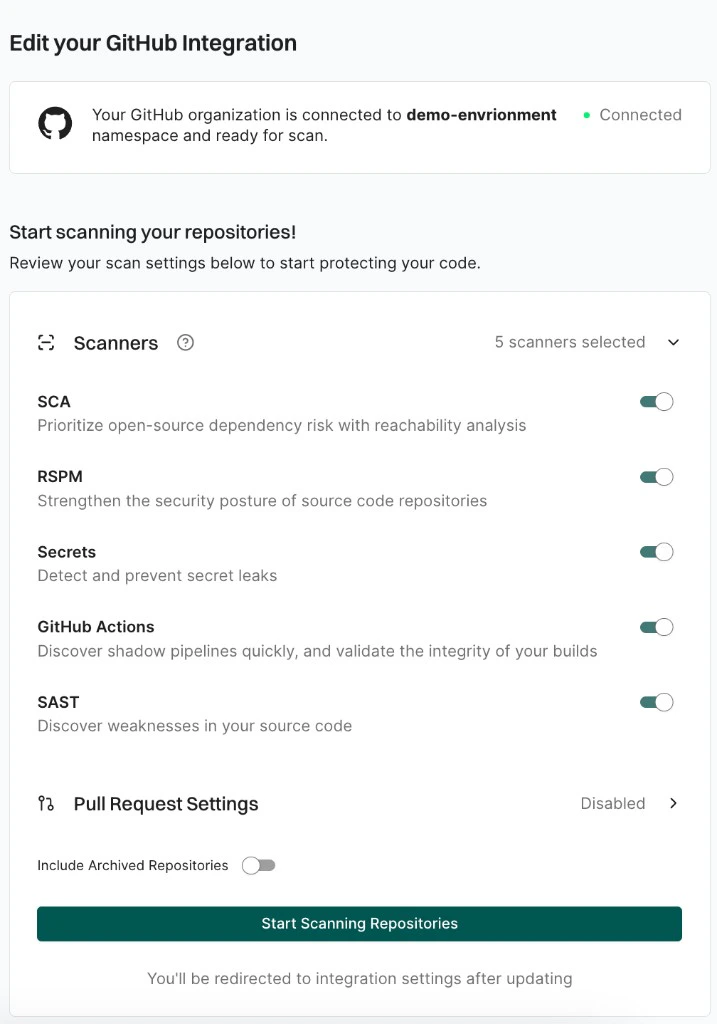 3. Select **Pull Request Settings** to edit the PR scans configuration.
See [GitHub App PR scans](/setup-deployment/scm-integrations/github-app/#configure-pr-scans-for-existing-github-app-pro-integrations) for more information.
4. Click **Update Configuration** to save the changes.
The changes are applied from the next scanning cycle.
Click **Rescan Org** after editing the integration to apply changes immediately instead of waiting for the next scheduled scan.
### Delete Endor Labs GitHub App
To delete a GitHub App integration, click the three vertical dots next to the integration, and select **Delete Integration**.
Deleting the integration deletes all child namespaces, projects, and references associated with the auto-generated root group namespace. It also deletes any manually created namespaces and projects under that namespace.
### View sync logs
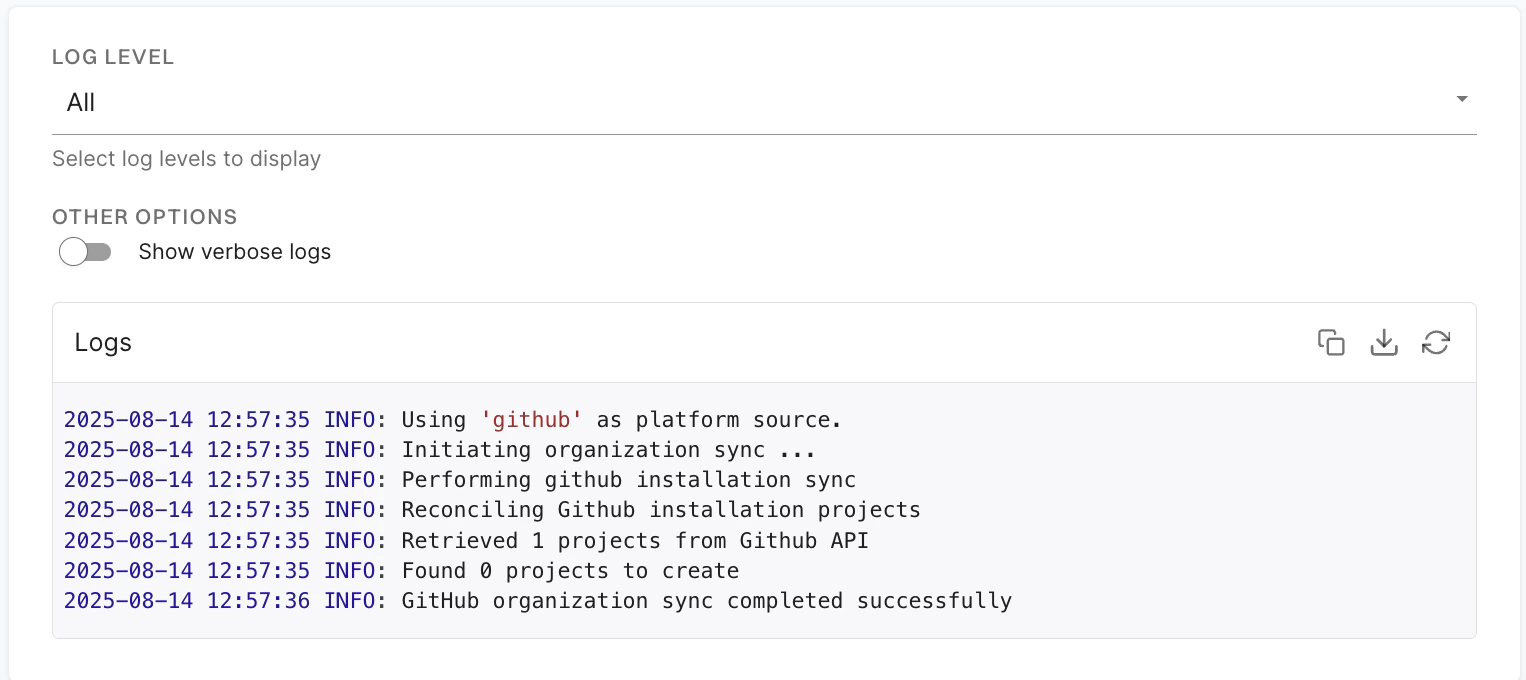
To view sync logs, click the three vertical dots next to the integration, and select **View Sync Logs**.
The sync logs display details of synchronization attempts, including timestamps, error types, and diagnostic messages. These logs help identify issues such as authentication failures or configuration problems.
3. Select **Pull Request Settings** to edit the PR scans configuration.
See [GitHub App PR scans](/setup-deployment/scm-integrations/github-app/#configure-pr-scans-for-existing-github-app-pro-integrations) for more information.
4. Click **Update Configuration** to save the changes.
The changes are applied from the next scanning cycle.
Click **Rescan Org** after editing the integration to apply changes immediately instead of waiting for the next scheduled scan.
### Delete Endor Labs GitHub App
To delete a GitHub App integration, click the three vertical dots next to the integration, and select **Delete Integration**.
Deleting the integration deletes all child namespaces, projects, and references associated with the auto-generated root group namespace. It also deletes any manually created namespaces and projects under that namespace.
### View sync logs
To view sync logs, click the three vertical dots next to the integration, and select **View Sync Logs**.
The sync logs display details of synchronization attempts, including timestamps, error types, and diagnostic messages. These logs help identify issues such as authentication failures or configuration problems.
 ### Manually rescan GitHub repositories
GitHub App scans your repositories every 24 hours. Click **Rescan Org** to manually trigger a scan outside the 24-hour period.
### Add more GitHub repositories to scan
You can onboard new repositories by either [creating a new GitHub Cloud App Pro installation](/setup-deployment/scm-integrations/github-app-pro#install-github-cloud-app-pro) or updating your existing installation.
To add more repositories to your existing installation:
1. Select **Integrations** from the left sidebar.
2. Click **Manage** next to **GitHub**.
3. Click **Scan More Repositories**.
4. From **GitHub**, choose **GitHub Cloud App Pro**.
5. Click **Install GitHub Pro App**.
You will be redirected to GitHub.
6. On GitHub, select **Configure** next to your existing organization installation for Endor Labs.
7. Under **Repository access**, select **Only select repositories** and choose the additional repositories you want to include. You can also select **All repositories** instead to grant access to every repository in the organization.
8. Click **Save**.
9. When you return to Endor Labs, click **Start Scanning Repositories**.
### Manually rescan GitHub repositories
GitHub App scans your repositories every 24 hours. Click **Rescan Org** to manually trigger a scan outside the 24-hour period.
### Add more GitHub repositories to scan
You can onboard new repositories by either [creating a new GitHub Cloud App Pro installation](/setup-deployment/scm-integrations/github-app-pro#install-github-cloud-app-pro) or updating your existing installation.
To add more repositories to your existing installation:
1. Select **Integrations** from the left sidebar.
2. Click **Manage** next to **GitHub**.
3. Click **Scan More Repositories**.
4. From **GitHub**, choose **GitHub Cloud App Pro**.
5. Click **Install GitHub Pro App**.
You will be redirected to GitHub.
6. On GitHub, select **Configure** next to your existing organization installation for Endor Labs.
7. Under **Repository access**, select **Only select repositories** and choose the additional repositories you want to include. You can also select **All repositories** instead to grant access to every repository in the organization.
8. Click **Save**.
9. When you return to Endor Labs, click **Start Scanning Repositories**.