> ## Documentation Index
> Fetch the complete documentation index at: https://docs.endorlabs.com/llms.txt
> Use this file to discover all available pages before exploring further.
# Manage Hugging Face integrations on Endor Labs
> Learn how to manage your Hugging Face integrations in Endor Labs.
export const image_0 = 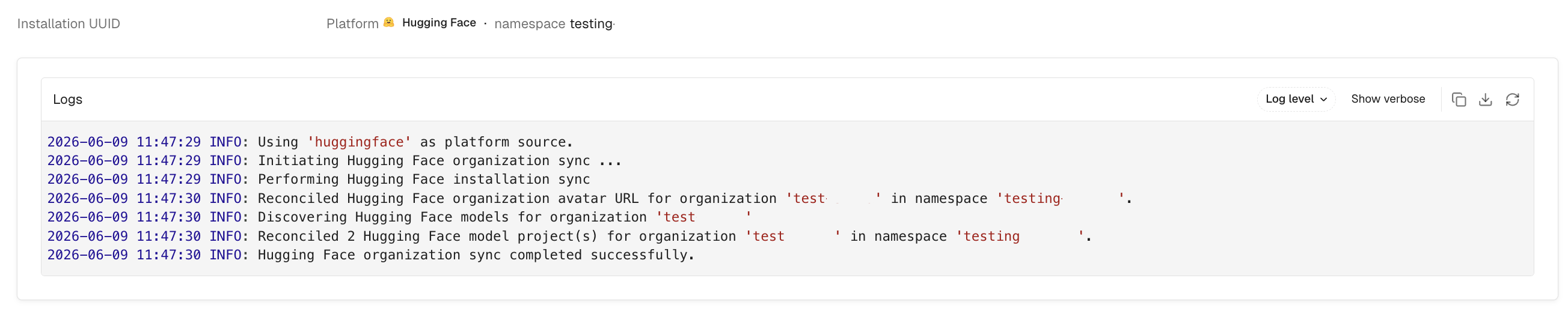 You can make changes to the Hugging Face integrations or delete them. You can view the activity logs for the Hugging Face integration and rescan your organizations on demand.
1. Select **User menu** > **Integrations** from the left sidebar.
2. Select **Hugging Face**.
3. Select the vertical three dots next to the integration.
You can choose from the following options:
* [**Update Credentials**](#update-credentials)
* [**View Sync Logs**](#view-sync-logs)
* [**Delete Integration**](#delete-a-hugging-face-integration)
### Update credentials
1. Select the vertical three dots next to the integration, and select **Update Credentials**.
You cannot update the host URL of an existing integration. To monitor a different organization, create a new integration.
2. Enter your new **Access Token**.
3. Select **Save**.
**Initiate rescan manually**
Credential updates take effect at the next scheduled scan cycle. To apply changes immediately, select **Rescan Org**.
### Delete a Hugging Face integration
To delete a Hugging Face integration, select the vertical three dots next to the integration, and select **Delete Integration**.
Deleting the integration removes all models and associated data discovered through that organization from your namespace.
### View sync logs
Endor Labs detects and reports installation and synchronization errors during organization sync. These include expired tokens, insufficient permissions, invalid host configurations, and certificate issues. Sync logs report those errors that you can resolve.
{image_0 ||
You can make changes to the Hugging Face integrations or delete them. You can view the activity logs for the Hugging Face integration and rescan your organizations on demand.
1. Select **User menu** > **Integrations** from the left sidebar.
2. Select **Hugging Face**.
3. Select the vertical three dots next to the integration.
You can choose from the following options:
* [**Update Credentials**](#update-credentials)
* [**View Sync Logs**](#view-sync-logs)
* [**Delete Integration**](#delete-a-hugging-face-integration)
### Update credentials
1. Select the vertical three dots next to the integration, and select **Update Credentials**.
You cannot update the host URL of an existing integration. To monitor a different organization, create a new integration.
2. Enter your new **Access Token**.
3. Select **Save**.
**Initiate rescan manually**
Credential updates take effect at the next scheduled scan cycle. To apply changes immediately, select **Rescan Org**.
### Delete a Hugging Face integration
To delete a Hugging Face integration, select the vertical three dots next to the integration, and select **Delete Integration**.
Deleting the integration removes all models and associated data discovered through that organization from your namespace.
### View sync logs
Endor Labs detects and reports installation and synchronization errors during organization sync. These include expired tokens, insufficient permissions, invalid host configurations, and certificate issues. Sync logs report those errors that you can resolve.
{image_0 || 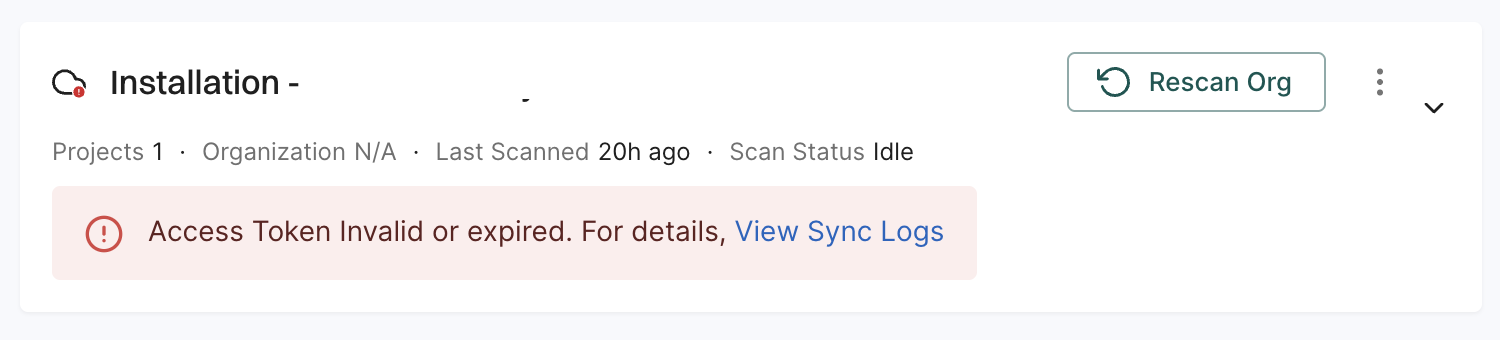 }
To view sync logs, click the three vertical dots next to the integration, and select **View Sync Logs**.
The sync logs display details of synchronization attempts, including timestamps, error types, and diagnostic messages. These logs help identify issues such as authentication failures or configuration problems.
#### Types of errors
The sync logs detect and display the following categories of sync failures:
* **Expired or invalid Personal Access Tokens (PATs)**: The PAT used for authentication has expired or is no longer valid. Edit the integration and provide a valid token.
* **Insufficient PAT permissions**: The PAT does not have the required scopes, such as repository read access. You must generate and provide a PAT with the correct access.
* **Certificate related access issues**: The certificates required to connect to the SCM are invalid, outdated, or untrusted. This error occurs in self-hosted GitLab instances that use custom SSL certificates. Update the certificate configuration or ensure the certificate chain is properly trusted to resolve the issue.
* **Incorrect or invalid host URLs**: The configured URL is incorrect or unreachable. Since you cannot edit the host URL, you need to delete and reinstall the integration using the correct URL.
After you resolve the issue, the error is automatically cleared during the next successful scan. You can manually re-trigger the scan using **Rescan Org** to verify the resolution immediately.
### Rescan an organization
Select **Rescan Org** next to an integration to manually trigger a scan outside the scheduled cycle.
### Add another organization
To connect an additional Hugging Face organization to the same namespace:
1. Select **Add Organization**.
2. Enter the **Host URL** for the organization, for example `https://huggingface.co/meta-llama`.
3. Optionally, enter an **Access Token**.
A token with read-only access is required to scan private models.
}
To view sync logs, click the three vertical dots next to the integration, and select **View Sync Logs**.
The sync logs display details of synchronization attempts, including timestamps, error types, and diagnostic messages. These logs help identify issues such as authentication failures or configuration problems.
#### Types of errors
The sync logs detect and display the following categories of sync failures:
* **Expired or invalid Personal Access Tokens (PATs)**: The PAT used for authentication has expired or is no longer valid. Edit the integration and provide a valid token.
* **Insufficient PAT permissions**: The PAT does not have the required scopes, such as repository read access. You must generate and provide a PAT with the correct access.
* **Certificate related access issues**: The certificates required to connect to the SCM are invalid, outdated, or untrusted. This error occurs in self-hosted GitLab instances that use custom SSL certificates. Update the certificate configuration or ensure the certificate chain is properly trusted to resolve the issue.
* **Incorrect or invalid host URLs**: The configured URL is incorrect or unreachable. Since you cannot edit the host URL, you need to delete and reinstall the integration using the correct URL.
After you resolve the issue, the error is automatically cleared during the next successful scan. You can manually re-trigger the scan using **Rescan Org** to verify the resolution immediately.
### Rescan an organization
Select **Rescan Org** next to an integration to manually trigger a scan outside the scheduled cycle.
### Add another organization
To connect an additional Hugging Face organization to the same namespace:
1. Select **Add Organization**.
2. Enter the **Host URL** for the organization, for example `https://huggingface.co/meta-llama`.
3. Optionally, enter an **Access Token**.
A token with read-only access is required to scan private models.
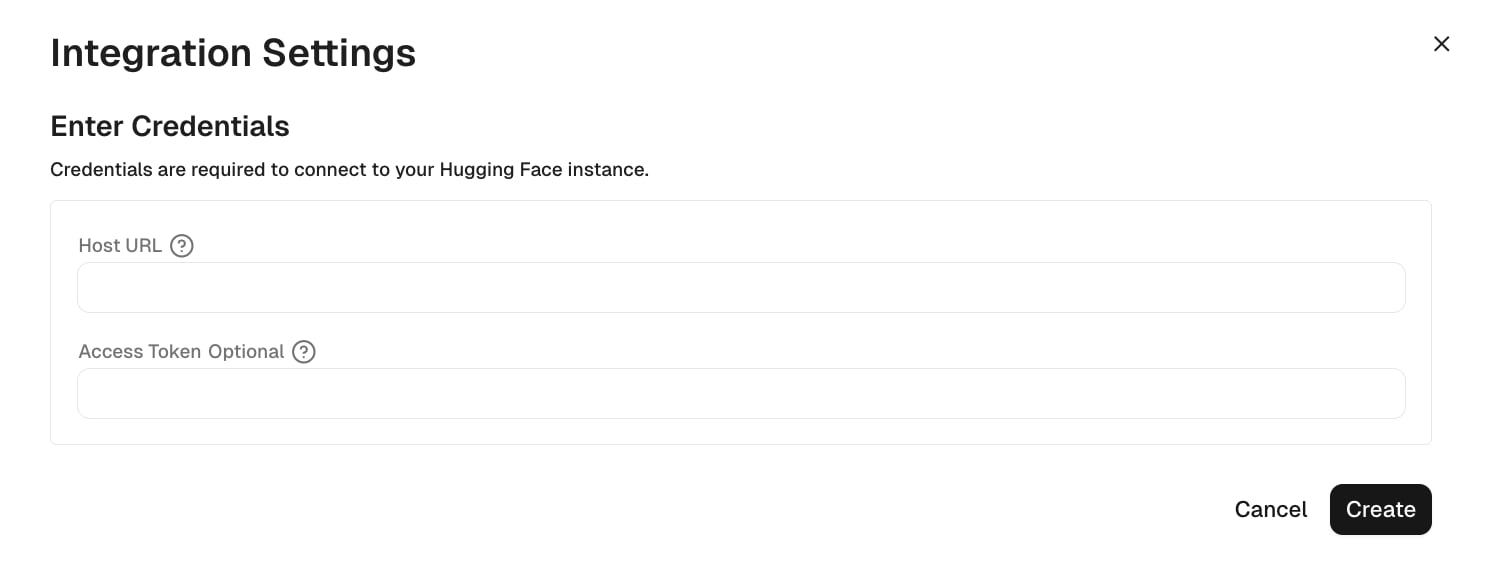 4. Select **Create**.