This is the multi-page printable view of this section. Click here to print.

Return to the regular view of this page.

SCA (Software Composition Analysis)

Identify vulnerabilities in open source dependencies with reachability analysis.

This is the multi-page printable view of this section. Click here to print.

Return to the regular view of this page.

Identify vulnerabilities in open source dependencies with reachability analysis.

Software composition analysis is the identification of the bill of materials for first-party software packages and the mapping of vulnerabilities to these software component versions. SCA helps teams to maintain compliance and get visibility into the risks of their software inventory.

Tip
Endor Labs does not scan the files and paths included in .gitignore files during SCA scans. If certain dependencies or paths are not appearing in your scan results, verify they are not excluded by your .gitignore configuration.

Endor Labs supports the following major capabilities to help teams reduce the risk and expense of software dependency management across the lifecycle of software reuse.

  • Endor Scores: Endor Labs provides a holistic risk score that includes the security, quality, popularity and activity of a package. Risk scores help in identifying leading indicators of risk in addition to if a software component is outdated, or unmaintained. Risk analysis helps teams to go beyond vulnerabilities and approach the risk of their software holistically.
  • Reachability Analysis: Reachability analysis is Endor Labs’ capability to perform static analysis on your software packages to give context to how each vulnerability may be reached in the context of your code. This includes mapping vulnerabilities back to vulnerable functions so that deep static analysis can target vulnerabilities with higher levels of granularity as well as the identification of unused software dependencies.
  • Upgrade Impact Analysis: Upgrade impact analysis allows security teams to set better expectations with their development teams by identifying breaking changes associated with an update of a direct dependency.

The resource requirements, both minimum and recommended, for build runners or workers executing scans using endorctl are listed here.

Note
Large applications may require additional resources to complete or enhance the scan performance.

Ensure that your local machine or CI/CD runner has the minimum and recommended resources to successfully scan your software.

Resource CPU Memory
Minimum 4 core 16 GB RAM
Recommended 8 core 32 GB RAM
Language SCA Endor Scores Reachability Analysis Pre-computed Reachability Analysis Phantom Dependencies Upgrade Impact Analysis Install Toolchains
Java
C/C++
Python
Rust
JavaScript
Golang
.NET (C#)
Kotlin
Scala
Ruby
Swift/Objective-C
PHP

For scanning monorepos or projects that use Bazel as the build tool (Java, Go, Python, Scala, Rust), see Bazel.

The following comprehensive matrix lists the supported languages, build tools, manifest files, and supported requirements.

Language Package Managers / Build Tool Manifest Files Extensions Supported Requirements
Java Maven pom.xml .java JDK version 11-25; Maven 3.6.1 and higher versions
Gradle build.gradle or build.gradle.kts .java JDK version 11-25; Gradle 6.0.0 and higher versions
Bazel workspace, MODULE.bazel, BUILD.bazel .java JDK version 11-25; Bazel versions 5.x.x, 6.x.x, and 7.x.x
C/C++ Not applicable Not applicable .c, .cc, .cpp, .cxx, .h, .hpp, .hxx ` Not applicable
Kotlin Maven pom.xml .kt JDK version 11-25; Maven 3.6.1 and higher versions
Gradle build.gradle or build.gradle.kts .kt JDK version 11-25; Gradle 6.0.0 and higher versions
Golang Go go.mod, go.sum .go Go 1.12 and higher versions
Bazel workspace, MODULE.bazel, BUILD.bazel .go Bazel versions 5.x.x, 6.x.x, and 7.x.x
Rust Cargo cargo.toml, cargo.lock .rs Rust 1.63.0 and higher versions
JavaScript npm package-lock.json, package.json .js npm 6.14.18 and higher versions
pnpm pnpm-lock.yaml, package.json .js pnpm 3.0.0 and higher versions
Yarn yarn.lock, package.json .js Yarn all versions
TypeScript npm package-lock.json, package.json .ts npm 6.14.18 and higher versions
pnpm pnpm-lock.yaml, package.json .ts pnpm 3.0.0 and higher versions
Yarn yarn.lock, package.json .ts Yarn all versions
Python pip requirements.txt .py Python 3.6 and higher versions; pip 10.0.0 and higher versions
Poetry pyproject.toml, poetry.lock .py
PyPI setup.py, setup.cfg, pyproject.toml .py
UV uv.lock, pyproject.toml .py Python 3.8 and higher versions
Bazel workspace, MODULE.bazel .py Bazel versions 5.x.x, 6.x.x, and 7.x.x
.NET (C#) NuGet *.csproj, package.lock.json, projects.assets.json, Directory.Build.props, Directory.Packages.props, *.props .cs .NET 5.0 and higher versions; .NET Core 1.0 and higher versions; .NET Framework 4.5 and higher versions.
Scala sbt build.sbt .sc or .scala sbt 1.3 and higher versions
Gradle build.gradle, build.gradle.kts .sc or .scala JDK version 11-25; Gradle 6.0.0 and higher versions
Bazel workspace, MODULE.bazel .sc or .scala Bazel versions 5.x.x, 6.x.x, and 7.x.x
Ruby Bundler Gemfile, *.gemspec, gemfile.lock .rb Ruby 2.6 and higher versions
Swift/Objective-C CocoaPods Podfile, Podfile.lock .swift, .h, .m CocoaPods 0.9.0 and higher versions
SwiftPM Package.swift .swift, .h, .m SwiftPM 5.0.0 and higher versions
PHP Composer composer.json, composer.lock .php PHP 5.3.2 and higher versions; Composer 2.2.0 and higher versions

Define supported languages when running endorctl scan command as a comma-separated list: c,c#,go,java,javascript,kotlin,php,python,ruby,rust,scala,swift,typescript,swifturl

Call graphs

Endor Labs has developed a systematic approach to conduct call graph analysis. Here is a structured overview:

  • Scope Expansion: Traditional methods of static analysis typically analyze a single project at a time. Endor Labs, however, expands its scope to include not only the client projects but also their dependencies, often comprising over 100 packages.

  • Enhanced Dependency Analysis: Endor Labs employs static call graphs to conduct detailed dependency analysis, enabling a comprehensive understanding of how different external components interact within client projects. By leveraging these call graphs, Endor Labs aims to minimize false positives and more accurately identify the specific locations of problems in dependencies.

  • Multiple Data Sources: Endor Labs uses both source code and binary artifacts to enrich the analysis. This approach ensures swift results without a heavy reliance on test coverage.

  • Benchmarking for Continuous Improvement: Endor Labs maintains accuracy and relevance by using dynamic call graphs internally to benchmark and refine static call graphs, thereby actively identifying and addressing gaps.

  • Scalability: Endor Labs addresses the challenge of scalability and generates call graphs not only for each project release but also for all its dependencies. This approach effectively manages large projects with multiple versions, ensuring that the analysis remains both relevant and applicable across the entire spectrum of client dependency sets.

For more information, see Visualizing the impact of call graphs on open source security.

Endor Labs uses static call graphs to perform dependency analysis at a fine-grained level. It is minimally intrusive to the developer workflow and provides results during development.

The Endor Labs user interface provides visualizations of call graphs that annotate vulnerability data and simplify it into informative call paths. This empowers developers to identify and address problematic invocations of vulnerable methods efficiently.

Endor Labs supports call paths for Java, Python, Rust, JavaScript, Golang, .NET (C#), Kotlin, and Scala.

View call paths in Endor Labs to see the sequences of functions that your program invokes during execution.

  1. Select Projects from the left sidebar.

  2. Select the project for which you want to view the call path.

  3. Select FINDINGS and select the finding from the list view.

  4. Expand a specific finding to view more details.

    Call Paths

  5. In the details section, select CALL PATHS.

    Call Paths

    A finding may have multiple call paths.

Reachability analysis

Modern software relies on complex code, external libraries, and open-source components (OSS). Managing risks requires understanding where issues come from, such as internal code, OSS, or other external dependencies.

Projects contain two types of dependencies, direct and transitive. Developers explicitly add direct dependencies, such as when they include a specific library in a project. Transitive dependencies enter the project indirectly through other libraries. While direct dependencies are easier to track and manage, transitive dependencies can introduce complexity, as they may not be immediately visible in the project’s configuration files.

Categorizing code as reachable, potentially reachable, or unreachable is another important step. Reachable code is actively invoked during normal execution. Unreachable code, on the other hand, is not used and can accumulate over time, leading to unnecessary complexity and potential issues. Identifying and managing these categories ensures that the codebase remains efficient and maintainable.

Endor Labs offers multiple types of reachability analysis to help you accurately assess vulnerability exposure in your applications. Each type provides different levels of granularity and accuracy depending on your specific use case and available analysis context.

  • Function-level reachability and Dependency-level reachability: These analyses run during a full scan, when the project builds successfully and Endor Labs generates complete call graphs. They use actual code paths and dependency metadata to provide the most precise vulnerability assessment.
  • Pre-computed reachability: A pragmatic, manifest-based analysis technique that enables you to assess whether vulnerabilities in transitive dependencies could be reachable from your direct dependencies—all without requiring code compilation, builds, or full call graph generation. With approximately 95% of vulnerabilities existing in transitive dependencies according to Endor Labs’ State of Dependency Management report, pre-computed reachability helps you deprioritize security issues that can’t be called by your application by filtering out vulnerabilities that affect functions in transitive dependencies that are not used by your direct dependencies. This approach works by analyzing how your direct dependencies interact with their transitive dependencies, providing valuable reachability insights as a fallback for full scans when builds fail, or as an optional enhancement for quick scans when you want reachability analysis without build requirements. Learn more about pre-computed reachability.

To help developers and security teams make informed decisions for SCA results, Endor Labs uses a static analysis technique called program analysis to perform function-level reachability analysis on direct and transitive dependencies. This is the most accurate way to determine exploitability in the context of your application, which is critical for determining which risks you should remediate.

The different function reachability labels include:

  • Reachable Function: Endor Labs has determined that there is a path from the developer-written code to a vulnerable function, indicating that the finding is exploitable in your environment. This is demonstrated by a call graph that illustrates each step between the source code and the vulnerable library.

  • Unreachable Function: Endor Labs determines that no risk of exploitation exists, as no path exists from the source code to the vulnerable function. A call graph supports this conclusion by demonstrating the absence of such a path.

  • Potentially Reachable Function: Endor Labs is unable to determine whether a finding is reachable or unreachable, typically because call graph analysis is unsupported for a given language or package manager. This means that the function in question may be executable in the context of the dependent project, but the analysis cannot definitively determine if it is reachable or not.

Endor Labs supports dependency-level reachability by default for all supported languages. This type of reachability analysis is more coarse-grained than function-level reachability. It indicates that the application uses the imported package somewhere but does not determine whether the source code calls the vulnerable package.

Dependency-level reachability serves as a good indicator for prioritization. If you’re not actually using the dependency at all, consider removing that dependency. Determining whether your code calls or uses a dependency provides another layer of prioritization you can add to your remediation process.

The different dependency reachability labels include:

  • Reachable Dependency: Endor Labs established that an imported package is being used somewhere in the application.

  • Unreachable Dependency: Endor Labs determined that the imported dependency is not being used. The customer can use this information to remove the dependency, which is helpful for technical debt reduction initiatives.

  • Potentially Reachable Dependency: Endor Labs cannot definitively determine whether the application uses a dependency, generally because Endor Labs does not support the given language or package manager.

The following table compares the three types of reachability analysis available in Endor Labs:

Analysis Type Requirements Coverage Use Case
Function-level Successful project build and client call graph generation Direct and transitive dependencies Precise vulnerability assessment for production applications
Dependency-level Dependency resolution and import analysis only Direct and transitive dependencies Quick dependency prioritization and cleanup
Pre-computed Dependency metadata without compilation or call graphs Transitive dependencies only Pragmatic analysis as a fallback when builds fail, and when you want reachability analysis without build requirements

Phantom dependencies are packages that your codebase uses but does not explicitly declare in your project’s manifest files, for example, package.json, or requirements.txt. These undeclared dependencies can pose significant security and operational risks, as they may contain vulnerabilities that standard dependency analysis does not track or assess. Identifying and managing phantom dependencies is crucial for accurate reachability analysis and comprehensive risk assessment.

Endor Labs’ reachability analysis conducts thorough scans of your codebase to identify functions and methods that both declared and undeclared dependencies invoke. By analyzing the actual usage of packages in your source code, the system identifies phantom dependencies—those that your code uses but does not explicitly declare. This detection ensures that all utilized code paths are assessed for potential vulnerabilities, providing a more accurate and comprehensive security evaluation.

Pre-computed Reachability analysis

Modern applications rely on open-source dependencies, with the vast majority of vulnerabilities (approximately 95% according to Endor Labs’ State of Dependency Management report) existing in transitive (indirect) dependencies rather than direct ones. This means most security risks come from packages you didn’t explicitly add to your project, making it challenging to assess which vulnerabilities actually pose a threat to your application.

Pre-computed reachability is a pragmatic analysis technique that enables you to assess whether vulnerabilities in transitive dependencies could be reachable from your direct dependencies, all without requiring code compilation or builds. It serves two primary purposes: as a fallback mechanism for full scans when builds fail, and as an optional enhancement for quick scans when you want reachability analysis without build requirements. This analysis technique filters out vulnerabilities that affect functions never called within your dependency chain, helping you focus your team’s time and attention on the security issues that truly matter.

The benefits of pre-computed reachability include:

  • Pragmatic and easy: Results are pre-computed and cached, making it a practical approach to reachability analysis. It works solely from your manifest files (for example, package.json, go.mod, pom.xml, build.gradle, and others), requiring no access to your application’s built artifacts.
  • Excellent noise reduction: By analyzing how your direct dependencies interact with transitive dependencies, pre-computed reachability can filter out a significant portion of irrelevant vulnerabilities, enabling you to focus your team’s time on the security issues that truly matter.
  • Build-independent: Works without requiring builds or compilation, making it a pragmatic option when you want reachability analysis without build setup.
  • Reliable fallback for full scans: When builds fail or call graph generation isn’t possible, pre-computed reachability ensures you still get actionable security insights rather than missing out on reachability analysis entirely.

Pre-computed reachability is automatically used as the default fallback for full scans when builds fail or call graph generation isn’t possible, ensuring you always get reachability insights. For quick scans, pre-computed reachability is optional and can be enabled using the ENDOR_SCAN_ENABLE_PRECOMPUTED_CALLGRAPHS flag.

To enable pre-computed reachability analysis, use the ENDOR_SCAN_ENABLE_PRECOMPUTED_CALLGRAPHS flag:

export ENDOR_SCAN_ENABLE_PRECOMPUTED_CALLGRAPHS=true

The system uses pre-computed reachability analysis in the following scenarios:

  • Full Scan: When you run endorctl scan, the system attempts full call graph generation first for maximum precision. If the build fails or call graph generation isn’t possible, it automatically falls back to pre-computed reachability by default, ensuring you still get valuable reachability insights.

  • Quick Scan: When you run endorctl scan --quick-scan, you can optionally enable pre-computed reachability analysis by setting the ENDOR_SCAN_ENABLE_PRECOMPUTED_CALLGRAPHS flag. This provides reachability insights without requiring builds.

Endor Labs supports pre-computed reachability for the following languages: java, javascript, typescript, kotlin, python, scala, and C#.

Endor Labs supports multiple scan modes that can utilize pre-computed reachability analysis. For full scans, pre-computed reachability is automatically used as the default fallback when needed. For quick scans, it is optional and requires the flag to be enabled.

The following table summarizes how pre-computed reachability is used across different scan modes:

Scan type Reachability analysis type Reachability Coverage Call graph generated
Quick scan None None
Quick scan with pre-computed flag Pre-computed Transitive dependencies
Full scan Full dependency-level and function-level. Automatically falls back to pre-computed reachability if build fails Direct and transitive dependencies
Full scan with pre-computed flag Dependency-level and function-level. If the code build fails, it falls back to pre-computed reachability Direct and transitive dependencies

Pre-computed reachability analysis evaluates transitive dependencies using a simple but effective approach: it assumes that everything in your direct dependencies is reachable, then uses that assumption to assess whether vulnerabilities in transitive dependencies could be called.

The analysis begins with your manifest files (package.json, go.mod, Gemfile, pom.xml, build.gradle, and others). Endor Labs resolves your dependencies to build a complete list of direct and transitive dependencies—along with the dependency graph that connects them. Dependency resolution is required to identify all transitive dependencies, but no build or compilation is necessary.

For every detected CVE in a transitive dependency, the analysis works as follows:

  1. Assume direct dependencies are fully reachable: Pre-computed reachability assumes that all functions and code in your direct dependencies are reachable. This includes both open-source dependencies and private, non-open source first-party libraries. This conservative assumption ensures comprehensive coverage without needing to analyze your application’s source code.

  2. Assess transitive dependency reachability: Using pre-computed call graph information from open-source dependencies, the system analyzes how your direct dependencies interact with their transitive dependencies. If a direct dependency can call a vulnerable function in a transitive dependency, that vulnerability is marked as reachable.

  3. Filter unreachable vulnerabilities: If a vulnerable function in a transitive dependency cannot be reached through any of your direct dependencies (based on the pre-computed call graph information), the CVE is marked as unreachable and can be deprioritized.

The key insight is that pre-computed reachability leverages the fact that Endor Labs has already analyzed how open-source packages interact with their dependencies. By assuming your direct dependencies are fully reachable and using this pre-computed information, the analysis can determine which transitive dependency vulnerabilities could be reachable without needing to build your application or analyze your source code.

Based on the analysis:

  • Unreachable CVEs: If a vulnerable function in a transitive dependency cannot be reached through any of your direct dependencies (based on pre-computed call graph information), the CVE is marked as unreachable. These can be deprioritized, as the vulnerable code cannot be invoked through your dependency chain.

  • Reachable CVEs: If a vulnerable function in a transitive dependency can be reached through one or more of your direct dependencies, the vulnerability is flagged as reachable. For reachable CVEs, Endor Labs shows the list of function calls in your dependencies that may trigger the vulnerability.

Pre-computed reachability assumes all direct dependencies are reachable, so if a direct dependency can call a vulnerable function in a transitive dependency, that vulnerability is marked as reachable. Pre-computed reachability focuses on analyzing dependency relationships rather than your application’s source code usage. For the most precise assessment when builds are successful, function-level reachability analysis analyzes your application’s source code directly through full call graph generation to determine actual usage.

Note
Pre-computed reachability analyzes how your direct dependencies interact with transitive dependencies, but does not analyze direct calls to transitive dependencies from your application code. For complete coverage including direct usage of transitive dependencies, function-level reachability analysis provides full analysis when builds are successful.

Pre-computed reachability serves two distinct purposes:

For full scans, pre-computed reachability automatically serves as a fallback when:

  • Builds fail: If your project build fails or encounters errors, pre-computed reachability ensures you still get reachability analysis rather than missing out entirely.
  • Call graph generation isn’t possible: In cases where full call graph generation isn’t available, pre-computed reachability provides valuable reachability insights.

For quick scans, you can proactively enable pre-computed reachability when you want reachability analysis without build requirements. This pragmatic approach provides vulnerability assessment based on manifest files alone, making it ideal for:

  • Build-free analysis: When you want reachability insights without setting up build environments or waiting for compilation.
  • CI/CD pipelines: In environments where you want reachability analysis without build dependencies.
  • Large-scale scanning: When scanning multiple repositories or projects, where build setup isn’t practical.

The philosophy behind pre-computed reachability is simple: don’t let perfect get in the way of better. When full call graph analysis isn’t possible or when you want a pragmatic approach without build requirements, pre-computed reachability ensures you still get actionable security insights rather than no analysis at all.

Pre-computed reachability complements Endor Labs’ other reachability analysis capabilities:

  • Function-level reachability: The most precise analysis that examines your application’s source code directly through full call graph generation. This is the primary and preferred method when builds succeed, providing the highest accuracy for production applications.
  • Pre-computed reachability: A pragmatic, manifest-based analysis that works without builds or source code access. Serves as an automatic fallback for full scans when builds fail, and can be enabled for quick scans when you want reachability analysis without build requirements. Focuses on transitive dependencies.

Endor Labs automatically uses the best available analysis method for your situation. When full call graph generation is possible, it’s used for maximum precision. When it’s not, pre-computed reachability steps in as a reliable fallback, ensuring you always get actionable security insights.

Pre-computed reachability analysis is optimized for vulnerabilities in transitive/indirect dependencies, where it can leverage the analysis of how your direct dependencies interact with their dependencies. When full call graph generation is possible, function-level reachability analysis provides more precise results by analyzing your application’s source code directly.

Endor scores

Endor Labs collects and analyzes a large amount of information about open-source packages and uses it to compute scores.

  • Every open-source package is scored across different dimensions that capture both security and operation aspects of a risk.

  • Every AI model is scored on a multidimensional scoring system grouped into four main categories: security, activity, popularity, and operational integrity.

Each category’s Endor score represents the average of all contributing factors within that category. See View scorecards for more information on checking Endor scores.

See Package scores for more information on package scores.

Package scores

Scores provide a high-level, easy-to-understand metric of how well a package does based on factors such as security, activity, popularity, and code quality.

Endor Labs scores are categorized into:

  • Security: Indicates the number of security-related issues a package may have such as known vulnerabilities, following security best practices when developing code, and the results of static code analysis. Packages with lower security scores can be expected to have many security-related issues when compared with packages with higher scores. See the factors affecting the security score for more details.
  • Activity: Indicates the level of development activity for a package as observed through the source code management system. Packages with higher activity scores will be more active and presumably better maintained when compared to packages with a lower activity score. See the factors affecting the activity score for more details.
  • Popularity: Indicates how widely a package is used in its ecosystem by tracking both source code management system metrics (for example, the number of stars in GitHub), as well as counting how many other packages import it. A package with a high popularity score indicates that it is used widely. See the factors affecting the popularity score for more details.
  • Code Quality: Indicates how well the package complies with best practices for code development and includes the results of static code analysis of that package’s source code. A package with a higher quality score has fewer code issues. See the factors affecting the code quality score for more details.

For calculating scores of vulnerabilities, Endor Labs performs score computation for various entities such as:

  • Repository score - A repository has a score that captures overall repository activity and properties that span multiple versions of the code.
  • Repository version score - A repository version has a score that captures details that are specific to a version of the code.
  • Package version score - A package version that captures the details that are specific to a package version.

The scoring algorithm considers the following input parameters while calculating the scores:

  • Data from a version control system such as Git that provides information about files, versions, and their contents.
  • Data from a source code management system such as GitHub that provides information about the development activities on a project like issues, pull requests, and more.
  • Data from Package managers that provide information about the properties of a package, for example, license, releases, and metadata like the number of stars.
  • Data from Vulnerabilities that provide information about known security issues in a package.
  • Data from Static code analysis tools that provide information about specific issues in the source code of the package.

The scores for each category range between 0 and 10. For example, a score of 5 indicates inconclusive analysis and the package is neutral. A score higher than 5 indicates that the package mostly has positive factors while a score lower than 5 indicates negative factors. A score of 10 indicates that the package meets all the positive conditions, while a score of 0 indicates that a package meets all negative conditions.

Scanning strategies

As you deploy Endor Labs in your environment, it’s important for your team to understand key scanning strategies.

The findings, metrics, and data shown on the dashboard and the project listing page are based on scanning the default branch, which is also known as the main context.

Important recommendation
If you are scanning multiple branches, it is essential to select and set one as the default branch. When performing the endorctl scan, use the flag --as-default-branch to designate a project branch as the default branch and view its findings.
endorctl scan --as-default-branch

If you do not set the flag as-default-branch, the first branch you scan is automatically considered as the default branch. After a scan, if you switch the default branch to another using --as-default-branch, scans from the previous branches are erased, and their findings will no longer be available.

You do not need to set a default branch if you are using the Endor Labs GitHub App or not scanning multiple branches.

Across the software engineering lifecycle it is important that continuous testing is separated from what is monitored and reported on regularly. Often, engineering organizations want to test each and every change that enters a code base, but if security teams reported on each test they would quickly find themselves overwhelmed with noise. Endor Labs enables teams to separate what should be reported on relative to what should be tested but not reported on. Endor Labs allows teams to select reporting strategies for their software applications when integrated into CI/CD pipelines.

Here are the primary scanning and reporting strategies:

  • Reporting on the default branch - All pull request commits are tested and all pushes or merges to the default branch are reported on and monitored by security and management teams.
  • Reporting on the latest release - All reporting and monitoring is performed against tagged release versions. This requires each team have a mature release tagging strategy.

The endorctl scan command by default will continuously monitor a version of your code for new findings such as unmaintained, outdated or vulnerable dependencies in the bill of materials for a package. To test a version of your code without monitoring and reporting on it, use the flag --pr or environment variable ENDOR_SCAN_PR as part of your scan.

When adopting a strategy such as reporting on the default branch, you will want to run any push or merge event to the default branch without the --pr flag and run any pull_request or merged_request event with the --pr flag. This allows you to test changes before they have been approved and report what has been merged to the default branch as your closest proxy to what is in production.

Let’s use the following GitHub Actions workflow as an example! In this workflow any push event will be scanned without the --pr flag but any pull_request event is scanned as a point in time test of that specific version of your code.

name: Endor Labs Scan
on:
  push:
    branches: [main]
  pull_request:
    branches: [main]
jobs:
  scan:
    permissions:
      security-events: write # Used to upload sarif artifact to GitHub
      contents: read # Used to check out a private repository but actions/checkout.
      actions: read # Required for private repositories to upload sarif files. GitHub Advanced Security licenses are required.
      id-token: write # Used for keyless authentication to Endor Labs
    runs-on: ubuntu-latest
    steps:
      - name: Checkout Repository
        uses: actions/checkout@v3
      - name: Setup Java
        uses: actions/setup-java@v3
        with:
          distribution: 'microsoft'
          java-version: '17'
      - name: Build Package
        run: mvn clean install
      - name: Endor Labs Scan Pull Request
        if: github.event_name == 'pull_request'
        uses: endorlabs/github-action@v1.1.1
        with:
          namespace: 'example'
          pr: true
          sarif_file: 'findings.sarif'
          pr_baseline: $GITHUB_BASE_REF
      - name: Endor Labs Reporting Scan
        if: github.event_name == 'push'
        uses: endorlabs/github-action@v1.1.1
        with:
          namespace: 'example'
          pr: false
          sarif_file: 'findings.sarif'
      - name: Endor Labs Testing Scan
        if: github.event_name == 'pull_request'
        uses: endorlabs/github-action@v1.1.1
        with:
          namespace: 'example'
          pr: true
          sarif_file: 'findings.sarif'
      - name: Upload findings to github
        uses: github/codeql-action/upload-sarif@v3
        with:
          sarif_file: 'findings.sarif'

In some CI/CD based environments, each time code is pushed to the default branch the exact commit SHA is checked out as a detached Git Reference. This is notably the case with Jenkins, CircleCI and GitLab Pipelines.

In these scenarios, on push or merge events Endor Labs must be told that the reference should be monitored as the default branch. You can do this with the --detached-ref-name flag or ENDOR_SCAN_DETACHED_REF_NAME environment variable. You should also couple this flag with the --as-default-branch flag or ENDOR_SCAN_AS_DEFAULT_BRANCH environment variable. This allows you to set this version of code as a version that should be monitored as well as define the name associated with the branch.

This strategy may be used for both a strategy reporting on the default branch on push events and a strategy reporting on tag creation event for that version of code.

You can see in the below GitLab Pipelines example defining the logic to manage a detached reference on GitLab.

    - if [ "$CI_COMMIT_REF_NAME" == "$CI_DEFAULT_BRANCH" ]; then
        export ENDOR_SCAN_AS_DEFAULT_BRANCH=true;
        export ENDOR_SCAN_DETACHED_REF_NAME="$CI_COMMIT_REF_NAME";
      else
        export ENDOR_SCAN_PR=true;
      fi

You can find the full GitLab pipelines reference below:

Endor Labs Dependency Scan:
  stage: Scan
  image: node # Modify this image to align with the build tools necessary to build your software packages
  dependencies: []
  variables:
    ENDOR_ENABLED: "true"
    ENDOR_ALLOW_FAILURE: "true"
    ENDOR_NAMESPACE: "demo"
    ENDOR_SCAN_PATH: "."
    ENDOR_ARGS: |
      --show-progress=false
      --detached-ref-name=$CI_COMMIT_REF_NAME
      --output-type=summary
      --exit-on-policy-warning
      --dependencies --secrets --git-logs
  before_script:
    - npm install yarn
  script:
    - curl https://api.endorlabs.com/download/latest/endorctl_linux_amd64 -o endorctl;
    - echo "$(curl -s https://api.endorlabs.com/sha/latest/endorctl_linux_amd64)  endorctl" | sha256sum -c;
      if [ $? -ne 0 ]; then
       echo "Integrity check failed";
       exit 1;
      fi
    - chmod +x ./endorctl
    - if [ "$DEBUG" == "true" ]; then
        export ENDOR_LOG_VERBOSE=true;
        export ENDOR_LOG_LEVEL=debug;
      fi
    - if [ "$CI_COMMIT_REF_NAME" == "$CI_DEFAULT_BRANCH" ]; then
        export ENDOR_SCAN_AS_DEFAULT_BRANCH=true;
        export ENDOR_SCAN_DETACHED_REF_NAME="$CI_COMMIT_REF_NAME";
      else
        export ENDOR_SCAN_PR=true;
      fi
    - ./endorctl scan ${ENDOR_ARGS}
  rules:
  - if: $ENDOR_ENABLED != "true"
    when: never
  - if: $CI_COMMIT_TAG
    when: never
  - if: $CI_COMMIT_REF_NAME != $CI_DEFAULT_BRANCH && $ENDOR_FEATURE_BRANCH_ENABLED != "true"
    when: never
  - if: $ENDOR_ALLOW_FAILURE == "true"
    allow_failure: true
  - if: $ENDOR_ALLOW_FAILURE != "true"
    allow_failure: false

One of the common concerns software development teams have when adopting preventative controls is ownership of issues. Often, software has accrued significant technical debt, or new vulnerabilities arise that don’t directly impact their changes. Security teams want to have all known issues addressed while the development teams are focused on fixing issues or delivering core business value. They can’t be hindered each time a new issue impacts their entire code base.

To prevent new issues from entering the environment, security teams sometimes set policies that may break the build or return a non-zero exit code that can fail automated tests. This creates friction as there is no context around what changes a developer is responsible for versus what technical debt exists in a codebase on that day.

Establishing a baseline of what issues already exist in a software project and what issues may occur because of new updates is crucial to enabling preventative control adoption.

The high-level steps to establish and measure policies against a baseline scan are as follows:

  1. Establish a baseline scan of your default branch or any other branch that undergoes regular testing
  2. Integrate baseline scans into your automated workflows
  3. Evaluate policy violations within the context of the branches to which you routinely merge

Development teams often have different delivery strategies. Some merge changes to a default branch. Others merge to a release branch that is then released to their environment. While these strategies differ across organizations, a baseline scan must exist to measure against attribute ownership.

To establish a baseline scan, your team must perform regular scans on the branch to which you merge. This often means that you scan each push of your default branch to monitor your environment and you test each pull request using the --pr and --pr-baseline flags.

The --pr flag is a user’s declaration that they are testing their code as they would in a CI pipeline. The --pr-baseline flag tells Endor Labs which Git reference to measure any changes.

For this example, we will use the default branch as a merging strategy. In this strategy, you’ll want to scan the default branch on each push event to re-establish your baseline. You’ll also want to establish your CI baseline as the default branch.

The following GitHub workflow illustrates this strategy.

name: Endor Labs Scan
on:
  push:
    branches: [main]
  pull_request:
    branches: [main]
jobs:
  scan:
    permissions:
      security-events: write # Used to upload sarif artifact to GitHub
      contents: read # Used to check out a private repository but actions/checkout.
      actions: read # Required for private repositories to upload sarif files. GitHub Advanced Security licenses are required.
      id-token: write # Used for keyless authentication to Endor Labs
    runs-on: ubuntu-latest
    steps:
      - name: Checkout Repository
        uses: actions/checkout@v3
      - name: Setup Java
        uses: actions/setup-java@v3
        with:
          distribution: 'microsoft'
          java-version: '17'
      - name: Build Package
        run: mvn clean install
      - name: Endor Labs Scan Pull Request
        if: github.event_name == 'pull_request'
        uses: endorlabs/github-action@v1.1.1
        with:
          namespace: 'example'
          pr: true
          sarif_file: 'findings.sarif'
          pr_baseline: $GITHUB_BASE_REF
      - name: Endor Labs Reporting Scan
        if: github.event_name == 'push'
        uses: endorlabs/github-action@v1.1.1
        with:
          namespace: 'example'
          pr: false
          sarif_file: 'findings.sarif'
      - name: Endor Labs Testing Scan
        if: github.event_name == 'pull_request'
        uses: endorlabs/github-action@v1.1.1
        with:
          namespace: 'example'
          pr: true
          sarif_file: 'findings.sarif'
      - name: Upload findings to github
        uses: github/codeql-action/upload-sarif@v3
        with:
          sarif_file: 'findings.sarif'

Each CI environment includes default environment variables that you can use to reference CI baselines in a template. See your CI providers’ documentation on default environment variables to determine the most suitable option for your requirements.

SARIF (Static Analysis Results Interchange Format) is an OASIS standard format for reporting static analysis results.

This standardized format allows you to:

  • Integrate with multiple platforms: Upload results to GitHub Security, Azure DevOps, or other tools that support SARIF.
  • Consolidate findings: Combine results from different security tools in a unified format.
  • Automate workflows: Process and act on security findings programmatically.
  • Track remediation: Monitor the status of security issues over time.

Endor Labs generates SARIF files that contain detailed information about security findings, dependency issues, and other analysis results from your scans.

A SARIF file contains several key components:

  • Runs: Each scan execution creates a run with metadata about the scan.
  • Results: Individual findings with details about dependency vulnerabilities, SAST findings, and secrets.
  • Rules: Descriptions of the checks that were performed.
  • Artifacts: Information about the files and dependencies that were analyzed.

SARIF files standardize security findings, enabling CI/CD integration, unified dashboards, and compliance reporting. They provide PR-level feedback, support long-term monitoring, and preserve historical data for auditing and tool migration.

To generate SARIF output with Endor Labs, use the --sarif-file or -s flag with the endorctl scan command:

endorctl scan --namespace=<your-namespace> --sarif-file findings.sarif

You can specify additional scan options when generating SARIF output, for example to include dependency scanning and git history secrets detection:

endorctl scan --sarif-file findings.sarif --dependencies --secrets --git-logs

GitHub Security supports SARIF file uploads, allowing you to view Endor Labs findings directly in your repository’s Security tab. You can upload SARIF files automatically using the GitHub App (Pro), through GitHub Actions, or manually.

When you configure Endor Labs GitHub App (Pro) with a GHAS SARIF exporter, findings are automatically exported and uploaded to GitHub after each scan. See Export findings to GitHub Advanced Security for detailed setup instructions.

Use the following GitHub Actions workflow step to automatically upload SARIF files.

- name: Upload SARIF file to GitHub
  uses: github/codeql-action/upload-sarif@v3
  with:
    sarif_file: 'findings.sarif'

To manually upload a SARIF file to GitHub:

  1. Navigate to your GitHub repository.
  2. Go to Security > Code scanning > Upload SARIF.
  3. Select your SARIF file and upload it.

Endor Labs extends the standard SARIF format with custom fields that provide additional context for vulnerability analysis and remediation. These properties are included in the properties field of each SARIF result.

The following fields are available in SARIF results generated by Endor Labs:

  • action-policies-triggered: List of action policies triggered by this finding.
  • categories: List of categories the finding belongs to.
  • cvss-score: Common Vulnerability Scoring System (CVSS) score, ranging from 0.0 to 10.0.
  • cvss-vector: CVSS vector string describing the characteristics of the vulnerability.
  • cvss-version: The version of the CVSS score used.
  • epss-percentile-score: EPSS percentile score, showing how severe the vulnerability is compared to others.
  • epss-probability-score: Exploit Prediction Scoring System (EPSS) probability score, indicating likelihood of exploitation.
  • explanation: Detailed explanation of the finding and its implications.
  • finding-url: URL to view the finding in Endor Labs.
  • finding-uuid: Unique identifier for the finding.
  • impact-score: Custom impact score assigned to the finding.
  • project-uuid: Unique identifier for the project where the finding was discovered.
  • remediation: Recommended steps to fix or mitigate the finding.
  • tags: List of tags associated with the finding, used for categorization and filtering.

Here are examples of SARIF output for SCA, secrets, and SAST findings, including Endor-specific extensions.

{
  "results": [
    {
      "ruleId": "SCA-Vulnerability",
      "kind": "fail",
      "level": "error",
      "message": {
        "text": "CVE-2021-44228 in org.apache.logging.log4j:log4j-core@2.14.1 (maven) — upgrade to 2.17.1 or later."
      },
      "locations": [
        {
          "physicalLocation": {
            "artifactLocation": {
              "uri": "pom.xml"
            },
            "region": {
              "startLine": 42
            }
          }
        }
      ],
      "properties": {
        "action-policies-triggered": ["block-critical-vulns"],
        "categories": ["dependency", "security"],
        "cvss-score": 10.0,
        "cvss-vector": "CVSS:3.1/AV:N/AC:L/PR:N/UI:N/S:C/C:H/I:H/A:H",
        "cvss-version": "V3_1",
        "epss-percentile-score": 0.97,
        "epss-probability-score": 0.97576,
        "explanation": "This version of log4j-core contains CVE-2021-44228, also known as Log4Shell. This is a critical remote code execution vulnerability that allows attackers to execute arbitrary code by controlling log message content.",
        "finding-url": "https://app.endorlabs.com/findings/abc123",
        "finding-uuid": "abc123-def456",
        "impact-score": 10.0,
        "project-uuid": "proj-789",
        "remediation": "Upgrade log4j-core to version 2.17.1 or later. If immediate upgrade is not possible, set the JVM parameter -Dlog4j2.formatMsgNoLookups=true as a temporary mitigation.",
        "tags": ["CVE-2021-44228", "log4shell", "critical", "rce"]
      }
    }
  ]
}
{
  "results": [
    {
      "ruleId": "AWS Access Token",
      "message": {
        "text": "Invalid AWS Access Token: ID #3da668"
      },
      "fullDescription": {
        "text": "Invalid secrets should be audited for suspicious activity and ignored."
      },
      "help": {
        "text": "Inspect any service logs to determine if the exposed secret has been used for suspicious activity.\n\nIf you'd like to ignore this issue add the comment \"endorctl:allow\" to the secret location in your code.\n"
      },
      "shortDescription": {
        "text": "Invalid AWS Access Token: ID #3da668"
      },
      "properties": {
        "finding-url": "https://app.endorlabs.com/findings/secret-456",
        "finding-uuid": "secret-456-def",
        "project-uuid": "proj-789",
        "security-severity": "1.0",
        "tags": [
          "INVALID_SECRET",
          "NORMAL",
          "POLICY"
        ]
      }
    }
  ]
}
{
  "results": [
    {
      "level": "note",
      "locations": [
        {
          "physicalLocation": {
            "artifactLocation": {
              "uri": "BackendServer/middlewares/validateToken.js"
            },
            "region": {
              "startLine": 77
            }
          }
        }
      ],
      "message": {
        "text": "Problem:\nHardcoded JWT secret or private key was found. Hardcoding secrets like JWT signing keys poses a significant security risk. If the source code ends up in a public repository or is compromised, the secret is exposed. Attackers could then use the secret to generate forged tokens and access the system. Store it properly in an environment variable.\n\nSolution:\nHere are some recommended safe ways to access JWT secrets:\n- Use environment variables to store the secret and access it in code instead of hardcoding. This keeps it out of source control.\n- Use a secrets management service to securely store and tightly control access to the secret. Applications can request the secret at runtime.\n- For local development, use a .env file that is gitignored and access the secret from process.env.\n\nsample code snippet of accessing JWT secret from env variables\n```\nconst token = jwt.sign(payload, process.env.SECRET, { algorithm: 'HS256' });\n```\n"
      },
      "properties": {
        "explanation": "The rule detects the use of hardcoded JWT secrets or private keys in JavaScript code. Hardcoding secrets like JWT signing keys poses a significant security risk because if the source code is exposed, the secret is compromised. This allows attackers to generate forged tokens, potentially gaining unauthorized access to systems and sensitive data. The impact is high because it directly affects the confidentiality and integrity of the application.",
        "finding-url": "https://app.endorlabs.com/findings/sast-789",
        "finding-uuid": "sast-789-ghi",
        "impact-score": 8.7,
        "project-uuid": "proj-789",
        "remediation": "To remediate the use of hardcoded JWT secrets, avoid embedding secrets directly in the source code. Instead, use environment variables to store secrets securely and access them in your code. For example, in JavaScript, you can use `process.env.SECRET` to access the secret stored in an environment variable:\n\n```javascript const token = jwt.sign(payload, process.env.SECRET, { algorithm: 'HS256' }); ```\n\nAdditionally, consider using a secrets management service to securely store and manage access to secrets. For local development, use a `.env` file that is gitignored to prevent it from being included in version control.",
        "tags": [
          "A07:2021",
          "Identification-and-Authentication-Failures",
          "OWASP-Top-10",
          "SANS-Top-25"
        ]
      },
      "ruleId": "Use of hard-coded credentials in JWT"
    }
  ]
}

Java

Java is a high-level, object-oriented programming language widely used by developers. Endor Labs supports scanning and monitoring of Java projects.

Using Endor Labs, application security engineers and developers can:

  • Scan their software for potential security issues and violations of organizational policy.
  • Prioritize vulnerabilities in the context of their applications.
  • Understand the relationships between software components in their applications.

Before you proceed to run a deep scan, ensure that your system meets the following specification.

Project Size Processor Memory
Small projects 4-core processor 16 GB
Mid-size projects 8-core processor 32 GB
Large projects 16-core processor 64 GB

Endor Labs requires the following prerequisites in place for successful scans.

  • Install JDK versions between 11 and 25.0.2
  • Make sure your repository includes one or more files with .java extension.
  • Install Maven Package Manager version 3.6.1 and higher if your project uses Maven.
  • Install Gradle build system version 6.0.0 and higher, if your project uses Gradle. To support lower versions of Gradle, see Scan projects on Gradle versions between 4.7 and 6.0.0.
  • For projects not using Maven or Gradle, make sure that your project is set up properly to scan without the pom.xml file. See Scan projects without pom.xml for more information.

You must build your Java projects before running a scan. Additionally, ensure that the packages are downloaded into the local package caches and that the build artifacts are present in the standard locations.

To analyze your software built with Gradle, Endor Labs requires that the software be able to be successfully built. To perform a quick scan, dependencies must be located in the local package manager cache. The standard $GRADLE_USER_HOME/caches or /User/<username>/.gradle/caches must exist and contain successfully downloaded dependencies. To perform a deep scan the target artifact must be generated on the file system as well.

To build your project with Gradle, use the following procedure:

  1. If you would like to run a scan against a custom configuration, specify the Gradle configuration by setting an environment variable.

       export endorGradleJavaConfiguration="<configuration>"
    

    When no configuration is provided, runtimeClasspath is used by default.

    If neither the user-specified nor the default configuration exists in the project, the system falls back to the following configurations, in order:

    1. runtimeClasspath
    2. runtime
    3. compileClasspath
    4. compile

    If the listed configurations are not found in the project, the system selects the first available configuration in alphabetical order.

  2. Ensure that you can resolve the dependencies for your project without errors by running the following command:

    For Gradle wrapper:

       ./gradlew dependencies
    

    For Gradle:

       gradle dependencies
    
  3. Run ./gradlew assemble or gradle assemble to resolve dependencies and to create an artifact that may be used for deep analysis.

In a multi-build project, if you set the environment variable endorGradleJavaConfiguration=[GlobalConfiguration], the specified configuration is used for dependency resolution across all projects and subprojects in the hierarchy below.

\--- Project ':samples'
     +--- Project ':samples:compare'
     +--- Project ':samples:crawler'
     +--- Project ':samples:guide'
     +--- Project ':samples:simple-client'
     +--- Project ':samples:slack'
     +--- Project ':samples:static-server'
     +--- Project ':samples:tlssurvey'
     \--- Project ':samples:unixdomainsockets'

To override the configuration only for the :samples:crawler and :samples:guide subprojects, follow these steps:

  1. Navigate to the root workspace, where you execute endorctl scan, and run ./gradlew projects to list all projects and their names.

  2. Run the following command at the root of the workspace:

    echo ":samples:crawler=testRuntimeClasspath,:samples:guide=macroBenchMarkClasspath" >> .endorproperties
    

    This creates a new file named .endorproperties in your root directory. This enables different configurations for the specified subprojects in the file.

  3. Run endorctl scan.

At this point, all other projects will adhere to the GlobalConfiguration. However, the :samples:crawler subproject will use the testRuntimeClasspath configuration, and the :samples:guide subproject will use the macroBenchMarkClasspath configuration.

Endor Labs supports fetching and scanning dependencies from private Gradle package registries. Endor Labs will fetch resources from authenticated endpoints and perform the scan, allowing you to view the resolved dependencies and findings. See Gradle package manager integrations for more information on configuring private registries.

To analyze your software built with Maven, Endor Labs requires that the software be able to be successfully built. To perform a quick scan, dependencies must be located in the local package manager cache. The standard .m2 cache must exist and contain successfully downloaded dependencies. To perform a deep scan the target artifact must be generated on the file system as well.

To build your project with Maven, use the following procedure:

  1. Ensure that you can resolve the dependencies for your project without error by running the following command.

     mvn dependency:tree
    
  2. Run mvn install and make sure the build is successful.

info
If you want to skip the execution of tests during the build, you can use -DskipTests to quickly build and install your projects.
 mvn install -DskipTests
  1. If you have multiple Java modules not referenced in the root pom.xml file, make sure to run mvn install separately in all the directories.

Endor Labs supports fetching and scanning dependencies from private Maven package registries. Endor Labs will fetch resources from authenticated endpoints and perform the scan, allowing you to view the resolved dependencies and findings. See Maven package manager integrations for more information on configuring private registries.

Use the following options to scan your repositories. Perform a scan after building the projects.

Perform a quick scan to get quick visibility into your software composition. This scan won’t perform reachability analysis to help you prioritize vulnerabilities.

endorctl scan --quick-scan

You can perform the scan from within the root directory of the Git project repository, and save the local results to a results.json file. The results and related analysis information are available on the Endor Labs user interface.

endorctl scan --quick-scan -o json | tee /path/to/results.json

You can sign in to the Endor Labs user interface, click the Projects on the left sidebar, and find your project to review its results.

Use the deep scan to perform dependency resolution, reachability analysis, and generate call graphs. You can do this after you complete the quick scan successfully.

endorctl scan

Use the following flags to save the local results to a results.json file. The results and related analysis information are available on the Endor Labs user interface.

endorctl scan -o json | tee /path/to/results.json

When deep analysis is performed all private software dependencies are completely analyzed by default if they have not been previously scanned. This is a one-time operation and will slow down initial scans, but won’t impact subsequent scans.

Organizations might not own some parts of the software internally and the related findings are not actionable by them. They can choose to disable this analysis using the flag disable-private-package-analysis. By disabling private package analysis, teams can enhance scan performance but may lose insights into how applications interact with first-party libraries.

Use the following command flag to disable private package analysis:

endorctl scan --disable-private-package-analysis

You can sign in to the Endor Labs user interface, click the Projects on the left sidebar, and find your project to review its results.

Endor Labs supports projects that do not use Maven or Gradle, and have no pom.xml in the following cases.

Note
Run the scans with the --quick-scan parameter if you prefer to scan the project without reachability.

If there is an uber jar (fat jar) that contains all application classes and dependency jars of the project, you can set the environment variable, ENDOR_JVM_USE_ARTIFACT_SCAN as true and run the scan.


export ENDOR_JVM_USE_ARTIFACT_SCAN=true
endorctl scan --package --path=<jar/ear/war location> --project-name=<project name>

For example:


export ENDOR_JVM_USE_ARTIFACT_SCAN=true
endorctl scan --package --path=/Users/johndoe/projects/project21.jar --project-name=Project21

If you do not have an uber jar with dependencies, but only have application dependency files (like jar, war, or ear), you can set the path to these files in the environment variable, ENDOR_JVM_USE_ARTIFACT_SCAN_CLASSPATH and run the scan.


export ENDOR_JVM_USE_ARTIFACT_SCAN=true
export ENDOR_JVM_USE_ARTIFACT_SCAN_CLASSPATH=<path that contains application depedencies>
endorctl scan --package --path=<jar/ear/war location> --project-name=<project name>

For example:


export ENDOR_JVM_USE_ARTIFACT_SCAN=true
export ENDOR_JVM_USE_ARTIFACT_SCAN_CLASSPATH=/Users/johndoe/caches/modules/files-2.1
endorctl scan --package --path=/Users/johndoe/projects/project21.jar --project-name=Project21

If application class files and dependency jar files are extracted as first-party class files, you can provide the first-party files in an environment variable, ENDOR_JVM_FIRST_PARTY_PACKAGE.


export ENDOR_JVM_USE_ARTIFACT_SCAN=true
export ENDOR_JVM_FIRST_PARTY_PACKAGE="<dependency/application 1>,<dependency/application 2>,...,<dependency/application N>"
endorctl scan --package --path=<jar/ear/war location> --project-name=<project name>

For example:

Your project jar has the following structure where com.org.doe and com.org.deer are application class files and dependencies.


fawn.jar
├── com.org.doe
│   ├── A.class
│   └── B.class
├── com.org.deer
│   ├── Util.class
│   └── Utilities.class
├── com.org.dep1
│   ├── Dep1.class
│   └── Dep2.class
└── com.org.dep2
    ├── 2Dep1.class
    └── 2Dep2.class

export ENDOR_JVM_USE_ARTIFACT_SCAN=true
export ENDOR_JVM_FIRST_PARTY_PACKAGE="com.org.doe,com.org.deer"
endorctl scan --package --path=/Users/johndoe/projects/fawn.jar --project-name=Fawn

Endor Labs supports JDK versions between 11-25.0.2, however, you can scan projects on JDK 8 using the following procedure:

  1. Build your Java project on JDK 8.

  2. After building, switch your Java home to JDK 11 or higher versions.

    export JAVA_HOME=/Library/Java/JavaVirtualMachines/openjdk-11.jdk/Contents/Home
    
  3. Run a scan

To scan Java projects on Gradle versions between 4.7 and 6.0.0, make sure to

  1. Check the version of your project using:

    ./gradlew --version
    
  2. The project must have a Gradle wrapper. You can generate the Gradle wrapper using:

    --gradle-version <your required version>.
    

    Endor Labs prioritizes Gradle wrapper over Gradle and it is a recommended best practice to use Gradle Wrapper.

  3. Before executing the endorctl scan, ensure the project can be built in your required version.

    Execute ./gradlew assemble.
    
  4. Use --bypass-host-check during endorctl scan to execute scans on projects that have Gradle versions lower than 6.0.0.

Endor Labs analyzes your Java code and dependencies to detect known security issues, including open-source vulnerabilities and generates call graphs.

Endor Labs resolves the dependencies for Java packages based on the following factors:

  • For packages built using Maven, it leverages the Maven cache in the .m2 directory of your file system to resolve the package’s dependencies and mirrors Maven’s build process for the most accurate results.
  • For Maven, Endor Labs respects the configuration settings present in the settings.xml file. If this file is included in your repository, you need not provide any additional configuration.
  • For packages built using Gradle, it uses Gradle and Gradle wrapper files to build packages and resolve dependencies.
  • Endor Labs supports EAR, JAR, RAR, and WAR files.

Endor Labs performs static analysis on the Java code based on the following factors:

  • Call graphs are created for your package. These are then combined with the call graphs of the dependencies in your dependency tree to form a comprehensive call graph for the entire project.
  • Endor Labs performs an inside-out analysis of the software to determine the reachability of dependencies in your project.
  • The static analysis time may vary depending on the number of dependencies in the package and the number of packages in the project.
  • If a package can not be successfully built in the source control repository, static analysis will fail.
  • Spring dependencies are analyzed based on spring public entry points to reduce the impact of Inversion of Control (IOC) frameworks. Dependencies and functions are identified as reachable and unreachable in the context of a spring version and its entry points.
  • Annotation processing is limited only to the usage of the code they annotate.
  • Static analysis of reflection and callbacks are not supported.
  • Endor Labs requires JDK 11 to generate call graphs for Java projects. Gradle versions lacking JDK 11 support are not compatible.

Here are a few error scenarios that you can check for and attempt to resolve them.

  • Host system check failure errors:

    • Java is not installed or not present in the PATH environment variable. Install Java and try again. See Java documentation for more information.
    • The installed version of Java is lower than the required version. Install JDK versions between 11-25.0.2 and try again.
    • Java is installed but Maven or Gradle is not installed. In such cases, the dependency resolution may not be complete.
  • Unresolved dependency errors: Maven is not installed properly or the system is unable to build root pom.xml. Run mvn dependency:tree in the root of the project and try again. In such cases, the dependency resolution may not be complete.

  • Resolved dependency errors: A version of a dependency does not exist or it cannot be found. It may have been removed from the repository.

  • Gradle variant incompatibility message: Gradle performs JVM toolchain checks for subprojects or dependencies and may raise errors indicating a Java version mismatch between dependencies declared in Gradle manifest and Java home setup.

    Example error message:

    Incompatible because this component declares a component for use during compile-time, compatible with Java version 21 and the consumer needed a component for use during runtime, compatible with Java version 17 - To resolve this and taking advantage of Java’s backward compatibility, instruct Gradle to use the higher version of JDK detected in the error message. For example, for the message above, specify org.gradle.java.home=<path of java> in .gradle/gradle.properties. The path needs to be to the root of the directory bin/java. For example, if your Java is at /Users/Downloads/jdk-21/Contents/Home/bin/java, specify org.gradle.java.home=/Users/Downloads/jdk-21/Contents/Home. - If you are scanning a purely Java 8 Gradle project and if you encounter the above error, set org.gradle.java.home to point to Java 8 home, before you execute the endorctl scan. - A general guideline for determining which Java version to use, is to match the Java version specified in .gradle/gradle.properties with the one used for building your Gradle project.

  • Call graph errors: - The project can not be built because a dependency cannot be located in the repository. - Sometimes, the project is not built, if a Java version discrepancy exists between the required repository version and the version on the system running the scan. For example, the Java required version is 1.8 but the system has 12 installed. Install the required version and try again.

  • If you have a private registry and internal dependencies on other projects, you must configure the credentials of the registry. See Configure Maven private registries.

  • If you have a large repository or if the scan fails with out-of-memory issues, you may need to increase the JVM heap size before you can successfully scan. Export the ENDOR_SCAN_JVM_PARAMETERS environment variable with additional JVM parameters before performing the scan as shown below:

    export ENDOR_SCAN_JVM_PARAMETERS="-Xmx32G"
    
  • If you use a remote repository configured to authenticate with a client-side certificate, you must add the certificate through an endorctl parameter. Export the ENDOR_SCAN_JVM_PARAMETERS parameter before performing a scan. See Maven documentation for details.

    export ENDOR_SCAN_JVM_PARAMETERS="-Xmx16G,-Djavax.net.ssl.keyStorePassword=changeit,
    -Djavax.net.ssl.keyStoreType=pkcs12,
    -Djavax.net.ssl.keyStore=/Users/myuser/Documents/nexustls/client-cert1.p12"
    

Python

Python is a high-level, interpreted programming language widely used by developers. Endor Labs supports the scanning and monitoring of Python projects.

Using Endor Labs, application security engineers and developers can:

  • Scan their software for potential security issues and violations of organizational policy.
  • Prioritize vulnerabilities in the context of their applications.
  • Understand the relationships between software components in their applications.

Before you proceed to run a deep scan, ensure that your system meets the following specification.

Project Size Processor Memory
Small projects 4-core processor 16 GB
Mid-size projects 8-core processor 32 GB
Large projects 16-core processor 64 GB

Ensure that the following prerequisites are complete:

  • Install Python 3.6 or higher versions. Refer to the Python documentation for instructions on how to install Python.
  • For UV managed projects, Python 3.8 or higher is required. To enable UV support, set the environment variable ENDOR_SCAN_ENABLE_UV_PACKAGE_MANAGER=true.
  • Ensure that the package manager pip, Poetry, PDM, UV, or Pipenv is used by your projects to build your software packages.
  • If you are using pip with Python 3.12 or higher versions, install setuptools.
  • Set up any build, code generation, or other dependencies that are required to install your project’s packages.
  • Organize the project as one or more packages using setup.py, setup.cfg, pyproject.toml, or requirements.txt package manifest files.
  • Make sure your repository includes one or more files with .py extension or pass either one of requirements.txt, setup.py, setup.cfg or pyproject.toml using the --include-path flag. See Scoping scans.

Creating a virtual environment and building your Python projects before running the endorctl scan is recommended for the most accurate results. Endor Labs attempts to automatically create and configure a virtual environment when one is not provided, but this may not work for complex projects. Ensure that the packages are downloaded into the local package caches and that the build artifacts are present in the standard locations.

  1. Configure any private repositories
    • If you use dependencies from a PyPI compatible repository other than pypi.org, configure it in the Integrations section of the Endor Labs web application. See Configure private PyPI package repositories for more details.
  2. Clone the repository and optionally create a virtual environment inside it
    1. Clone the repository using git clone or an equivalent workflow.

    2. Enter the working copy root directory that’s created.

    3. Create a virtual environment based on your package manager:

      For pip or setuptools

      • Use python3 -m venv venv. Set up the virtual environment in the root folder that you want to scan and name it venv or .venv.
      • Install your project’s dependencies using venv/bin/python -m pip install -r requirements.txt or venv/bin/python -m pip install.
      • If the virtual environment is created outside the project, use one of the ways defined in Virtual environment support to specify the path of the Python virtual environment to Endor Labs.

      For Poetry projects

      • Install your project’s dependencies using poetry install.

      For PDM projects

      • Install your project’s dependencies using pdm install.

      For Pipenv projects

      • Run pipenv install in the project directory. This creates a Pipfile.lock (if it doesn’t exist) and sets up a virtual environment while installing the required packages.

Creating a virtual environment is recommended to ensure consistent and accurate scan results, and to verify that all dependencies install correctly before scanning. Automatic setup may encounter issues such as:

  • Complex dependency chains or conflicting package requirements
  • Private packages requiring authentication
  • System-level dependencies not available in the scan environment
  • Non-standard project structures or custom build scripts

Endor Labs attempts to automatically detect, create, or configure virtual environments for your projects. The behavior varies by package manager.

Poetry, Pipenv, and PDM
endorctl automatically detects and uses existing virtual environments managed by these tools.
UV
endorctl automatically creates a temporary virtual environment and deletes it after the scan is complete. UV must be installed on your system for this automatic management to work.
pip

endorctl attempts to detect virtual environments in standard locations, such as venv or .venv directories in your project root. You can also use one of the following methods to specify the virtual environment:

  • Set up the virtual environment in the root folder that you want to scan and name it venv or .venv, it is automatically picked up by the Endor Labs application.

    export PYTHONPATH=/usr/tmp/venv:/usr/tmp/another-venv
    
  • Set the environment variable ENDOR_SCAN_PYTHON_VIRTUAL_ENV to the path of the virtual environment of your Python project.

    export ENDOR_SCAN_PYTHON_VIRTUAL_ENV=/usr/tmp/venv
    
  • Set the environment variable ENDOR_SCAN_PYTHON_GLOBAL_SITE_PACKAGES to true to indicate that a virtual environment is not present and Endor Labs can use the system-wide Python installation packages and modules.

    export ENDOR_SCAN_PYTHON_GLOBAL_SITE_PACKAGES=true
    
Note
Setting both ENDOR_SCAN_PYTHON_VIRTUAL_ENV and ENDOR_SCAN_PYTHON_GLOBAL_SITE_PACKAGES environment variables at the same time is currently not supported, and the scan may not be successful.

If you do not set up the virtual environment, Endor Labs attempts to set it up with all the code dependencies, however, we recommend that you install all dependencies in a virtual environment for the most accurate results.

If you are using custom scripts without manifest files to assemble your dependencies, make sure to set up the virtual environment and install the dependencies.

Endor Labs supports fetching and scanning dependencies from private PyPI package registries. Endor Labs will fetch resources from authenticated endpoints and perform the scan, allowing you to view the resolved dependencies and findings. See PyPI package manager integrations for more information on configuring private registries.

Use the following options to scan your repositories. Perform the endorctl scan after building the projects.

Perform a quick scan to get quick visibility into your software composition and perform dependency resolution. It discovers dependencies that the package has explicitly declared. If the package’s build file is incomplete then the dependency list will also be incomplete. This scan won’t perform reachability analysis to help you prioritize vulnerabilities.

endorctl scan --quick-scan

You can perform the scan from within the root directory of the Git project repository, and save the local results to a results.json file. The results and related analysis information are available on the Endor Labs user interface.

endorctl scan --quick-scan -o json | tee /path/to/results.json

You can sign in to the Endor Labs user interface, click the Projects on the left sidebar, and find your project to review its results.

Use the deep scan to perform dependency resolution, reachability analysis, and generate call graphs. You can do this after you complete the quick scan successfully. The deep scan performs the following operations for the Python projects.

  • Discovers explicitly declared dependencies,
  • Discovers project dependent OSS packages present in the venv/global and scope/python.
  • Performs reachability analysis and generates call graphs.
  • Detects dependencies used in source code but not declared in the package’s manifest files called phantom dependencies.
endorctl scan

Use the following flags to save the local results to a results.json file. The results and related analysis information are available on the Endor Labs user interface.

endorctl scan -o json | tee /path/to/results.json

When a deep scan is performed all private software dependencies are completely analyzed by default if they have not been previously scanned. This is a one-time operation and will slow down initial scans, but won’t impact subsequent scans.

Organizations might not own some parts of the software internally and the related findings are not actionable by them. They can choose to disable this analysis using the flag disable-private-package-analysis. By disabling private package analysis, teams can enhance scan performance but may lose insights into how applications interact with first-party libraries.

You can sign in to the Endor Labs user interface, click the Projects on the left sidebar, and find your project to review its results.

Endor Labs uses the following two methods to analyze your Python code.

Endor Labs uses the results from both these methods to perform superior dependency resolution, identify security issues, detect open-source vulnerabilities, and generate call graphs.

In this method, Endor Labs analyzes the manifest files present in a project to detect and resolve dependencies. The manifest files are analyzed in the following priority.

Package manager Priority Build solution
Poetry 1 poetry.lock,pyproject.toml
Pipenv 2 Pipfile.lock,Pipfile
PDM 3 pdm.lock,pyproject.toml
UV 4 uv.lock,pyproject.toml
pip 5 setup.py,setup.cfg,requirements.txt,pyproject.toml

For Poetry, PDM, and UV, when both lock and toml files are present, both files are analyzed to detect and resolve dependencies.

For pip, the dependency resolution is as follows, where the first available file in the priority list is analyzed to detect and resolve dependencies, and others are ignored.

Build solution Priority
setup.py 1
setup.cfg 2
pyproject.toml 3
requirements.txt 4

On initialization of a scan, Endor Labs identifies the package manager by inspecting files such as the pyproject.toml, poetry.lock, pdm.lock, setup.py, and requirements.txt. When the files, poetry.lock or pyproject.tomlfiles are discovered, Endor Labs will use the Poetry package manager to build the project. When the files, pdm.lock or pyproject.toml files are discovered, Endor Labs will use the PDM package manager. Otherwise, it will use pip3.

This is an example that demonstrates scanning a Python repository from GitHub on your local system using the endorctl scan. Here we are assuming that you are running the scan on a Linux or Mac operating system environment and that you have the following Endor Labs API key and secret stored in the environment variables. See endorctl flags and variables.

  • ENDOR_API_CREDENTIALS_KEY set to the API key
  • ENDOR_API_CREDENTIALS_SECRET set to the API secret
  • ENDOR_NAMESPACE set to your namespace (you can find this when logged into Endor Labs by looking at your URL: https://app.endorlabs.com/t/NAMESPACE/...; it is typically a form of your organization’s name)
git clone https://github.com/HybirdCorp/creme_crm.git
cd creme_crm
python3 -m venv venv
source venv/bin/activate
venv/bin/python3 -m pip install
endorctl scan
git clone https://github.com/HybirdCorp/creme_crm.git
cd creme_crm
poetry lock
endorctl scan
git clone https://github.com/HybirdCorp/creme_crm.git
cd creme_crm
pdm install
endorctl scan
git clone https://github.com/example/repo.git
cd repo
endorctl scan
git clone https://github.com/example/repo.git
cd repo
pipenv install
endorctl scan

The scan for this repository is expected to be completed in a few minutes depending on the size of the project. You can now visit app.endorlabs.com, navigate to Projects, and choose the helloflas/flask-examples project to see your scan results.

In some organizations, custom file names, such as default.txt, are used for requirement files instead of the standard requirements.txt. Additionally, some repositories may include multiple requirement files with different names.

To specify custom file names as requirement files, export the file name using the ENDOR_SCAN_PYTHON_REQUIREMENTS environment variable and then run the endorctl scan.

export ENDOR_SCAN_PYTHON_REQUIREMENTS=default.txt

To resolve dependencies from multiple requirement files, export them as a comma-separated list using the ENDOR_SCAN_PYTHON_REQUIREMENTS environment variable and then run the endorctl scan.

export ENDOR_SCAN_PYTHON_REQUIREMENTS=default.txt,requirements.txt
Note
When the ENDOR_SCAN_PYTHON_REQUIREMENTS environment variable is used, only the file names specified in the variable are considered for dependency analysis. For example, if you export default.txt and also have requirements.txt in your repository, requirements.txt will not be considered.

All Python projects do not always include manifest files. A project can be a series of install statements that are assembled by custom scripts. Even when manifest files are present, the dependency information and version declared in the manifest file may be drastically different from what is used in a project.

To solve this problem, Endor Labs has developed a unique method for dependency resolution by performing a static analysis on the code, giving you complete visibility of what is used in your code.

  • Endor Labs enumerates all Python packages and recognizes the import statements within the project. An import statement is a Python code statement that is used to bring external modules or libraries into your Python script.
  • It performs a static analysis of the code to match the import statements with the pre-installed packages and recursively traverses all files to create a dependency tree with the actual versions that are installed in the virtual environment.
  • It detects the dependencies at the system level to identify which ones are resolved and retrieves the precise name and version information from the library currently in use.
  • Also, it gives you accurate visibility into your project components and helps you understand how the components depend on one another.

Through this approach, Endor Labs conducts comprehensive dependency management, assesses reachability, and generates integrated call graphs.

Note
Dependency resolution using static analysis is performed on deep scans only.
  • Endor Labs specifically looks for the requirements.txt file for a Python project using pip. If you use a different file name, it won’t be automatically discovered.
  • Python versions older than 3.7 are not supported but may work as expected.
  • If a virtual environment is not provided, Python version constraints are not assumed based on the runtime environment of CI. Dependencies are shown for all possible versions of Python at runtime. If a virtual environment is provided, Endor Labs respects what is installed in the virtual environment.
  • Symbolic links into manifest files may result in the same package being duplicated in the project.
  • If a dependency is not available in the PyPI repository or in a configured private package repository, Endor Labs will be unable to build the software and scans may fail without first building the package in the local environment successfully.
  • A project is treated as UV-managed if its pyproject.toml file contains the tool.uv key. Additionally, any member of a UV workspace is also considered UV-managed, even if its individual manifest file does not include the tool.uv key.
  • When scanning UV workspaces, Endor Labs uses the workspace-level lock file for dependency resolution. Individual workspace members are not scanned as independent projects, ensuring consistency with UV’s workspace architecture.
  • Inline script dependencies defined within Python script files are not currently detected during scanning.
  • Function calls using dispatch table calls might not be included in the call graph.
  • Function calls using unresolved variables might not be included in the call graph.
  • Dynamically modified or extended function calls used to declare methods or attributes at run time might not be included in the call graph.
  • Functions called indirectly through a function pointer and not by their direct name, might not be included in the call graph.
  • Type stubs that provide hints or type annotations for functions, methods, and variables in your Python modules or libraries have to be installed manually before performing a scan.
  • If your project has a pyproject.toml file that includes tools.pyright section, it overrides Endor Labs settings for Pyright and may result in incorrect call graph results. You will need to remove the tools.pyright section from the pyproject.toml file.

Here are a few error scenarios that you can check for and attempt to resolve them.

Virtual environment errors
You can identify the errors that may occur during virtual environment installation by looking for the following message in the error logs: failed to create virtual environment or failed to install dependencies.
Missing environment dependency
If your code depends on packages such as psycopg2, environment dependencies such as PostgreSQL are also required. The endorctl scan may fail if the environment where it is running does not have PostgreSQL installed.
Incompatible Python version
The default Python version in the environment where the endorctl scan is running is incompatible with one or more of the dependencies that are needed by the code.
Incompatible architecture
One or more dependencies are not compatible with the operating system architecture of the local system on which you are running the endorctl scan. For example, projects with dependency on PyObjC can be run on Mac-based systems, but not Linux systems. A few Python libraries are incompatible with x32 architectures and can only be run on x64 architectures.
Resolved dependency errors
A version of a dependency does not exist, or it cannot be found. It may have been removed from the repository.
Call graph errors
These errors occur if pip or Poetry are unable to build the project because a required dependency cannot be located.
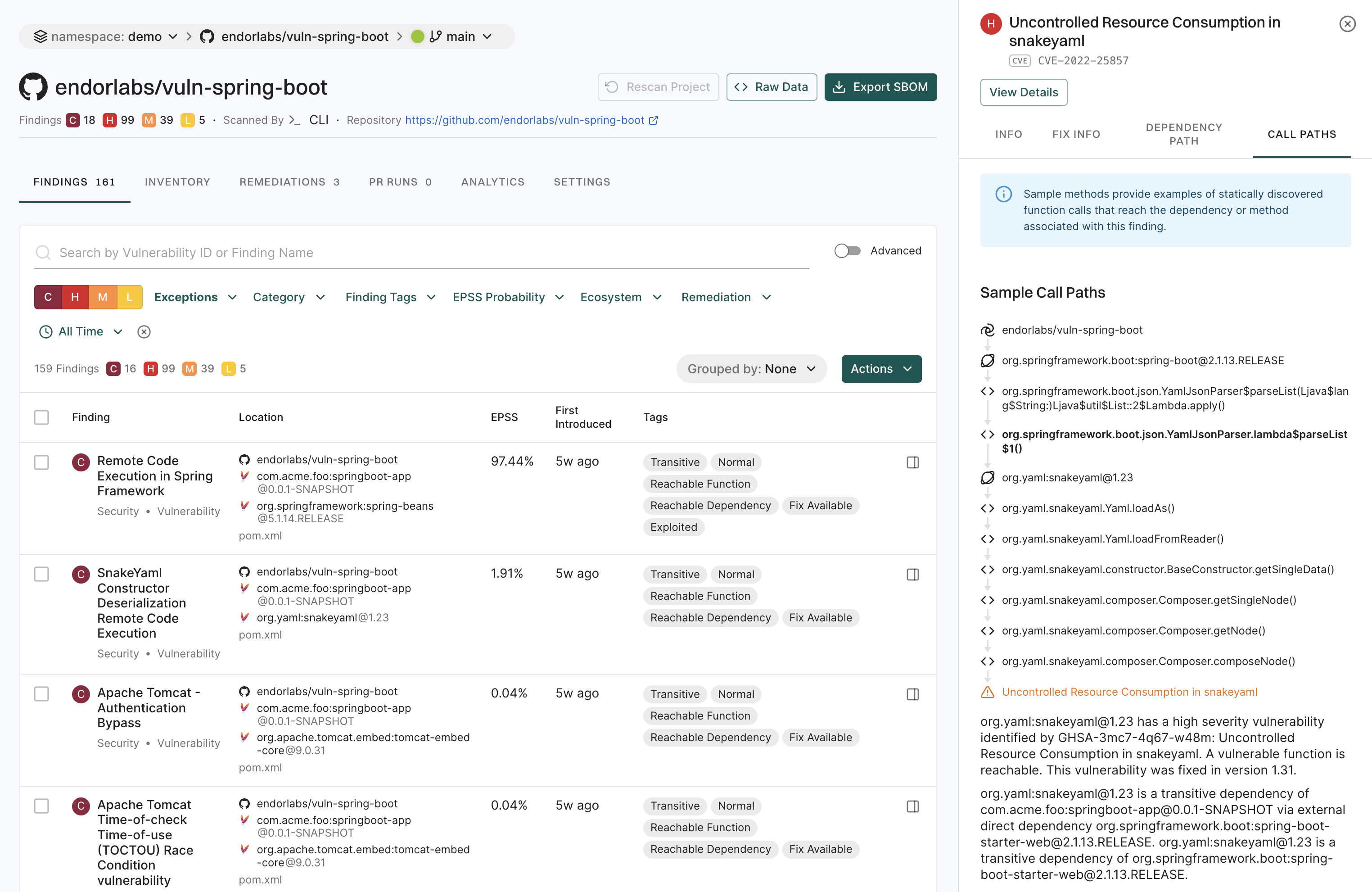
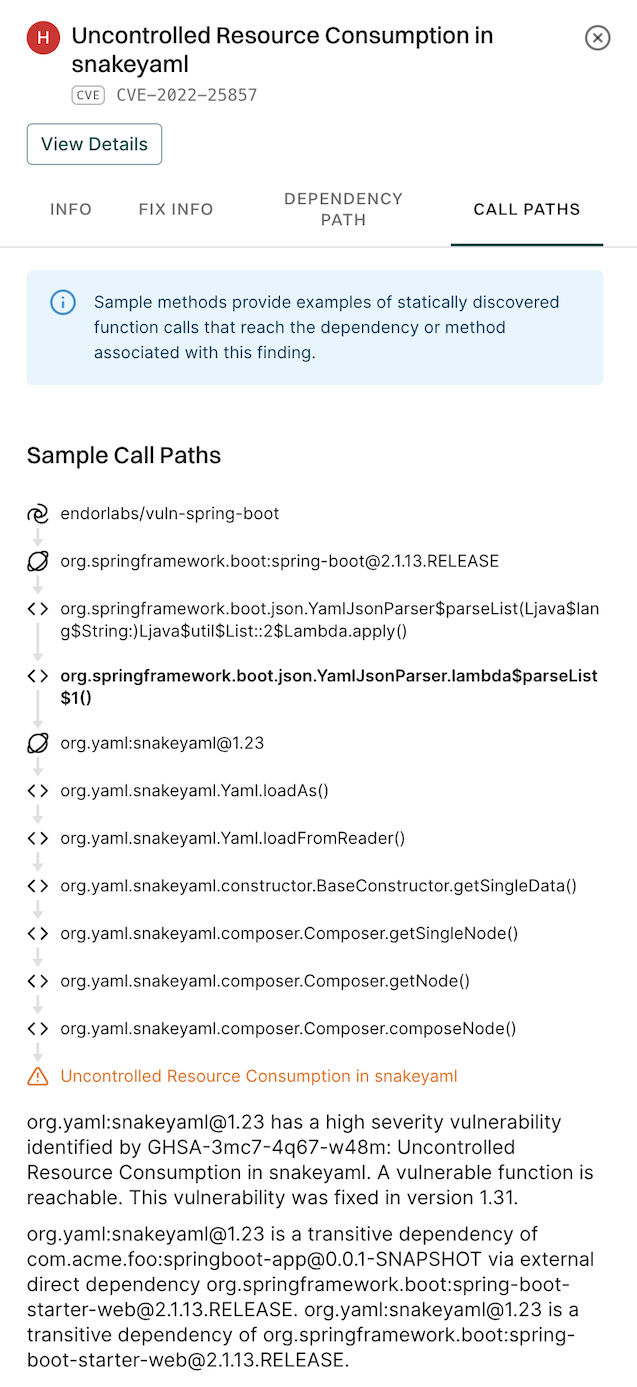
Go

Go or Golang is a software development programming language widely used by developers. Endor Labs supports scanning and monitoring of Go projects.

Using Endor Labs, application security engineers and developers can:

  • Scan their software for potential security issues and violations of organizational policy.
  • Prioritize vulnerabilities in the context of their applications.
  • Understand the relationships between software components in their applications.

Before you proceed to run a deep scan, ensure that your system meets the following specification.

Project Size Processor Memory
Small projects 4-core processor 16 GB
Mid-size projects 8-core processor 32 GB
Large projects 16-core processor 64 GB
  • Make sure that you have Go 1.12 or higher versions.
  • Make sure your repository includes one or more files with .go extension.

You must build your Go projects before running the scan. Additionally, ensure that the packages are downloaded into the local package caches and that go.mod file well formed and is available in the standard location.

To ensure that your go.mod file is well formed, run the following command:

go mod tidy
go get ./

This removes any dependencies that are not required by your project and ensures to resolve the dependencies without errors.

Use the following options to scan your repositories. Perform the endorctl scan after building the projects.

Perform a quick scan to get quick visibility into your software composition. This scan won’t perform reachability analysis to help you prioritize vulnerabilities.

endorctl scan --quick-scan

You can perform the scan from within the root directory of the Git project repository, and save the local results to a results.json file. The results and related analysis information are available on the Endor Labs user interface.

endorctl scan --quick-scan -o json | tee /path/to/results.json

You can sign into the Endor Labs user interface, click the Projects on the left sidebar, and find your project to review its results.

Use the deep scan to perform dependency resolution, reachability analysis, and generate call graphs. You can do this after you complete the quick scan successfully.

endorctl scan

Use the following flags to save the local results to a results.json file. The results and related analysis information are available on the Endor Labs user interface.

endorctl scan -o json | tee /path/to/results.json

You can sign into the Endor Labs user interface, click the Projects on the left sidebar, and find your project to review its results.

Endor Labs resolves your Golang-based dependencies by leveraging built-in Go commands to replicate the way a package manager would install your dependencies.

To discover package names for Go packages Endor Labs uses the command:

GOMOD=off go list -e -mod readonly -json -m

To analyze the dependency graph of your package Endor Labs uses the command:

GOMOD=off go list -e -deps -json -mod readonly all

To assess external dependencies, specifically third-party packages or libraries that your Go project relies on, Endor Labs uses the command:

GOMOD=off go list -e -deps -json -mod vendor all

These commands allow us to assess packages’ unresolved dependencies, analyze the dependency tree, and resolve dependencies for your Go projects.

Endor Labs creates go.mod files for you when projects do not have a go.mod file. This can lead to inconsistencies with the actual package created over time and across versions of the dependencies.

Here are a few error scenarios that you can check for and attempt to resolve them.

  • Host system check failure errors:

    • Go is not installed or not present in the PATH environment variable. Install Go and try again.
    • The installed version of Go is lower than 1.12. Install Go version 1.12 or higher and try again.
  • Resolved dependency errors:

    • A version of a dependency does not exist or it cannot be found. It may have been removed from the repository.
    • If the go.mod file is not well-formed then dependency resolution may return errors. Run go mod tidy and try again.
  • Call graph errors:

    These errors often mean the project won’t build. Please ensure any generated code is in place and verify that go build ./... runs successfully.

JavaScript/TypeScript

JavaScript is a high-level, interpreted programming language primarily used for creating interactive and dynamic web content widely used by developers. Endor Labs supports the scanning and monitoring of JavaScript projects.

Using Endor Labs, application security engineers and developers can:

  • Scan their software for potential security issues and violations of organizational policy.
  • Prioritize vulnerabilities in the context of their applications.
  • Understand the relationships between software components in their applications.

Before you proceed to run a deep scan, ensure that your system meets the following specification.

Project Size Processor Memory
Small projects 4-core processor 16 GB
Mid-size projects 8-core processor 32 GB
Large projects 16-core processor 64 GB
  • Endor Labs requires the following pre-requisite software to be installed to successfully perform a scan:
    • Yarn: Any version
    • npm: 6.14.18 or higher versions
    • pnpm: 3.0.0 or higher versions
  • Make sure your repository includes one or more files with .js or .ts extension.

To run deep scanning for JavaScript and TypeScript projects make sure you have the following prerequisites installed:

  • Ensure you have endorctl version 1.7.0 or higher installed.

  • Ensure Node.js version 4.2.6 or higher is installed to support TypeScript version 4.9.

  • Ensure TypeScript version 4.9 or higher is installed.

  • Install tsserver. tsserver is included with TypeScript, so installing the appropriate TypeScript version automatically installs tsserver.

    Install the appropriate TypeScript version based on your Node.js version.

Nodejs Version TypeScript Version
Lower than 12.2 4.9 or higher
Between 12.2 and 14.17 5.0
Higher than or equal to 14.17 Latest
  • Use the following command based on your Node.js version to install typescript:
npm install -g typescript
npm install -g typescript@5.0
npm install -g typescript@4.9
  • If you’re unsure make sure you check the tsserver installation
# Run 'which tsserver' to confirm installation
which tsserver

If you are running the endorctl scan with --install-build-tools, you don’t need to install tsserver. See Configure build tools for more information.

You can choose to build your JavaScript projects before running a scan. This will ensure that either a package-lock.json, yarn.lock, or pnpm-lock.yaml file is created enhancing the scan speed.

Ensure your repository has package.json and run the following command making sure it builds the project successfully.

npm install
yarn install
pnpm install

If the project is not built, endorctl builds the project during the scan and generate either package-lock.json, yarn.lock, or pnpm-lock.yaml file. Make sure that either npm, Yarn, or pnpm is installed on your system. If your repository includes a lock file, endorctl uses the existing file for dependency resolution and does not create it again.

The npm install command may fail in a subdirectory if your project is set up with a package-lock.json file available at the root of the repository and not in the sub-packages as shown in the following example.

 .
 ├── package.json
 ├── package-lock.json
 └── sub-package/
     └── package.json

You need to instruct endorctl to use the root-level lock file to avoid scan failures in monorepo setups where dependencies are centrally managed at the root.

Set the following environment variable before you run the scan.

export ENDOR_JS_USE_ROOT_DIR_LOCK_FILE=true

When generating call graphs for JavaScript/TypeScript projects, endorctl uses tsserver to analyze the code. By default, tsserver waits 15 seconds for a response before timing out. For large or complex projects, you may need to increase this timeout.

Set the ENDOR_JS_TSSERVER_TIMEOUT environment variable to specify the timeout in seconds.

export ENDOR_JS_TSSERVER_TIMEOUT=30

Increasing the timeout might be beneficial in the following scenarios:

  • Large monorepos with many TypeScript files
  • Projects with complex type hierarchies
  • Projects with extensive type checking requirements

endorctl detects the JavaScript package manager automatically. You can override this detection by setting the ENDOR_JS_PACKAGE_MANAGER environment variable to npm, yarn, pnpm, or lerna.

For example, to use npmas the package manager run the following command.

export ENDOR_JS_PACKAGE_MANAGER=npm

This setting forces endorctl to use the specified package manager and overrides all other JavaScript package manager configuration variables.

Perform a scan to get visibility into your software composition and resolve dependencies.

endorctl scan

Dependency analysis tools analyze the lock file of an npm, yarn, or pnpm based package and attempt to resolve dependencies. To resolve dependencies from private repositories, the settings of the .npmrc file in the repository is considered.

Endor Labs surpasses mere manifest file analysis by expertly resolving JavaScript dependencies and identifies:

  • Dependencies listed in the manifest file but not used by the application
  • Dependencies used by the application but not listed in the manifest file
  • Dependencies listed in the manifest as transitive but used directly by the application
  • Dependencies categorized as test in the manifest, but used directly by the application

Developers can eliminate the false positives, false negatives, and easily identify test dependencies with this analysis. The dependencies used in source code but not declared in the package’s manifest files are tagged as Phantom.

Endor Labs also supports npm, Yarn, and pnpm workspaces out-of-the-box. If your JavaScript frameworks and packages use workspaces, Endor Labs will automatically take the dependencies from the workspace to ensure that the package successfully builds.

Scan speed is enhanced if the lock file exists in the repository. endorctl does not perform a build and uses the existing files in the repository for analysis.

Endor Labs supports fetching and scanning dependencies from private npm package registries. Endor Labs will fetch resources from authenticated endpoints and perform the scan, allowing you to view the resolved dependencies and findings. See npm package manager integrations for more information on configuring private registries.

  • Endor Labs doesn’t currently support local package references
  • If a dependency can not be resolved in the lock file, building that specific package may be unsuccessful. This package may have been removed from npm or the .npmrc file is not properly configured. Other packages in the workspace are scanned as usual.
  • Functions that are passed in as arguments to call expressions might not be included in the call graph.
  • Functions that are returned and then called might not be included in the call graph.
  • Functions that are assigned to a variable based on a runtime value might not be included in the call graph.
  • Functions that are assigned to an array element might not be included in the call graph.
  • Unresolved dependency errors: The manifest file package.json is not buildable. Try running npm install, yarn install, or pnpm install in the root project to debug this error.
  • Resolved dependency errors: A version of a dependency does not exist or it cannot be found. It may have been removed from the repository.

C/C++

Beta

C and C++ are powerful, high-performance programming languages widely used for system programming, application development, and embedded systems. Endor Labs supports scanning and monitoring of C and C++ projects.

Using Endor Labs, application security engineers and developers can:

  • Scan their software for potential security issues and violations of organizational policy.
  • Prioritize vulnerabilities in the context of their applications.
  • Understand the relationships between software components in their applications.

To scan your C and C++ repositories, run the following command.

endorctl scan --languages=c
Important
  • Ensure that the entire source code and all its dependencies are present in the scanned folder.
  • Using the --languages=c flag will scan only C and C++ projects. For a multi-language repository, ensure that you include all other languages with the flag.
  • If you are using a scan profile, make sure C/C++ is selected under Languages and included in your profile.

Use the following flags to save the local results to a results.json file. The results and related analysis information are available on the Endor Labs user interface.

endorctl scan --languages=c -o json | tee /path/to/results.json

You can sign in to the Endor Labs user interface, click the Projects on the left sidebar, and find your project to review its results.

View scan results

Endor Labs detects vulnerabilities by testing your code against its proprietary database, which is regularly updated. Endor Labs does not build your code, so all dependencies and vendor code must be included within the source. If the build process pulls in additional packages, they must also be present in the scanned directory.

Endor Labs analyzes source code using a combination of code signatures and embeddings. The system extracts source code from various data sources and applies language-specific segmentation to break the code into functions and segments. This method facilitates efficient similarity searches, helping to detect duplicated code across repositories and supporting comprehensive software composition analysis.

By comparing file hashes, segment hashes, and embeddings, Endor Labs can query data to identify matches with code segments. This capability streamlines the detection of copied code and the dependency relationships between repositories, providing insights into code components from various sources, including Git repositories, online archives, and other package distributions. Headers and code files are scanned regardless of their file extension.

To optimize performance, Endor Labs caches embeddings and signatures, making subsequent scans faster than the first scan. This means only newly added or modified files require computation, significantly reducing scan times.

Embeddings are disabled by default and require the Endor Labs AI license.

To enable embeddings go to Settings near the bottom of the left sidebar, navigate to Data Privacy under System Settings, check the box for Code Segment Embeddings and LLM Processing and click Save Data Privacy Settings.

Enable embeddings

To override the system-wide configuration for a specific scan, set ENDOR_SCAN_EMBEDDINGS to true to enable embeddings or false to disable them. This setting takes precedence over the system configuration.

export ENDOR_SCAN_EMBEDDINGS=false

Scanning binary library files such as .so and .a files is not supported.

PHP

PHP is a popular server-side scripting language primarily used for web development. Endor Labs supports the scanning and monitoring of PHP projects.

Using Endor Labs, application security engineers and developers can:

  • Scan their software for potential security issues and violations of organizational policy.
  • Prioritize vulnerabilities in the context of their applications.
  • Understand the relationships between software components in their applications.
  • One of the following prerequisites must be fulfilled:
    • The PHP project must contain a composer.json file. If the project includes the composer.lock file it is beneficial, but this is not a mandatory requirement.
    • If the composer.lock file is not present in the repository, it is necessary to have PHP and Composer installed before running a scan on your local system.
  • Make sure your repository includes one or more files with .php extension.
  • The following versions are supported for PHP and Composer:
    • PHP 5.3.2 and higher versions
    • Composer 2.2.0 and higher versions
Note
Endor Labs does not support Composer 2.9.1.

You can choose to build your PHP projects before running a scan. This will ensure that composer.lock is created.

Ensure your repository has composer.json and run the following command making sure it builds the project successfully.

composer install

If the project is not built, endorctl will build the project during the scan and generate composer.lock. If the repository includes a composer.lock, endorctl uses this file for dependency resolution and does not create it again.

Endor Labs supports fetching and scanning dependencies from private package registries. Endor Labs will fetch resources from authenticated endpoints and perform the scan, allowing you to view the resolved dependencies and findings. See package manager integrations for more information on configuring private registries.

Perform a scan to get visibility into your software composition and resolve dependencies.

endorctl scan

You can perform the scan from within the root directory of the Git project repository, and save the local results to a results.json file. The results and related analysis information are available on the Endor Labs user interface.

endorctl scan -o json | tee /path/to/results.json

You can sign into the Endor Labs user interface, click the Projects on the left sidebar, and find your project to review its results.

Endor Labs discovers all composer.json files in your PHP project and uses these files to resolve the dependencies of your packages. Composer is a PHP dependency management tool that enables you to specify the libraries your project relies on and manages the process of installing or updating them. The dependencies and findings are listed in the Endor Labs application individually for every composer.json file.

In Endor Labs’ dependency management, the resolution of dependencies is based on both composer.json and composer.lock files. The composer.lock file is generated by Composer and includes information such as resolved versions, package information, transitive dependencies, and other details. Using the composer.lock file ensures deterministic dependency installation by recording the exact versions of installed dependencies and their transitive dependencies. If the composer.lock file is not present in the repository, Endor Labs generates the composer.lock file, and uses it to analyze the operational and security risks associated with your package’s dependencies. Endor Labs fetches the dependency information and creates a comprehensive dependency graph.

Call graphs are not supported for PHP projects.

  • Unresolved dependency errors: The composer.json is not buildable. Try running composer install in the root project to debug this error.
  • Resolved dependency errors: A version of a dependency does not exist or it cannot be found. It may have been removed from the repository.

Kotlin

Kotlin is a statically typed programming language that runs on the Java Virtual Machine (JVM), known for its concise syntax, null safety, and seamless integration with Java. Endor Labs supports scanning and monitoring of Kotlin projects.

Using Endor Labs, application security engineers and developers can:

  • Scan their software for potential security issues and violations of organizational policy.
  • Prioritize vulnerabilities in the context of their applications.
  • Understand the relationships between software components in their applications.

Before you proceed to run a deep scan, ensure that your system meets the following specification.

Project Size Processor Memory
Small projects 4-core processor 16 GB
Mid-size projects 8-core processor 32 GB
Large projects 16-core processor 64 GB
  • Install JDK versions between 11 and 25.0.2.
  • Make sure your repository includes one or more files with .kt extension.
  • Install Maven version 3.6.1 and higher if your project uses Maven.
  • Install Gradle build system version 6.0.0 and higher, if your project uses Gradle.
  • Your repository must include the appropriate build manifest file:
    • pom.xml for Maven projects.
    • build.gradle or build.gradle.kts for Gradle projects.

Before initiating a scan with Endor Labs, ensure that your Kotlin projects are built successfully. Additionally, ensure that the packages are downloaded into local package caches and build artifacts are present in their standard locations. Follow the guidelines to use Gradle and Maven:

To analyze your software built with Gradle, Endor Labs requires:

  • The software must be successfully built with Gradle.
  • For quick scans, dependencies must be located in the local package manager cache. The standard $GRADLE_USER_HOME/caches or /User/<<username>>/.gradle/caches cache must exist.
  • For deep scans, the target artifact must be generated on the filesystem.

To build your project with Gradle, run the following commands:

  1. Specify the Gradle configuration by setting an environment variable.
export endorGradleKotlinConfiguration="compileClasspath"

To override the default configuration, use the command:

export endorGradleKotlinConfiguration="<configuration>"

When no configuration is provided, runtimeClasspath is used by default.

If neither the user-specified nor the default configuration exists in the project, the system falls back to the following configurations, in order:

  1. runtimeClasspath
  2. runtime
  3. compileClasspath
  4. compile

If the listed configurations are not found in the project, the system selects the first available configuration in alphabetical order.

For Android projects, you can set the configuration using:

export endorGradleAndroidConfiguration="<configuration>"

The default configuration for an Android application or library follows the structure used by Android Studio.

Applications: All possible combinations of application variants are examined.

Libraries: All possible combinations of library variants are examined.

The first variant in the alphabetically sorted list is then suffixed with RuntimeClasspath. For example, if the first variant is configA, the default configuration will be configARuntimeClasspath.

If these methods don’t yield a value, the system defaults to releaseRuntimeClasspath.

  1. Confirm an error-free dependency resolution for your project.
gradle dependencies

or, with a Gradle wrapper.

./gradlew dependencies
  1. Generate the artifact for deep analysis.
gradle assemble

or, with a Gradle wrapper.

./gradlew assemble

In a multi-build project, if you set the environment variable endorGradleKotlinConfiguration=[GlobalConfiguration] and/or endorGradleAndroidConfiguration=[GlobalConfiguration], the specified configuration is used for dependency resolution across all projects and sub-projects in the hierarchy below.

    \--- Project ':samples'
         +--- Project ':samples:compare'
        +--- Project ':samples:crawler'
        +--- Project ':samples:guide'
        +--- Project ':samples:simple-client'
        +--- Project ':samples:slack'
        +--- Project ':samples:static-server'
        +--- Project ':samples:tlssurvey'
        \--- Project ':samples:unixdomainsockets'

To override the configuration only for the :samples:crawler and :samples:guide sub-projects, follow these steps:

  1. Navigate to the root workspace, where you execute endorctl scan, and run ./gradlew projects to list all projects and their names.

  2. Run the following command at the root of the workspace:

echo ":samples:crawler=testRuntimeClasspath,:samples:guide=macroBenchMarkClasspath" >> .endorproperties

This creates a new file named .endorproperties in your root directory. This enables different configurations for the specified sub-projects in the file.

  1. Run endorctl scan as usual.

At this point, all other projects will adhere to the GlobalConfiguration. However, the :samples:crawler sub-project will use the testRuntimeClasspath configuration, and the :samples:guide sub-project will use the macroBenchMarkClasspath configuration.

To analyze your software built with Maven, Endor Labs requires:

  • The software must be successfully built with Maven.
  • For quick scans, dependencies must be located in the local package manager cache. The standard .m2 cache must exist.
  • For deep scans, the target artifact must be generated on the filesystem.

To build your project with Maven, run the following commands:

  1. Confirm an error-free dependency resolution for your project.
mvn dependency:tree
  1. Run mvn install and ensure the build is successful.
info
If you want to skip the execution of tests during the build, you can use -DskipTests to quickly build and install your projects.
mvn install -DskipTests
  1. If you have multiple Kotlin modules not referenced in the root pom.xml file, ensure to run mvn install separately in each directory.

Endor Labs supports fetching and scanning dependencies from private Maven package registries. Endor Labs will fetch resources from authenticated endpoints and perform the scan, allowing you to view the resolved dependencies and findings. See Maven package manager integrations for more information on configuring private registries.

To scan your repositories with Endor Labs, you can use the following options after building your Kotlin projects.

To quickly gain insight into your software composition, initiate a quick scan using the following command:

endorctl scan --quick-scan

This scan offers a quick overview without performing reachability analysis, helping you prioritize vulnerabilities.

To scan a Git project repository from the root directory and save the results locally in the results.json file, use the following command:

endorctl scan --quick-scan -o json | tee /path/to/results.json

This generates comprehensive results and analysis information, accessible from the Endor Labs user interface.

To access and review detailed results, sign in to the Endor Labs user interface. Navigate to Projects on the left sidebar, and locate your project for a thorough examination of the scan results.

To perform dependency resolution and reachability analysis, use deep scan with Endor Labs. This option is recommended only after successfully completion of quick scan.

endorctl scan

To save the local results to a results.json file, use the following flag.

endorctl scan -o json | tee /path/to/results.json

This generates comprehensive results and analysis information, accessible from the Endor Labs user interface.

During deep analysis, Endor Labs thoroughly analyzes all private software dependencies that have not been previously scanned. While this initial operation may slow down scans, subsequent scans remain unaffected.

If your organization does not own specific software parts and related findings are non-actionable, you can choose to disable this analysis using the disable-private-package-analysis flag. Disabling private package analysis enhances scan performance but may result in a loss of insights into how applications interact with first-party libraries.

To disable private package analysis, use the following command flag:

endorctl scan --disable-private-package-analysis

To access and review detailed results, sign in to the Endor Labs user interface. Navigate to Projects on the left sidebar, and locate your project for a thorough examination of the scan results.

While Endor Labs primarily supports JDK versions between 11-25.0.2, you can still scan projects on JDK 8 by following these steps:

  1. Build your Java project on JDK 8.
  2. After successful build, switch your Java home to JDK 11 or higher versions.
export JAVA_HOME=/Library/Java/JavaVirtualMachines/openjdk-11.jdk/Contents/Home
  1. Run a scan.

Endor Labs analyzes your Kotlin code and dependencies to identify known security issues, including open-source vulnerabilities.

Endor Labs resolves Kotlin package dependencies by considering the following factors:

  • For packages built with Maven, it leverages the Maven cache in the .m2 directory of your file system. This mirrors Maven’s build process for precise results.
  • For packages built with Maven, it respects the configuration settings present in the settings.xml file. If the file is included in your repository, any additional configuration is not necessary.
  • For packages built with Gradle, it leverages Gradle and Gradle wrapper files to build and resolve dependencies.
  • Endor Labs supports AAR, EAR, JAR, RAR, and WAR files.

Endor Labs performs static analysis on the code based on the following factors:

  • Call graphs are created for your package. These are then combined with the call graphs of the dependencies in your dependency tree to form a comprehensive call graph for the entire project.
  • Endor Labs performs an inside-out analysis of the software to determine the reachability of dependencies in your project.
  • The static analysis time may vary depending on the number of dependencies in the package and the number of packages in the project.
  • If a package can not be successfully built in the source control repository, static analysis will fail.
  • Spring dependencies are analyzed based on spring public entry points to reduce the impact of Inversion of Control (IOC) frameworks. Dependencies and functions are identified as reachable and unreachable in the context of a spring version and its entry points.
  • Annotation processing is limited only to the usage of the code they annotate.
  • Static analysis of reflection and callbacks are not supported.
  • If Endor Labs fails to resolve dependencies using default Kotlin configurations, the Kotlin configuration must be specified.
  • Static analysis for Kotlin projects using Gradle is only supported when the Kotlin plugin for Gradle versions 1.5.30 to 1.9.x

Here are a few error scenarios that you can check for and attempt to resolve them.

  • Host system check failure errors:
    • Java is not installed or not present in the PATH environment variable. Install Java and try again. See Java documentation for more information.
    • For android applications, $ANDROID_HOME must be specified as an environment variable.
    • The installed version of Java is lower than the required version. Install JDK versions between 11-25.0.2 and try again.
    • Java is installed but Maven or Gradle is not installed. In such cases, the dependency resolution may not be complete.
  • Unresolved dependency errors: Maven is not installed properly or the system is unable to build root pom.xml. Run mvn dependency:tree in the root of the project and try again. In such cases, the dependency resolution may not be complete.
  • Resolved dependency errors: A version of a dependency does not exist or it cannot be found. It may have been removed from the repository.
  • Call graph errors:
    • If the project is not compiled, call graphs are not generated. Run gradlew compileKotlin or gradlew compileReleaseKotlin for android based projects before running the scan.
    • Sometimes, the project is not compiled, if a Kotlin version discrepancy exists between the required repository version and the version on the system running the scan. For example, the Kotlin required version is 1.4 but the system has lower version installed. Install the required version and try again.
  • If you have a private registry and internal dependencies on other projects, you must configure the credentials of the registry. See Configure Maven private registries.
  • If you use a remote repository configured to authenticate with a client-side certificate, you must add the certificate through an endorctl parameter. Export the ENDOR_SCAN_JVM_PARAMETERS parameter before performing a scan. See Maven documentation for details.
export ENDOR_SCAN_JVM_PARAMETERS="-Xmx16G,-Djavax.net.ssl.keyStorePassword=changeit,
-Djavax.net.ssl.keyStoreType=pkcs12,
-Djavax.net.ssl.keyStore=/Users/myuser/Documents/nexustls/client-cert1.p12"

Scala

Scala is a general-purpose and scalable programming language widely used by developers. Endor Labs supports the scanning and monitoring of Scala projects managed by either the interactive build tool sbt or Gradle.

Using Endor Labs, application security engineers and developers can:

  • Scan their software for potential security issues and violations of organizational policy.
  • Prioritize vulnerabilities in the context of their applications.
  • Understand the relationships between software components in their applications.

Make sure that your system has a minimum 8-core processor with 32 GB RAM to successfully scan Scala projects.

  • Install JDK versions between 11 and 25.0.2.
  • Make sure your repository includes one or more files with .scala or .sc extension.
  • Install sbt version 1.4 or higher if your project uses sbt.
    • For sbt versions lower than 1.4, install the sbt-dependency-graph plugin, which is included by default in sbt 1.4 and later.
    • Ensure that the project/build.properties file specifies the required sbt version.
  • Install Gradle build system version 6.0.0 and higher, if your project uses Gradle.
  • Your repository must include the appropriate build manifest file:
    • build.sbt for sbt projects.
    • build.gradle or build.gradle.kts for Gradle projects.

Before initiating a scan with Endor Labs, ensure that your Scala projects are built successfully. Additionally, ensure that the packages are downloaded into local package caches and build artifacts are present in their standard locations. Follow the guidelines to build projects using sbt or Gradle.

To analyze your software built with Gradle, you must successfully build the software. To perform a quick scan, locate the dependencies in the local package manager cache. Ensure that the standard $GRADLE_USER_HOME/caches or /User/<username>/.gradle/caches exists and contains successfully downloaded dependencies. To perform a deep scan, generate the target artifact on the file system as well.

To build your project with Gradle, use the following procedure:

  1. To run a scan against a custom configuration, specify the Gradle configuration by setting an environment variable.

       export endorGradleScalaConfiguration="<configuration>"
    

    When no configuration is provided, runtimeClasspath is used by default.

    If neither the user-specified nor the default configuration exists in the project, the system falls back to the following configurations, in order:

    1. runtimeClasspath
    2. runtime
    3. compileClasspath
    4. compile

    If the listed configurations are not found in the project, the system selects the first available configuration in alphabetical order.

  2. Ensure that you can resolve the dependencies for your project without errors by running the following command:

    For Gradle wrapper:

       ./gradlew dependencies
    

    For Gradle:

       gradle dependencies
    
  3. Run ./gradlew assemble or gradle assemble to resolve dependencies and to create an artifact that may be used for deep analysis.

In a multi-build project, if you set the environment variable endorGradleScalaConfiguration=[GlobalConfiguration], the specified configuration is used for dependency resolution across all projects and subprojects in the hierarchy below.

\--- Project ':samples'
     +--- Project ':samples:compare'
     +--- Project ':samples:crawler'
     +--- Project ':samples:guide'
     +--- Project ':samples:simple-client'
     +--- Project ':samples:slack'
     +--- Project ':samples:static-server'
     +--- Project ':samples:tlssurvey'
     \--- Project ':samples:unixdomainsockets'

To override the configuration only for the :samples:crawler and :samples:guide subprojects, follow these steps:

  1. Navigate to the root workspace, where you execute endorctl scan, and run ./gradlew projects to list all projects and their names.

  2. Run the following command at the root of the workspace:

    echo ":samples:crawler=testRuntimeClasspath,:samples:guide=macroBenchMarkClasspath" >> .endorproperties
    

    This creates a new file named .endorproperties in your root directory. This enables different configurations for the specified subprojects in the file.

  3. Run endorctl scan.

At this point, all other projects will adhere to the GlobalConfiguration. However, the :samples:crawler subproject will use the testRuntimeClasspath configuration, and the :samples:guide subproject will use the macroBenchMarkClasspath configuration.

Endor Labs supports fetching and scanning dependencies from private Gradle package registries. Endor Labs will fetch resources from authenticated endpoints and perform the scan, allowing you to view the resolved dependencies and findings. See Gradle package manager integrations for more information on configuring private registries.

To analyze your software built with sbt, you must successfully build the software.

  • The standard .sbt cache must exist and contain all required dependencies for both quick and deep scans.
  • For deep scans, the build artifact must exist on the filesystem.
  • Make sure sbt dependencyTree runs successfully inside the project directory.

Run a quick scan to rapidly assess your dependencies using only the compiled code and cached packages.

  1. Run the following commands to build the project successfully. Ensure your repository has a build.sbt file.

    sbt compile
    
    sbt projects
    
  2. Run an endorctl scan.

Run a deep scan to enable advanced static analysis features by generating packaged artifacts.

  1. Run the following commands to build the project successfully. Ensure your repository has a build.sbt file.

    sbt package
    
    sbt projects
    
  2. Run an endorctl scan.

Run an endorctl scan to get visibility into your software composition and resolve dependencies.

endorctl scan

You can perform the scan from within the root directory of the Git project repository and save the local results to a results.json file. The results and related analysis information are available on the Endor Labs user interface.

endorctl scan -o json | tee /path/to/results.json

Sign in to the Endor Labs user interface, click Projects on the left sidebar, and find your project to review its results.

Note
If your project includes both sbt and Gradle build systems, Endor Labs scans your project using only one build system to avoid scanning the same packages multiple times. When both are present, Gradle has higher priority for dependency resolution.

Endor Labs scans Scala projects by executing sbt plugins and inspecting the build.sbt file to retrieve information about direct and transitive dependencies.

  • The build.sbt file is a configuration file used in Scala projects with sbt to define project settings, dependencies, and build tasks. This file provides the necessary configuration and instructions to sbt on resolving and managing project dependencies.
  • The sbt dependency graph plugin visualizes the dependencies between modules in a Scala project.
  • For packages built using Gradle, it uses Gradle and Gradle wrapper files to build packages and resolve dependencies.
  • Endor Labs supports EAR, JAR, RAR, and WAR files.

Endor Labs analyzes information from both these methods to determine different components, binary files, manifest files, images, and more in the Scala codebase. It presents finding policy violations, identifies dependencies, and resolves them.

Using Endor Labs, users can gain significant insights into the structure and relationships of their Scala project’s dependencies. This aids in managing dependencies effectively, identifying potential issues, and ensuring a well-organized and maintainable codebase.

Endor Labs performs static analysis based on the following factors:

  • Call graphs are created for your package. These are then combined with the call graphs of the dependencies in your dependency tree to form a comprehensive call graph for the entire project.
  • Endor Labs performs an inside-out analysis of the software to determine the reachability of dependencies in your project.
  • The static analysis time may vary depending on the number of dependencies in the package and the number of packages in the project.

Endor Labs does not currently support software composition analysis for Scala on Microsoft Windows operating systems.

Here are a few error scenarios that you can check for and attempt to resolve them.

  • Host system check failure errors: These errors occur if:
    • sbt is not installed or present in the path variable. Install sbt 1.4 or higher versions and try again.
    • The sbt version mentioned in the project or the build.properties file is lower than 1.4 and the sbt-dependency-graph plug-in is not installed. Install the sbt-dependency-graph plug-in and try again.
    • Java is not installed or not present in the PATH environment variable. Install Java and try again. See Java documentation for more information.
    • The installed version of Java is lower than the required version. Install JDK versions between 11 and 25.0.2 and try again.
    • Java is installed but sbt or Gradle is not installed. In such cases, the dependency resolution may not be complete.
  • Dependency graph errors: Scala by default imports MiniDependencyTreePlugin, which is a mini version of the sbt-dependency-graph plugin and supports only the dependencyTree command. To get complete features of the sbt-dependency-graph plugin, add DependencyTreePlugin to your project/plugins.sbt file and run the scan again. See Scala documentation for details.

.NET

.NET is a free, cross-platform, open-source developer platform for building different types of applications. Endor Labs supports the scanning and monitoring of projects built on the .NET platform.

Using Endor Labs, application security engineers and developers can:

  • Scan their software for potential security issues and violations of organizational policy.
  • Prioritize vulnerabilities in the context of their applications.
  • Understand the relationships between software components in their applications.

Before you proceed to run a deep scan, ensure that your system meets the following specification.

Project Size Processor Memory
Small projects 4-core processor 16 GB
Mid-size projects 8-core processor 32 GB
Large projects 16-core processor 64 GB

The following prerequisites must be fulfilled:

  • Make sure your repository includes one or more files with .cs extension.
  • Dependency resolution and reachability analysis is supported only for SDK-style .NET projects.
  • One or more *.csproj files must be present in your repository.
  • The .NET command or NuGet command must be installed and available on the host system.
  • At least one .NET SDK installed on the system must be compatible with the project’s global.json file settings.
Note
To check your available SDK versions you can run the command dotnet --info or dotnet --list-sdks.

Use the following options to scan your repositories. Perform a scan after building the projects.

Perform a quick scan to get quick visibility into your software composition. This scan won’t perform reachability analysis to help you prioritize vulnerabilities.

You must restore your .NET projects before running a quick scan. Additionally, ensure that the packages are downloaded into the local package caches and that the build artifacts are present in the standard locations.

  1. Run the following commands to resolve dependencies and create the necessary files to scan your .NET project.

    To ensure that the build artifacts project.assets.json file is generated and dependencies are resolved run:

    dotnet restore
    

    If you use NuGet instead run:

    nuget restore
    

    To create a packages.lock.json file if your project uses a lock file run:

    dotnet restore --use-lock-file
    

    If project.assets.json or packages.lock.json are not present and if the project is buildable, endorctl will restore the project and create a project.assets.json or a packages.lock.json file to resolve dependencies.

  2. You can run a quick scan with the following commands:

    endorctl scan --quick-scan
    

    You can perform the scan from within the root directory of the Git project repository, and save the local results to a results.json file. The results and related analysis information are available on the Endor Labs user interface.

    endorctl scan --quick-scan -o json | tee /path/to/results.json
    

    You can sign in to the Endor Labs user interface and navigate to Projects from the left sidebar to review your project results.

Use the deep scan to perform dependency resolution, reachability analysis, and generate call graphs. You can do this after you complete the quick scan successfully.

You must restore and build your .NET projects before running a deep scan. Additionally, ensure that the packages are downloaded into the local package caches and that the build artifacts are present in the standard locations.

  1. Run the following commands to restore and build your project. This may vary depending on your project’s configuration.

    dotnet restore
    dotnet build
    
  2. You can run a deep scan with the following commands:

    endorctl scan
    

    Use the following flags to save the local results to a results.json file. The results and related analysis information are available on the Endor Labs user interface.

    endorctl scan -o json | tee /path/to/results.json
    

When a deep scan is performed all private software dependencies are completely analyzed by default if they have not been previously scanned. This is a one-time operation and will slow down initial scans, but won’t impact subsequent scans.

Organizations might not own some parts of the software internally and findings are actionable by another team. These organizations can choose to disable this analysis using the flag disable-private-package-analysis. By disabling private package analysis, teams can enhance scan performance but may lose insights into how applications interact with first-party libraries.

Use the following command flag to disable private package analysis:

endorctl scan --disable-private-package-analysis

You can sign into the Endor Labs user interface and select Projects from the left sidebar to review your project results.

Endor Labs supports fetching and scanning dependencies from private NuGet package registries. Endor Labs will fetch resources from authenticated endpoints and perform the scan, allowing you to view the resolved dependencies and findings. See NuGet package manager integrations for more information on configuring private registries.

A *.csproj file is an XML-based C# project file that contains information about the project, such as its source code files, references, build settings, and other configuration details. The dependencies and findings are listed individually for every .csproj file. The scan discovers all *.csproj files and uses these files to resolve the appropriate dependency graph of your project.

(Beta) Endor Labs scans the .NET projects that are using the Central Package Management feature of NuGet for the packages declared as:

  • Package references in Directory.Build.props or Directory.Packages.props files.
  • Package references in any *.props file and the prop file is imported in the .csproj file.
  • Package references in *.Targets file.
Note

You may not be able to view the Requested version of the packages on the Endor Labs user interface

  • For the packages declared as package version in *.Targets file.
  • If you are importing the packages into the *.csproj file using MSBuild keywords in the path variables.

Endor Labs enriches your dependency graph to help you understand if your dependencies are secure, sustainable, and trustworthy. This includes Endor Labs risk analysis and scores, if a dependency is direct or transitive, and if the source code of the dependency is publicly auditable.

Software composition analysis for .NET is performed in the following ways:

The project.assets.json file is used in .NET projects to store metadata and information about the project’s dependencies and assets.

Endor Labs fetches resolved package versions, paths to the dependencies’ assets, such as assemblies and resources, and other related information from this file. If a project does not include a project.assets.json file, it is generated through the dotnet restore or the nuget restore command. This command uses all the configured sources to restore dependencies as well as project-specific tools that are specified in the project file.

Note
If the host machine has .NET Core or .NET 5+ installed, the dotnet restore command is used to generate the project.assets.json file. The nuget restore command is used to generate the project.asssets.json file for earlier versions of the .NET frameworks.

The package.lock.json file is used in .NET projects to lock dependencies and their specific versions. It is a snapshot of the exact versions of packages installed in a project, including their dependencies and sub-dependencies, requested versions, resolved versions, and contenthash. The lock file provides a more dependable, uniform, and accurate representation of the dependency graph.

In Endor Labs’ dependency management, the resolution of dependencies is primarily based on package.lock.json, which takes precedence over projects.assets.json to resolve dependencies.

Endor Labs fetches the dependency information from package.lock.json and creates a comprehensive dependency graph. The vulnerabilities associated with the dependencies are listed on the Endor Labs’ user interface.

If the package.lock.json file is not present in the repository, Endor Labs triggers the restore process to generate the package.lock.json file and uses it to perform the dependency scans.

endorctl attempts to evaluate MSBuild property values when they are composed of variables, as long as the variables are defined within the same file for example, Directory.Build.props. This enables accurate resolution of package names and versions, even if they are not explicitly declared in the .csproj file.

For example, in a setup like

test.csproj

<Project Sdk="Microsoft.NET.Sdk">
  <PropertyGroup>
    <TargetFrameworks>net8</TargetFrameworks>
  </PropertyGroup>
  <ItemGroup>
    <PackageReference Include="Newtonsoft.Json" Version="13.0.3" />
  </ItemGroup>
</Project>

Directory.Build.props

<Project>
  <PropertyGroup>
    <CompanyName>via-build-prop</CompanyName>
    <AssemblyName>$(CompanyName).$(MSBuildProjectName)</AssemblyName>
  </PropertyGroup>
</Project>

When generating package names for .NET projects, the system evaluates the AssemblyName property defined in the project’s .props file. Instead of using a generic name like test, the system applies the evaluated value, for example, via-build-prop.test. This approach enables consistent and customizable package naming based on MSBuild properties.

Endor Labs performs static analysis on the C# code based on the following factors:

  • Call graphs are created for your package. These are then combined with the call graphs of the dependencies in your dependency tree to form a comprehensive call graph for the entire project.
  • Endor Labs looks for the project’s .dll files typically located within the bin directory.
  • Endor Labs performs an inside-out analysis of the software to determine the reachability of dependencies in your project.
  • The static analysis time may vary depending on the number of dependencies in the package and the number of packages in the project.
  • When using the GitHub app, either resolve all the private and internal dependencies, or Configure private NuGet package repositories before running a scan.
  • When working with old-style MSBuild projects, we recommend scanning them through Continuous Integration (CI) after building the project to ensure that the .NET build system generates the required obj/project.assets.json file. For monitoring scans, support for restoring dependencies in Windows projects is limited. This may lead to restore or build errors, potentially causing unexpected scan results.
  • You must install .NET 7.0.1 (SDK 7.0.101) or later on the host system.
  • The following .NET programming languages are not supported for dependency resolution or call graph generation:
    • Projects written in F#
    • Projects written in Visual Basic
  • Endor Labs’ call graph support for .NET is based on Microsoft’s Common Intermediate Language (CIL). Artifacts such as .exe or .dll files must be available in the project’s standard workspace through a build and restore or a restored cache.

Here are a few error scenarios that you can check for and attempt to resolve them.

  • Host system check failure errors: .NET or NuGet is not installed or not present in the PATH environment variable. Install NuGet and try again.
  • Unresolved dependency errors: This error occurs when the .csproj file can not be parsed or if it has syntax errors.

Swift/Objective-C

CocoaPods and SwiftPM are widely adopted package managers for Swift and Objective-C. CocoaPods simplifies integration via Podfile declarations and automated installation, while SwiftPM manages dependencies through the Package.swift manifest. Endor Labs supports both systems to help secure your applications.

Using Endor Labs, application security engineers and developers can:

  • Scan their software for potential security issues and violations of organizational policy.
  • Prioritize vulnerabilities in the context of their applications.
  • Understand the relationships between software components in their applications.

The following prerequisites must be fulfilled:

  • All applications monitored by Endor Labs must be on CocoaPods versions 0.9.0 or higher, or Swift Package Manager versions 5.0.0 or higher.
  • A Podfile and a Podfile.lock must be present in your CocoaPods project.
  • A Package.swift must be present in your SwiftPM project.
  • Make sure your repository includes one or more files with .swift, .h, or .m extension.
  • The Swift toolchain must be installed on the system running the scan for SwiftPM projects. To verify the installation, run the swift --version command.

If the Podfile.lock is not present in your repository, run the following command to create the Podfile.lock for your Podfile.

pod install

Perform a scan to get visibility into your software composition and resolve dependencies.

endorctl scan

You can perform the scan from within the root directory of the Git project repository, and save the local results to a results.json file. The results and related analysis information are available on the Endor Labs user interface.

endorctl scan -o json | tee /path/to/results.json

You can sign into the Endor Labs user interface, click the Projects on the left sidebar, and find your project to review its results.

Endor Labs looks for the Podfile and Podfile.lock files to discover the dependencies used by an application.

  • A Podfile is a configuration file used in CocoaPods projects to specify the required libraries or packages for the project’s dependencies.
  • A Podfile.lock file is a CocoaPods specification file used to define the metadata and dependencies.

To successfully discover Swift and Objective-C dependencies, both Podfile and Podfile.lock files must be present in your project for each Podfile.

Endor Labs scans SwiftPM projects by locating the Package.swift manifest file, which defines the Swift package’s dependencies, targets, and metadata. Version-specific manifest files using the format Package@swift-<version>.swift, for example Package@swift-5.7.swift, are also supported.

Endor Labs supports fetching and scanning dependencies from private Swift package registries. Endor Labs will fetch resources from authenticated endpoints and perform the scan, allowing you to view the resolved dependencies and findings. See Swift package manager integrations for more information on configuring private registries.

  • Call graphs are not supported for CocoaPods and SwiftPM projects.
  • If a Podfile.lock file is not present, Endor Labs will skip analyzing the project and present a warning that the package was skipped.

Ruby

Ruby is a widely used open-source programming language. Endor Labs supports scanning and monitoring of Ruby projects.

Using Endor Labs, application security engineers and developers can:

  • Scan their software for potential security issues and violations of organizational policy.
  • Prioritize vulnerabilities in the context of their applications.
  • Understand the relationships between software components in their applications.

The following prerequisites must be fulfilled:

  • All applications monitored by Endor Labs must be on Ruby versions 2.6 or higher.
  • A Gemfile or a *.gemspec file must be present in your Ruby project.
  • Make sure your repository includes one or more files with .rb extension.

You can choose to build your Ruby projects before running a scan. This will ensure that gemfile.lock is created.

Ensure your repository has Gemfile and run the following command making sure it builds the project successfully.

bundler install

If the project is not built, endorctl will build the project during the scan and generate Gemfile.lock. If the repository includes a Gemfile.lock, endorctl uses this file for dependency resolution and does not create it again.

Endor Labs supports fetching and scanning dependencies from private RubyGems package registries. Endor Labs will fetch resources from authenticated endpoints and perform the scan, allowing you to view the resolved dependencies and findings. See RubyGems package manager integrations for more information on configuring private registries.

Perform a scan to get visibility into your software composition and resolve dependencies.

endorctl scan

You can perform the scan from within the root directory of the Git project repository, and save the local results to a results.json file. The results and related analysis information are available on the Endor Labs user interface.

endorctl scan -o json | tee /path/to/results.json

You can sign in to the Endor Labs user interface, click the Projects on the left sidebar, and find your project to review its results. Refer to Endor Labs user interface for more details.

Endor Labs looks for Gemfile, *.gemspec, and Gemfile.lock files to find and monitor the dependency activity.

  • A Gemfile is a configuration file used in Ruby projects to specify the required RubyGems (libraries or packages) for the project’s dependencies.
  • A *.gemspec file is a RubyGems specification file used to define the metadata and dependencies for a RubyGem.
  • The Gemfile.lock file is automatically generated by Bundler. Refer to Bundler documentation for more information about getting started.

If the Gemfile.lock is not present in your project, Endor Labs generates this file and stores it in a temp directory. The file is deleted after extracting dependency information.

Endor Labs’ dependency resolution mechanism assesses multiple factors, including compatibility, stability, and availability, to determine the most suitable version for usage. The resolved dependency version is used during the build or execution of your Ruby project. By utilizing the dependency graph, you can access significant information regarding the dependencies. This includes determining whether a dependency is direct or transitive, checking its reachability, verifying source availability, and more. The dependency graph provides a visual representation that allows you to examine the graphical details of these dependencies.

  • Call graphs are not supported for Ruby projects.
  • If a dependency can not be resolved in the Gemfile, building that specific package may not be successful. This package may have been removed from the Gem package manager. Other packages in the workspace are scanned.
  • Unresolved dependency errors: The Gemfile is not buildable. Try running bundler install in the root project to debug this error.
  • Resolved dependency errors: A version of a dependency does not exist or it cannot be found. It may have been removed from the repository.

Rust

Rust is a software programming language widely used by developers. Endor Labs supports scanning and monitoring of Rust projects.

Using Endor Labs, application security engineers and developers can:

  • Scan their software for potential security issues and violations of organizational policy.
  • Prioritize vulnerabilities in the context of their applications.
  • Understand the relationships between software components in their applications.

Make sure that you have a minimum system requirement specification of an 8-core processor with 32 GB RAM.

Use a system equipped with either Mac OS X or Linux operating systems to perform the scans.

  • Make sure the following prerequisites are installed: - Package Manager Cargo - Any version - Rust - Any version,
  • Make sure your repository includes one or more files with .rs extension.
  • Install Rust using the latest rustup tool.

Ensure your repository has Cargo.toml file and run the following command making sure it builds the project successfully.

cargo build

If the project is not built, endorctl will build the project during the scan and generate the Cargo.lock file. If the repository includes a Cargo.lock file, endorctl uses this file for dependency resolution and does not create it again.

Perform a scan to get visibility into your software composition and resolve dependencies.

endorctl scan

You can perform the scan from within the root directory of the Git project repository, and save the local results to a results.json file. The results and related analysis information are available on the Endor Labs user interface.

endorctl scan -o json | tee /path/to/results.json

You can sign in to the Endor Labs user interface, click the Projects on the left sidebar, and find your project to review its results. Refer to Endor Labs user interface for more details.

Endor Labs resolves dependencies for the package version when it scans Rust projects.

Endor Labs leverages the Cargo.toml file in Rust and uses this file to build the package version using cargo. Endor Labs uses the output from cargo metadata to resolve dependencies specified in Cargo.toml files and construct the dependency graph.

  • Call graphs are not supported for Rust projects.
  • Performing Endor Labs scans on the Microsoft Windows operating system is currently unsupported.
  • Host system check failure errors: These errors occur when Rust is not installed or not present in the path variable. Install Rust and try again.

Scan artifacts and binaries

You can now perform endorctl scan on your binaries and artifacts without requiring access to source code or build systems. Scan Java and Python packages that are pre-built, bundled, or downloaded into your local system by specifying a file path to your artifact or binary package.

Endor Labs scans the specified package, producing vital scan artifacts such as details about resolved dependencies and transitive dependencies, along with comprehensive call graphs. It enables you to acquire valuable insights and improve the security and reliability of the software components.

Before you proceed to run a deep scan, ensure that your system meets the following specification.

Project Size Processor Memory
Small projects 4-core processor 16 GB
Mid-size projects 8-core processor 32 GB
Large projects 16-core processor 64 GB
Language Package file formats
Java JAR, WAR, EAR, .zip, tar.gz, and tar
Python EGG(tar.gz) and Wheel(.whl)

When scanning archive formats such as .zip, tar, and .tar.gz, we support embedded package formats including .jar, .ear, .war, and .whl. We also support .tar.gz archives that contain Python package metadata such as egg-info.

You can scan JAR, WAR, and EAR package file formats built using Maven or Gradle with a pom.xml configuration file. To scan packages without a pom.xml configuration, see Scan Java packages without pom.xml.

If you have a private registry and internal dependencies on other projects, you must configure private registries for the Python and Java projects. See Configure package manager integrations for more information.

Use --package as an argument to scan artifacts or binaries. You must provide the path of your file using --path and specify a name for your project using --project-name.

endorctl scan --package --path --project-name

Use the following options to scan your repositories.

Perform a quick scan of the local packages to get quick visibility into your software composition. This scan won’t perform reachability analysis to help you prioritize vulnerabilities.

Syntax:

endorctl scan --quick-scan --package --path=<<specify-the-path-of-your-file>> --project-name=<<specify-a-name-for-the-project>>

Example:

endorctl scan --quick-scan --package --path=/Users/username/packages/logback-classic-1.4.10.jar --project-name=package-scan-for-java

Use the deep scan to perform dependency resolution, reachability analysis, and generate call graphs. You can do this after you complete the quick scan successfully.

Syntax:

endorctl scan --package --path=<<specify-the-path-of-your-file>> --project-name=<<specify-a-name-for-the-project>>

Example:

endorctl scan --package --path=/Users/username/packages/logback-classic-1.4.10.jar --project-name=java-package-scan

You can sign into the Endor Labs user interface, click the Projects on the left sidebar, and find your project using the name you entered to review its results.

You can view the list of projects created for scanning packages using the parameter Project Platform Source matches PLATFORM_SOURCE_BINARY to search on Projects.

package scan search results

Approximate scans

Endor Labs performs an approximate scan in situations where dependency resolution is impossible. This can happen due to build errors or incomplete dependency information. In such cases, an approximate scan estimates dependencies based on the available, unresolved dependency data.

Since an approximate scan relies on unresolved dependency information, it is not as accurate as a scan based on resolved dependency information. However, an approximate scan can still provide valuable insights and help you identify potential issues.

The approximate scan looks at the unresolved dependency data and estimates the resolved version based on the information available.

For example, if the version is pinned then the approximate scan uses that version. If the version is not specified, then it uses the latest version. The scan generates the findings based on these approximations.

False positives can occur if the actual resolved version is different from the approximated version, or if the same dependency is included in multiple places.

Warning

Endor Labs automatically performs an approximate scan if full dependency resolution fails. You cannot disable approximate scans, and you cannot initiate an approximate scan manually.

Review the scan logs to identify the root cause of the dependency resolution failures that resulted in the approximate scan. See Scan history for more information on investigating previous scans and dependency resolution errors.

If you know the approximate scan is inaccurate and want to ignore the findings, add an exception policy.

See create an exception policy from a template for details on how to create an exception policy.

When you create the exception policy, choose the following options:

  • Select Custom as the policy template when you Define Exception Criteria.
  • Select Yes for the Approximate Dependency option.

You can refine the exception policy by adding more criteria like Source Code Ecosystem and Dependency Scope. See exception policy templates for more information on the fields you can use to refine the exception policy. Alternatively, you can create your own exception policy from scratch.