> ## Documentation Index
> Fetch the complete documentation index at: https://docs.endorlabs.com/llms.txt
> Use this file to discover all available pages before exploring further.
# Packages
> Browse the buildable units Endor Labs discovers in your projects, and review their resolution and reachability status.
Packages are the buildable units of first-party code Endor Labs discovers inside a project. Each package corresponds to a manifest in your repository, such as `pom.xml`, `package.json`, or `go.mod`. Use the Packages page to confirm Endor Labs discovered every package you expect to scan, and to track whether dependency resolution and reachability analysis succeeded for each one.
## What Endor Labs tracks for a package
For each package, Endor Labs records:
* **Versions**: Snapshots taken whenever a scan runs against a different commit, branch, or release of the source. Versioning lets you compare the same package across branches, releases, or scheduled scans.
* **Dependencies**: The other packages this package consumes, mostly third-party. See [Dependencies](/inventory-insights/dependencies) to review the inventory and Endor Scores.
* **Dependents**: Other packages in your tenant that consume this package. Use dependents to communicate with downstream consumers when you change a version.
* **Findings**: Security findings derived from rule evaluations against the package and its dependencies.
## How packages relate to projects and repositories
A project in Endor Labs represents a source code repository. A single repository typically contains one or more packages. For example, a monorepo can hold dozens of npm or Maven packages, each declared by its own manifest. When Endor Labs scans a project, it inventories every package it can build and tracks each one independently.
## Package discovery and lifecycle
Endor Labs discovers packages during a project scan, whether the scan runs from a CI/CD pipeline, on a schedule, or as an ad hoc `endorctl scan` command. For each manifest it finds, Endor Labs builds the package, resolves its dependencies, and generates a call graph where the language and package manager support it.
A rescan refreshes the package inventory and updates dependency resolution and reachability results. Rescans run automatically on every CI/CD pipeline scan and on the cadence you configure for scheduled scans.
## Packages and dependencies
The Packages page and the Dependencies page answer different questions about your inventory.
* **Packages** are the units of first-party code your team owns. They live in your repositories, and Endor Labs scans them as part of your projects.
* **Dependencies** are the third-party code those packages consume. Endor Scores, reachability states, and findings on third-party code all live on the Dependencies page.
See [Dependencies](/inventory-insights/dependencies) to review the third-party packages your projects consume and how Endor Labs scores them.
## View packages in a project
1. Select **Projects** from the left sidebar.
2. Search for and select a project to review.
3. Select **Packages** under **Inventory** to view every package Endor Labs maintains for the project, along with any findings.
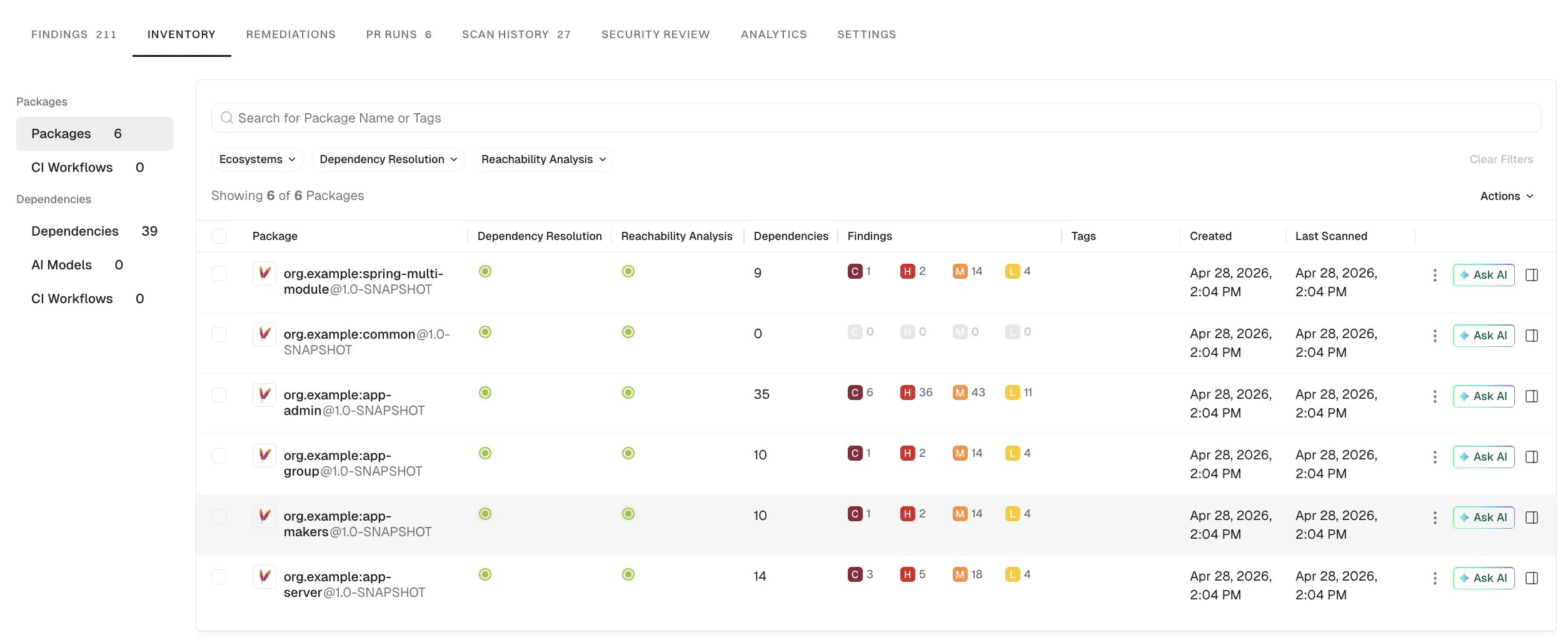 Each row shows:
* **Package Name**: The name of the package, with the package manager icon.
* **Dependency Resolution**: Status icon showing whether dependency resolution succeeded.
* **Reachability Analysis**: Status icon showing whether call graph generation succeeded.
* **Dependencies**: The number of dependencies in the package.
* **Findings**: The number of findings associated with the package.
* **Created**: The date and time when Endor Labs first discovered the package.
* **Last Scanned**: The date and time of the most recent scan.
The following table describes the **Dependency Resolution** status icons.
| Status | Description |
| ----------------------------------------- | ---------------------------------- |
| ▲ | Error during manifest scan |
| ◐ | Error during dependency resolution |
| ● | Dependency resolution succeeded |
The following table describes the **Reachability Analysis** status icons.
| Status | Description |
| ----------------------------------------- | ------------------------------------------------------ |
| ▲ | Error during call graph generation |
| ● | Call graph generation succeeded |
| ■ | Call graph generation isn't supported or isn't enabled |
Select a package to open its detail view, where you can review its dependencies, findings, and Endor Scores. See [Dependencies](/inventory-insights/dependencies) to learn how dependency details and scores work.
For C and C++ packages, you can visualize the source files where each dependency was identified during scanning. See [View dependency file locations](/scan/sca/c#view-dependency-file-locations) to explore the file paths Endor Labs detected.
## Filter packages
Use filters to narrow the package list to a specific ecosystem or status.
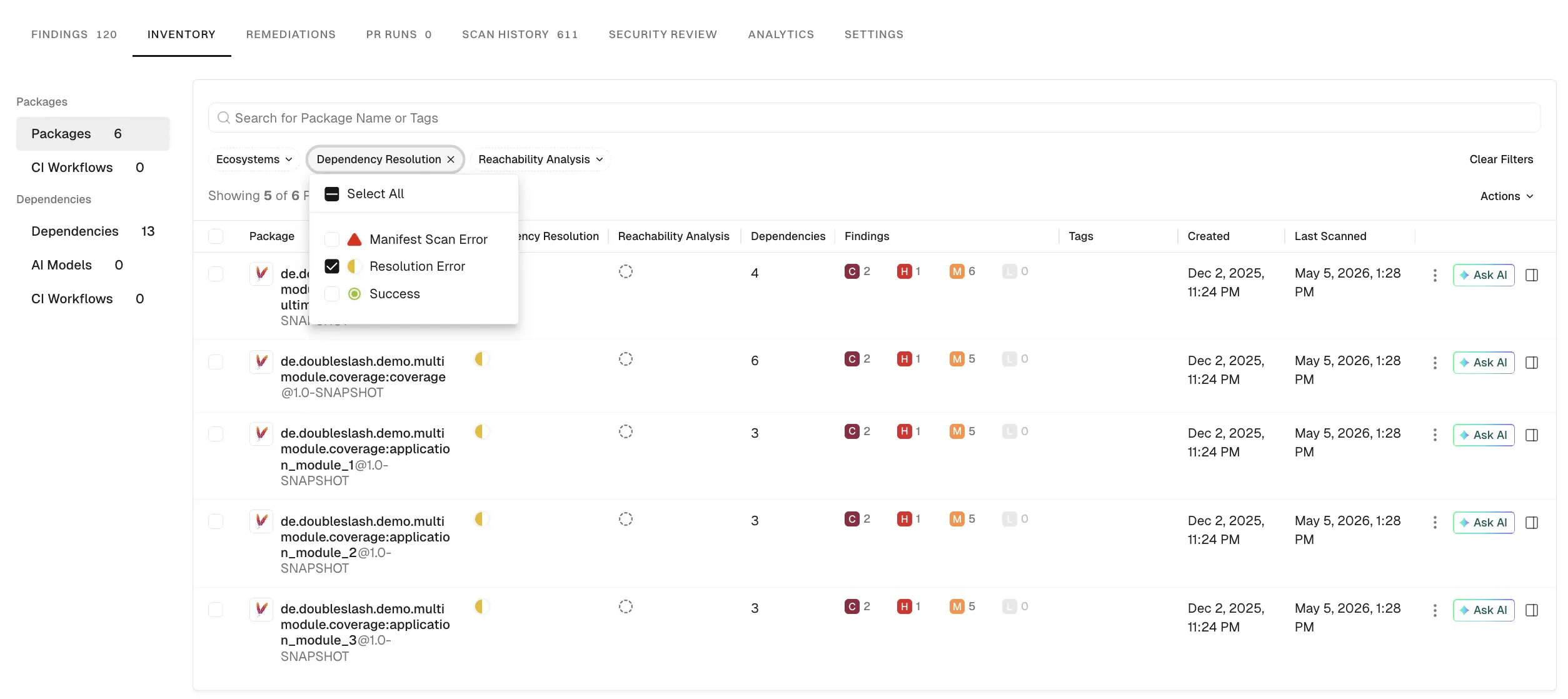
On the **Packages** page, apply the **Ecosystem**, **Dependency Resolution**, or **Reachability Analysis** filter to narrow the results. To sort, click the **Package**, **Created**, or **Last Scanned** column header. The sort order toggles between ascending and descending each time you click.
Each row shows:
* **Package Name**: The name of the package, with the package manager icon.
* **Dependency Resolution**: Status icon showing whether dependency resolution succeeded.
* **Reachability Analysis**: Status icon showing whether call graph generation succeeded.
* **Dependencies**: The number of dependencies in the package.
* **Findings**: The number of findings associated with the package.
* **Created**: The date and time when Endor Labs first discovered the package.
* **Last Scanned**: The date and time of the most recent scan.
The following table describes the **Dependency Resolution** status icons.
| Status | Description |
| ----------------------------------------- | ---------------------------------- |
| ▲ | Error during manifest scan |
| ◐ | Error during dependency resolution |
| ● | Dependency resolution succeeded |
The following table describes the **Reachability Analysis** status icons.
| Status | Description |
| ----------------------------------------- | ------------------------------------------------------ |
| ▲ | Error during call graph generation |
| ● | Call graph generation succeeded |
| ■ | Call graph generation isn't supported or isn't enabled |
Select a package to open its detail view, where you can review its dependencies, findings, and Endor Scores. See [Dependencies](/inventory-insights/dependencies) to learn how dependency details and scores work.
For C and C++ packages, you can visualize the source files where each dependency was identified during scanning. See [View dependency file locations](/scan/sca/c#view-dependency-file-locations) to explore the file paths Endor Labs detected.
## Filter packages
Use filters to narrow the package list to a specific ecosystem or status.
On the **Packages** page, apply the **Ecosystem**, **Dependency Resolution**, or **Reachability Analysis** filter to narrow the results. To sort, click the **Package**, **Created**, or **Last Scanned** column header. The sort order toggles between ascending and descending each time you click.
 ## Delete a package
Delete packages you no longer need from your project inventory. Deleting a package also removes every finding associated with it.
1. On the **Packages** page, select the vertical three dots in the package row, then select **Delete**.
2. Click **Delete** to confirm.
## Delete a package
Delete packages you no longer need from your project inventory. Deleting a package also removes every finding associated with it.
1. On the **Packages** page, select the vertical three dots in the package row, then select **Delete**.
2. Click **Delete** to confirm.
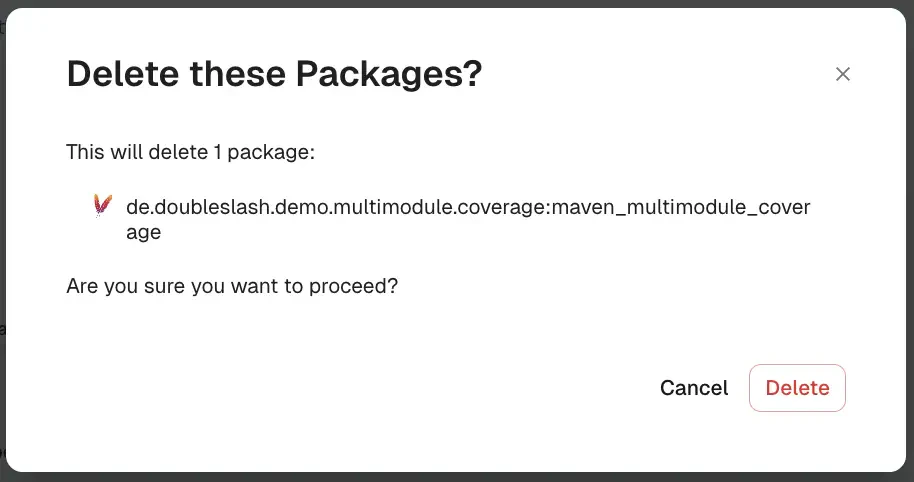 Deleting a package removes its findings from the project. This action can't be undone.