> ## Documentation Index
> Fetch the complete documentation index at: https://docs.endorlabs.com/llms.txt
> Use this file to discover all available pages before exploring further.
# Dependencies
> Explore the third-party packages your projects consume, with reachability, Endor Scores, and risk context.
Dependencies are the third-party packages your projects pull in to deliver functionality. Endor Labs inventories every dependency it discovers across your tenant, scores each one, and tracks whether your code actually reaches it. Use the Dependencies page to assess supply chain risk, prioritize remediation, and understand how a dependency entered your environment.
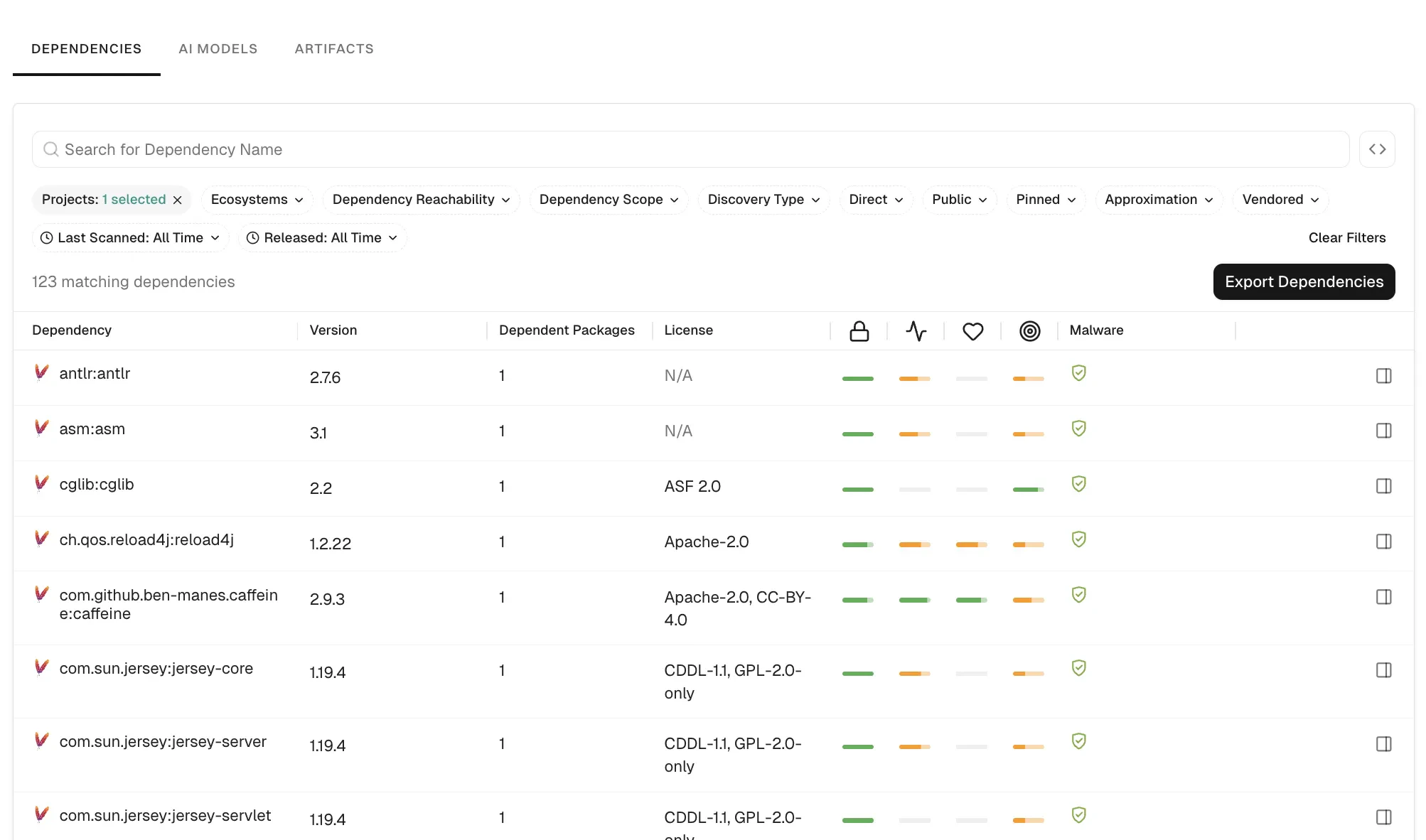
Select **Inventory** > **Dependencies** from the left sidebar to view every dependency in your namespace and its child namespaces, along with Endor Scores and malware status.
 ## Direct and transitive dependencies
Endor Labs classifies each dependency by how it enters your project.
* **Direct dependencies**: Packages a developer explicitly declares in a manifest, such as `pom.xml` or `package.json`.
* **Transitive dependencies**: Packages that enter the project indirectly through a direct dependency. Most projects have far more transitive than direct dependencies, and most supply chain vulnerabilities live in the transitive set.
The **Is Direct** on the dependency list shows the type of dependency.
## Reachability states
Reachability tells you whether your code actually exercises a dependency. Endor Labs uses static analysis and call graph generation to assign one of three states.
* **Reachable**: Endor Labs traced a call path from your code to a function in the dependency. Findings on reachable dependencies are the highest priority for remediation.
* **Unreachable**: Endor Labs found no call path from your code to the dependency. Findings here are typically lower priority.
* **Potentially reachable**: Call graph analysis isn't available for the dependency's language or package manager, or analysis failed. Endor Labs can't confirm reachability either way.
See [reachability analysis](/scan/sca/reachability-analysis) to learn how Endor Labs computes these states for each supported language.
## Endor Scores
Endor Labs assigns four scores to each open source dependency so you can judge supply chain risk at a glance.
* **Quality**: Reflects code health signals such as documentation, testing, and maintenance practices.
* **Activity**: Reflects how actively the project is maintained, including release cadence and contributor activity.
* **Security**: Reflects the dependency's vulnerability history and security posture.
* **Popularity**: Reflects adoption signals such as downloads, stars, and dependent counts.
Each score is the average of its underlying signals. Click any score in the sidebar or detail view to open the scorecard for that score and inspect the contributing signals. See [Endor scores](/scan/sca/scores) to learn the full methodology and signal definitions.
## Dependency metadata
Each dependency carries metadata that helps you judge risk and plan upgrades.
* **Type**: Direct or transitive, also shown as **Is Direct** in the list.
* **Visibility**: Public when the dependency is publicly available, private when it comes from a private package.
* **Source Available**: Whether the dependency's source code is auditable and linked to the package metadata. Endor Labs doesn't generate a scorecard when source isn't available.
* **Dependent Packages**: The number of packages in the same project that rely on the dependency.
* **Dependency Paths**: How a version enters a package. Use this to gauge the effort to upgrade a dependency and how deeply embedded it is in your ecosystem.
* **Dependency Specification**: The import metadata captured for a direct dependency, such as whether it's scoped to tests only.
The dependency list shows the core fields. Open a dependency to see the full set in the sidebar and detail view.
## Search and filter dependencies
Filter dependencies to search, prioritize, and manage dependencies across your organization. You can filter dependencies by providing a filter criteria in the following way:
1. Select **Inventory** > **Dependencies** from the left sidebar.
2. Filter your dependencies using the list of available filters in the filter bar.
3. Toggle the **Advanced** option in the filter bar to apply API-style filters.
## Direct and transitive dependencies
Endor Labs classifies each dependency by how it enters your project.
* **Direct dependencies**: Packages a developer explicitly declares in a manifest, such as `pom.xml` or `package.json`.
* **Transitive dependencies**: Packages that enter the project indirectly through a direct dependency. Most projects have far more transitive than direct dependencies, and most supply chain vulnerabilities live in the transitive set.
The **Is Direct** on the dependency list shows the type of dependency.
## Reachability states
Reachability tells you whether your code actually exercises a dependency. Endor Labs uses static analysis and call graph generation to assign one of three states.
* **Reachable**: Endor Labs traced a call path from your code to a function in the dependency. Findings on reachable dependencies are the highest priority for remediation.
* **Unreachable**: Endor Labs found no call path from your code to the dependency. Findings here are typically lower priority.
* **Potentially reachable**: Call graph analysis isn't available for the dependency's language or package manager, or analysis failed. Endor Labs can't confirm reachability either way.
See [reachability analysis](/scan/sca/reachability-analysis) to learn how Endor Labs computes these states for each supported language.
## Endor Scores
Endor Labs assigns four scores to each open source dependency so you can judge supply chain risk at a glance.
* **Quality**: Reflects code health signals such as documentation, testing, and maintenance practices.
* **Activity**: Reflects how actively the project is maintained, including release cadence and contributor activity.
* **Security**: Reflects the dependency's vulnerability history and security posture.
* **Popularity**: Reflects adoption signals such as downloads, stars, and dependent counts.
Each score is the average of its underlying signals. Click any score in the sidebar or detail view to open the scorecard for that score and inspect the contributing signals. See [Endor scores](/scan/sca/scores) to learn the full methodology and signal definitions.
## Dependency metadata
Each dependency carries metadata that helps you judge risk and plan upgrades.
* **Type**: Direct or transitive, also shown as **Is Direct** in the list.
* **Visibility**: Public when the dependency is publicly available, private when it comes from a private package.
* **Source Available**: Whether the dependency's source code is auditable and linked to the package metadata. Endor Labs doesn't generate a scorecard when source isn't available.
* **Dependent Packages**: The number of packages in the same project that rely on the dependency.
* **Dependency Paths**: How a version enters a package. Use this to gauge the effort to upgrade a dependency and how deeply embedded it is in your ecosystem.
* **Dependency Specification**: The import metadata captured for a direct dependency, such as whether it's scoped to tests only.
The dependency list shows the core fields. Open a dependency to see the full set in the sidebar and detail view.
## Search and filter dependencies
Filter dependencies to search, prioritize, and manage dependencies across your organization. You can filter dependencies by providing a filter criteria in the following way:
1. Select **Inventory** > **Dependencies** from the left sidebar.
2. Filter your dependencies using the list of available filters in the filter bar.
3. Toggle the **Advanced** option in the filter bar to apply API-style filters.
 You can combine multiple filters to create more specific searches and narrow down the dependency list based on multiple criteria.
You can also use **Search Suggestions** to apply common queries with one click. These suggestions help you quickly segment the list for triage, upgrade planning, or ecosystem-specific reviews.
See [Dependency filters](/inventory-insights/dependencies/dependency-filters) to learn how to implement these filters effectively.
## View dependency details
Select a row in the dependency list to open the details on the right sidebar. The sidebar summarizes the dependency's metadata, findings, and Endor Scores. To open the full detail view directly, click the dependency's version name in the list.
You can combine multiple filters to create more specific searches and narrow down the dependency list based on multiple criteria.
You can also use **Search Suggestions** to apply common queries with one click. These suggestions help you quickly segment the list for triage, upgrade planning, or ecosystem-specific reviews.
See [Dependency filters](/inventory-insights/dependencies/dependency-filters) to learn how to implement these filters effectively.
## View dependency details
Select a row in the dependency list to open the details on the right sidebar. The sidebar summarizes the dependency's metadata, findings, and Endor Scores. To open the full detail view directly, click the dependency's version name in the list.
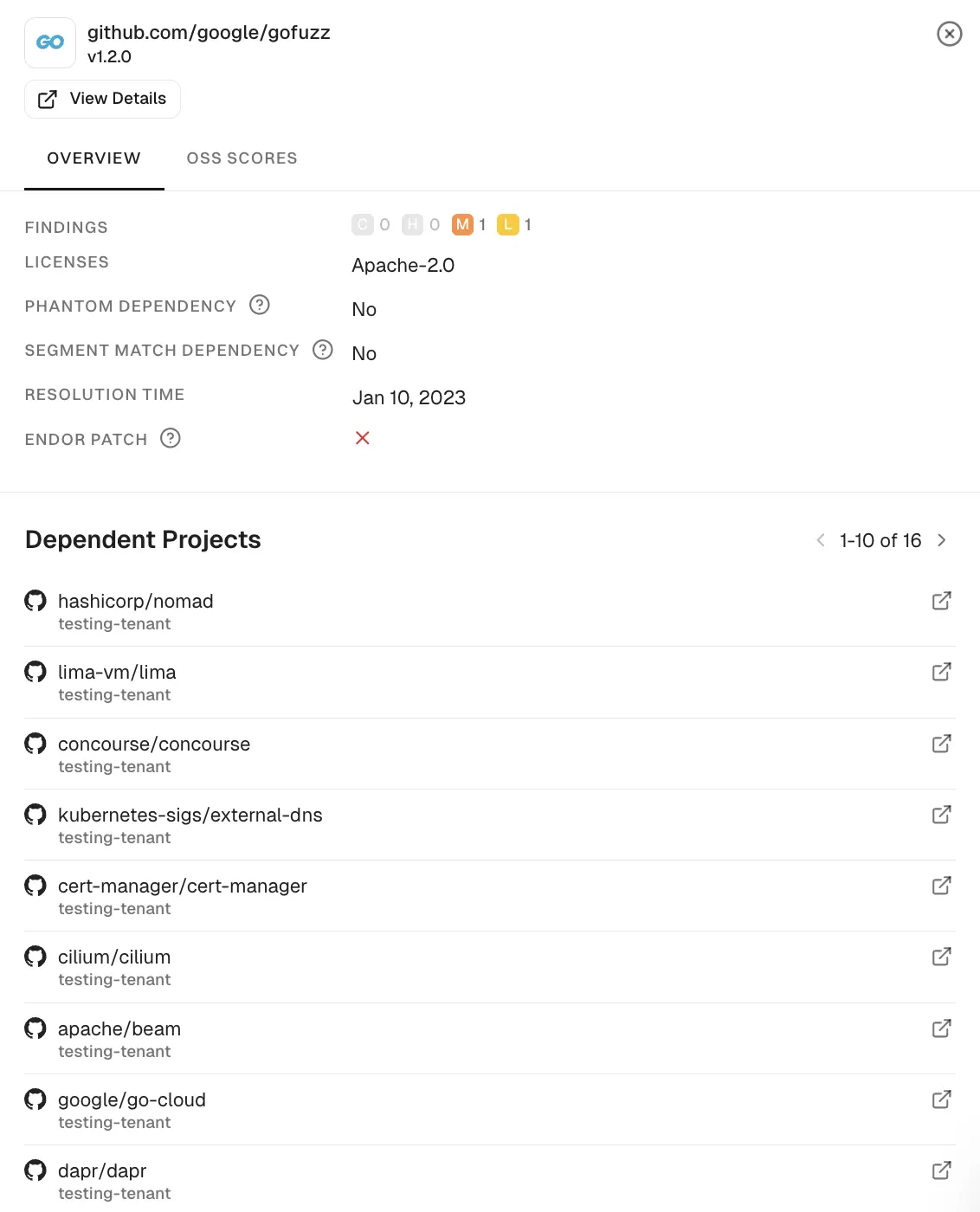 Select **OSS Scores** in the sidebar to see the scorecard for the dependency. The scorecard lists every signal that contributed to each Endor Score.
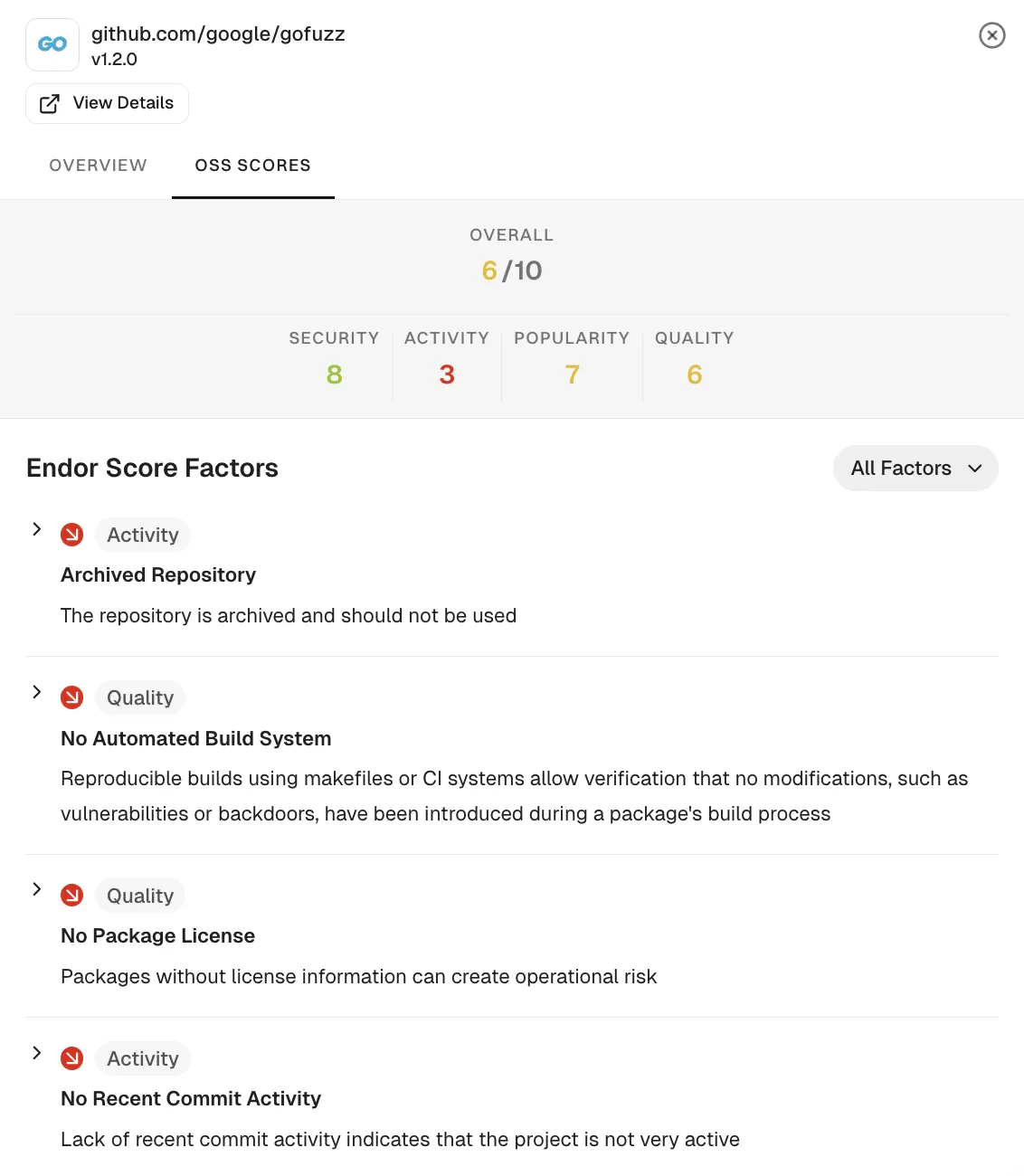 Click **View Details** in the sidebar to open the full detail view for the selected version.
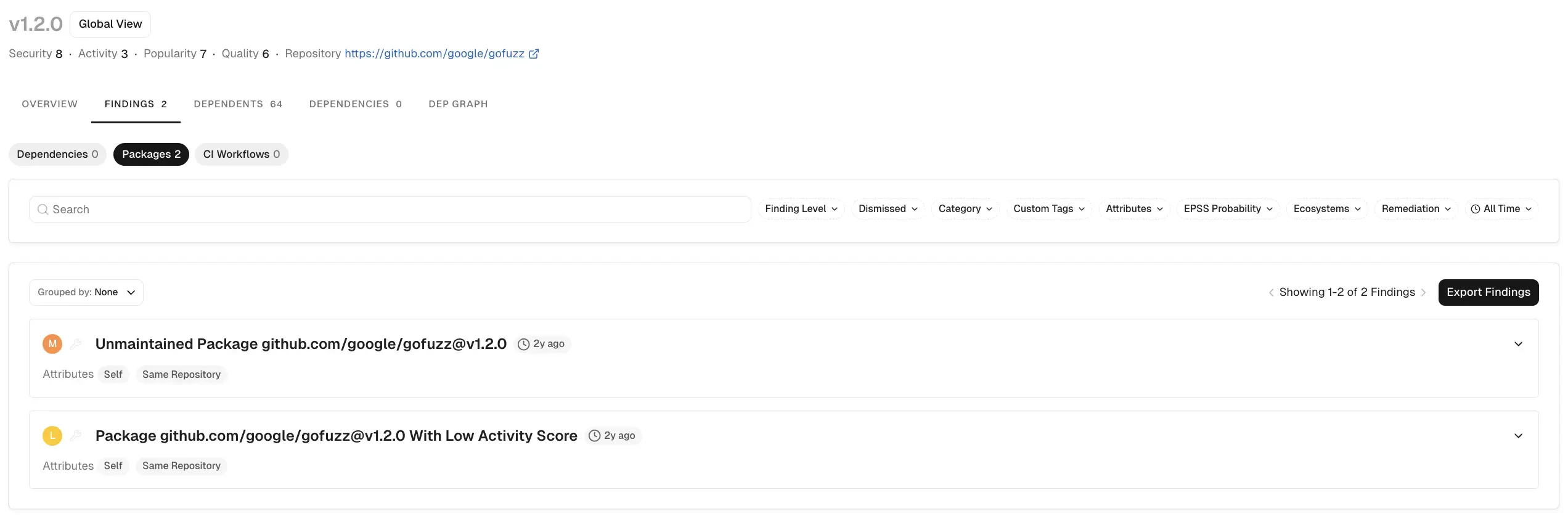 The full detail view includes the following tabs:
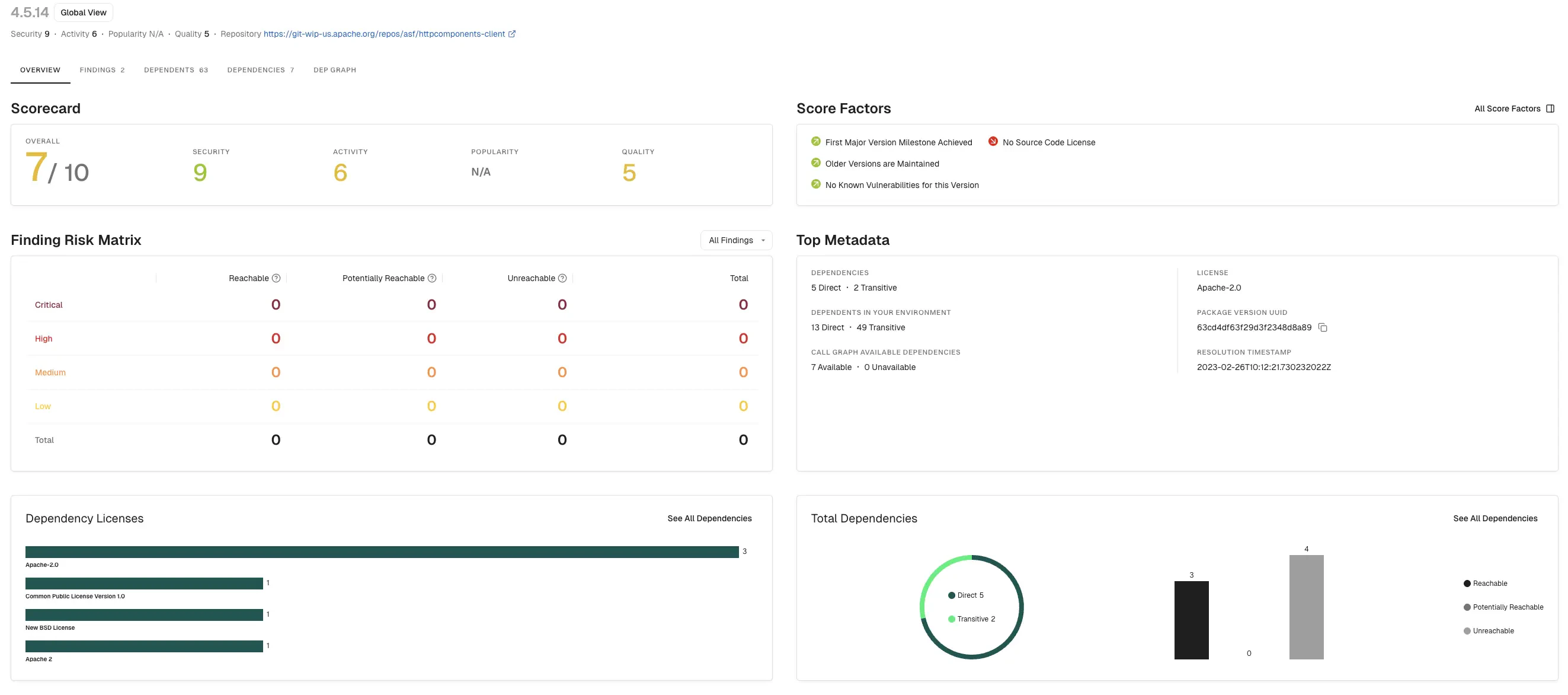
* **Overview**: Summary metadata for the dependency version.
The full detail view includes the following tabs:
* **Overview**: Summary metadata for the dependency version.
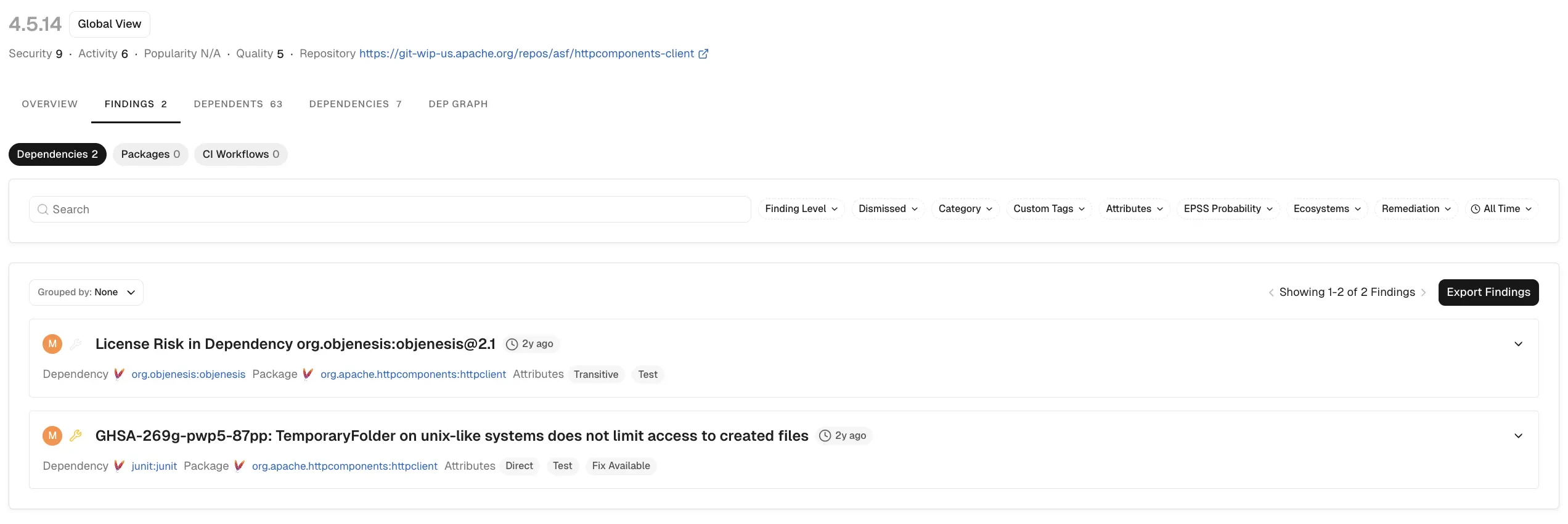
 * **Findings**: Security findings on the dependency. Select **Dependencies** inside **Findings** to see findings inherited from transitive dependencies.
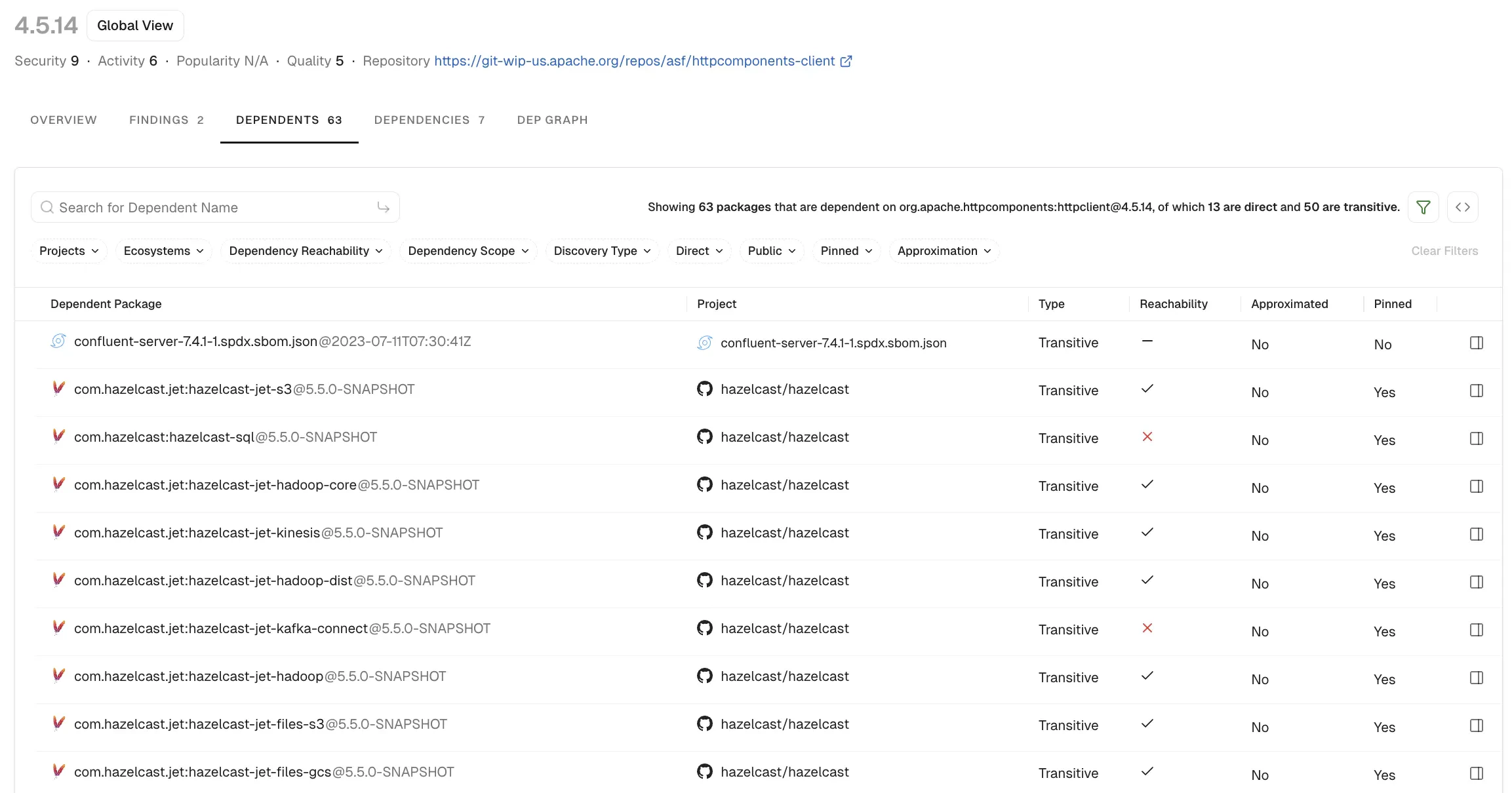
 * **Dependents**: Projects in your tenant that use this dependency version, with the repository each project belongs to. Use this tab to identify affected projects when a vulnerability surfaces or when planning an upgrade across the tenant.
 * **Dependencies**: Other dependencies this version brings in transitively.
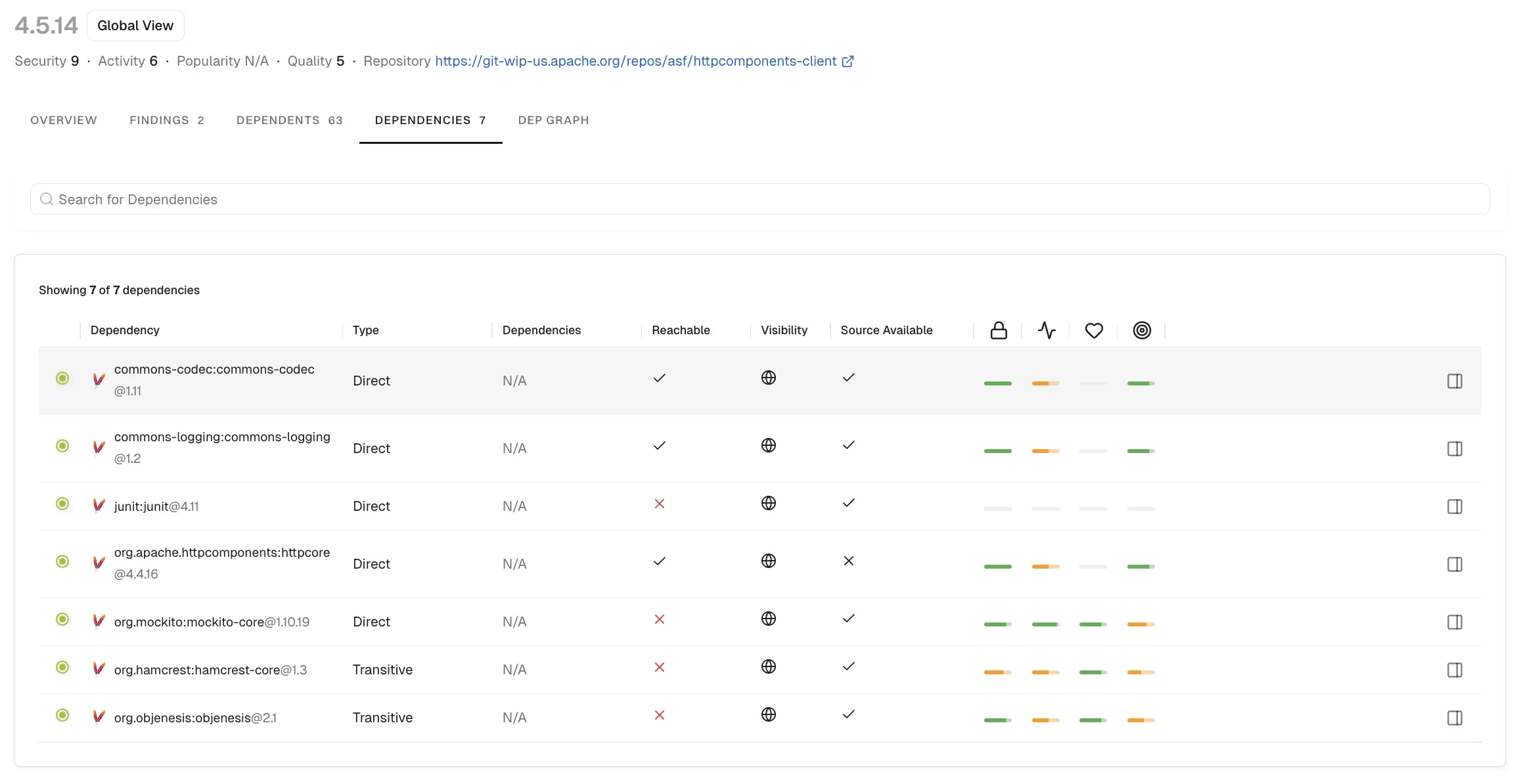 Click **Global View** to see every version of the dependency across your tenant.
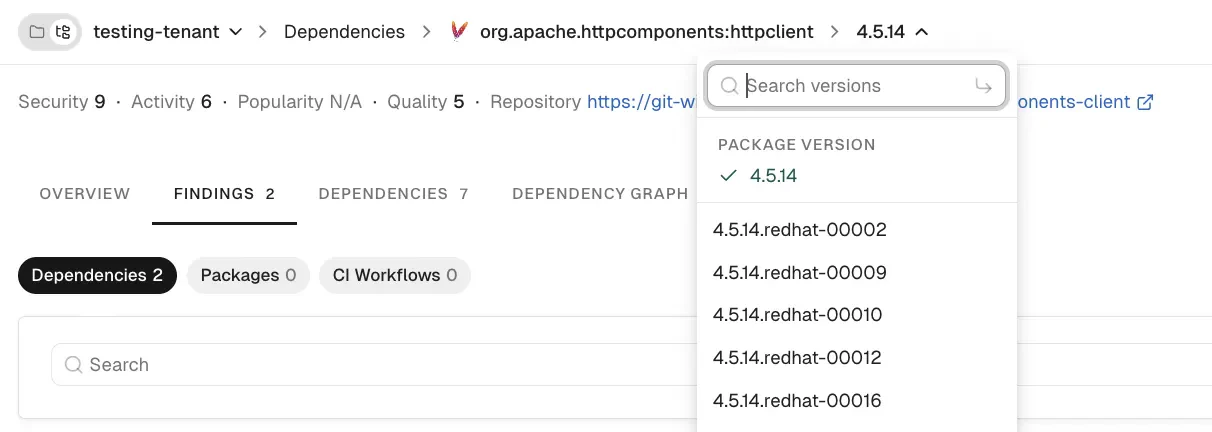
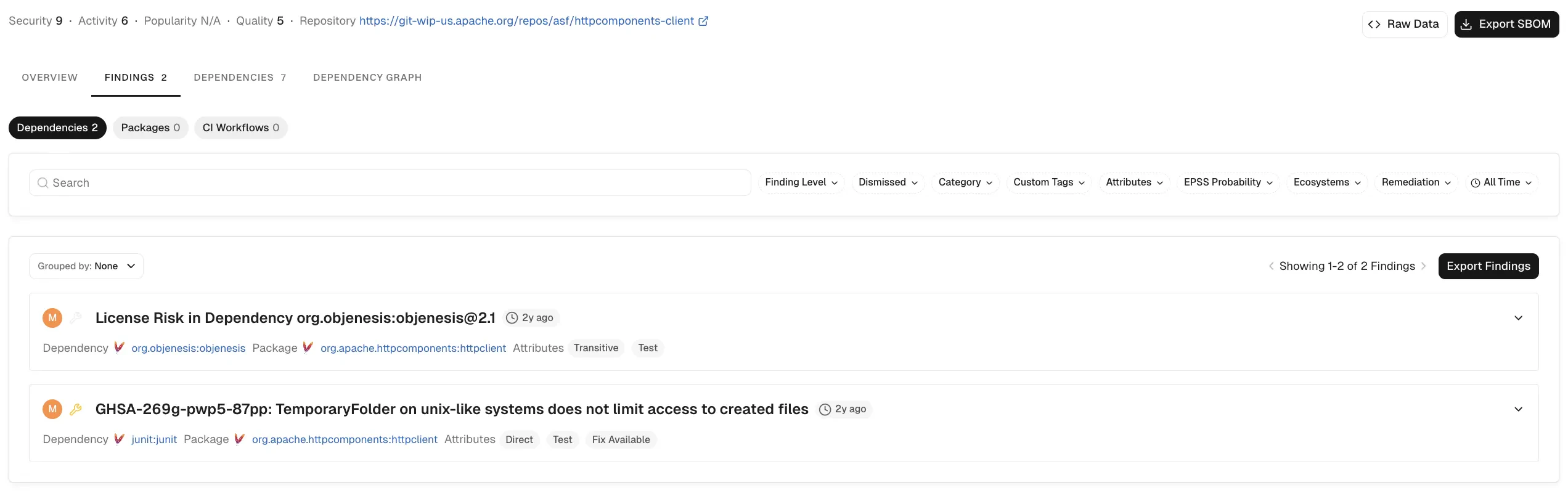 Use the version dropdown to switch versions inside the detail view.
 ## View dependency graph
Select **Dependency Graph** in the full detail view to see how the dependency reaches your code. Use the search bar to locate a specific node in the graph.
## View dependency graph
Select **Dependency Graph** in the full detail view to see how the dependency reaches your code. Use the search bar to locate a specific node in the graph.
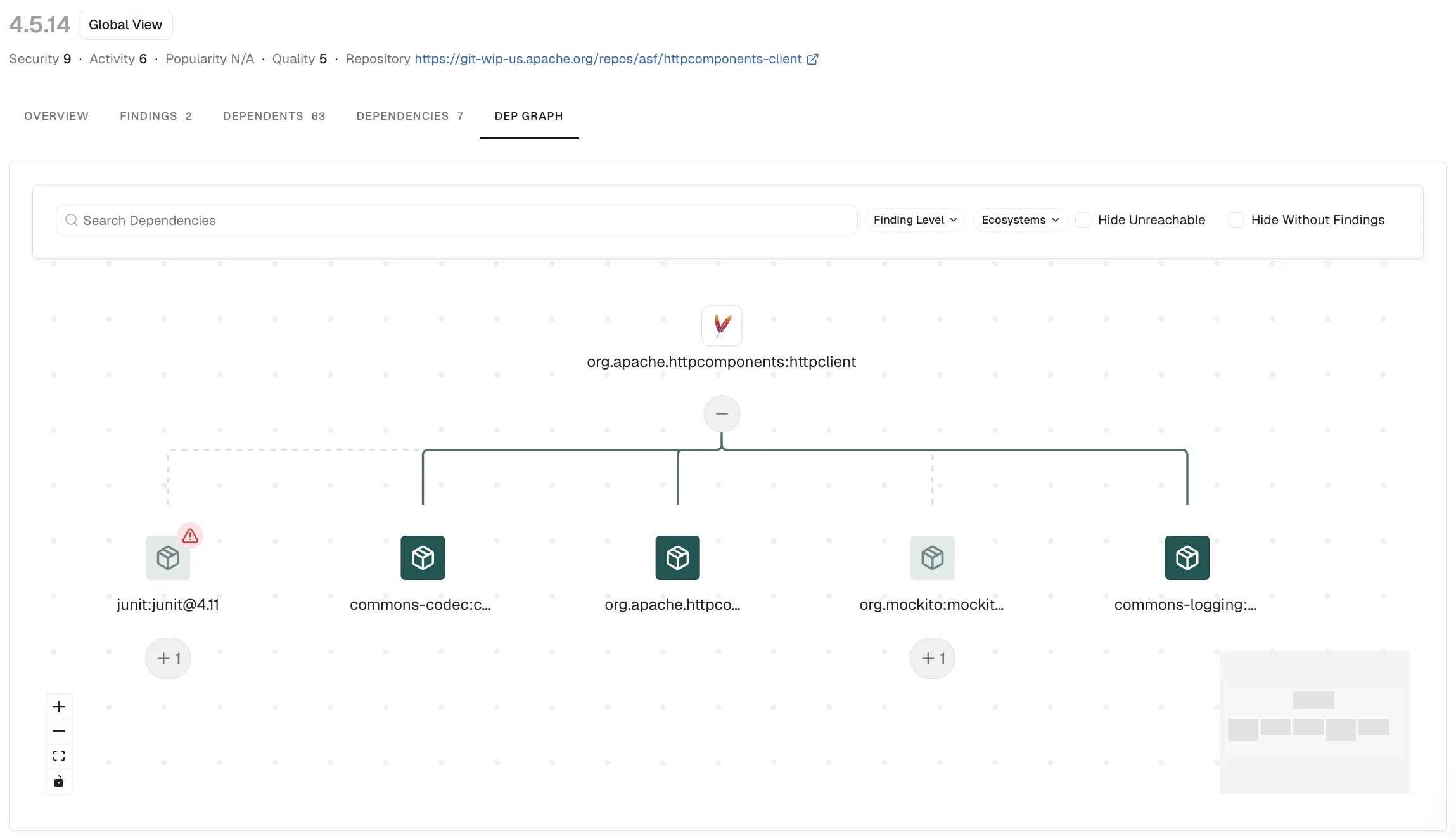 Filter the graph with these controls:
* **Severity filter**: Show only dependencies with findings at the chosen severity, such as Critical, High, Medium, or Low.
* **Ecosystem**: Show only dependencies from one ecosystem, such as Maven, npm, PyPI, Go, or NuGet.
* **Hide Unreachable**: Hide dependencies that aren't reachable from your code.
* **Hide Without Findings**: Hide dependencies that have no security findings.
## Export dependencies
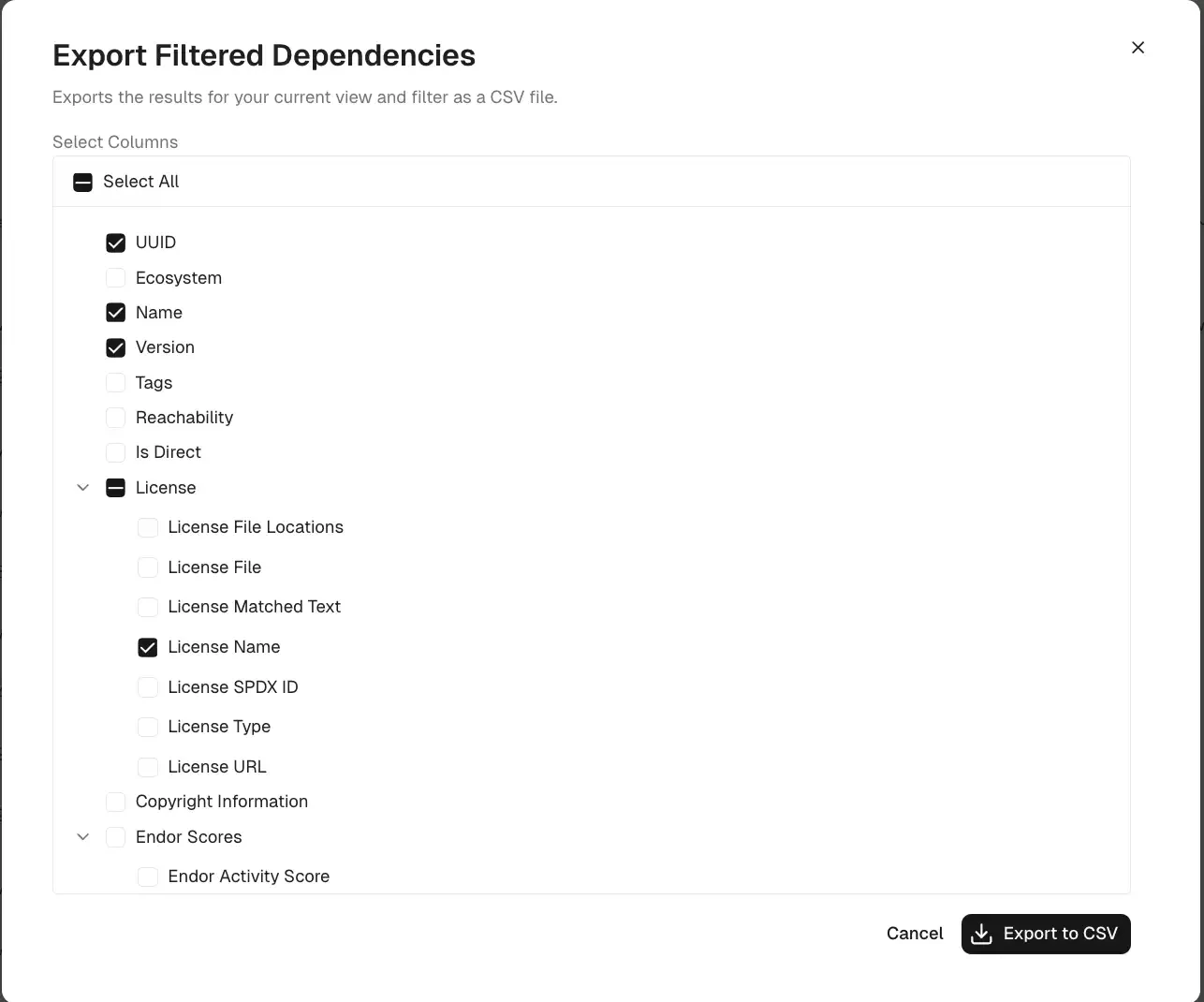
Export filtered dependency lists to a CSV file for offline analysis.
1. Select **Inventory** > **Dependencies** from the left sidebar.
2. Enter search criteria or click **Add Filter** to narrow the list.
3. Click **Export Dependencies** and choose the columns to include:
* UUID of the project
* Ecosystem, such as Maven, npm, PyPI, Go, or NuGet
* Name of the dependency
* Version of the dependency
* Tags associated with the dependency
* Reachability of the dependency
* **Is Direct**: Whether the dependency is direct or transitive
* License information, including file, name, type, URL, and license text
* Endor Scores: Quality, Activity, Security, and Popularity
* Package version name (fully qualified name of the root package version)
* Package version UUID
* Project name (qualified package name of the root package)
* Project UUID
* **Endor Patch**: Whether an Endor Patch is available for the dependency
Filter the graph with these controls:
* **Severity filter**: Show only dependencies with findings at the chosen severity, such as Critical, High, Medium, or Low.
* **Ecosystem**: Show only dependencies from one ecosystem, such as Maven, npm, PyPI, Go, or NuGet.
* **Hide Unreachable**: Hide dependencies that aren't reachable from your code.
* **Hide Without Findings**: Hide dependencies that have no security findings.
## Export dependencies
Export filtered dependency lists to a CSV file for offline analysis.
1. Select **Inventory** > **Dependencies** from the left sidebar.
2. Enter search criteria or click **Add Filter** to narrow the list.
3. Click **Export Dependencies** and choose the columns to include:
* UUID of the project
* Ecosystem, such as Maven, npm, PyPI, Go, or NuGet
* Name of the dependency
* Version of the dependency
* Tags associated with the dependency
* Reachability of the dependency
* **Is Direct**: Whether the dependency is direct or transitive
* License information, including file, name, type, URL, and license text
* Endor Scores: Quality, Activity, Security, and Popularity
* Package version name (fully qualified name of the root package version)
* Package version UUID
* Project name (qualified package name of the root package)
* Project UUID
* **Endor Patch**: Whether an Endor Patch is available for the dependency